

オンライン診療 curon
操作手順
How to Use curon for Online Consultations

STEP1 新規登録
New Registration
アカウント作成
How to Create an Account
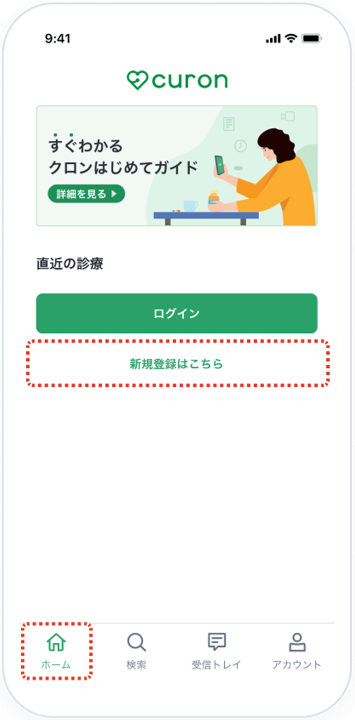 | ■ curonアプリを起動 curonアプリを起動します。 ホーム画面より「新規登録はこちら」をクリック |
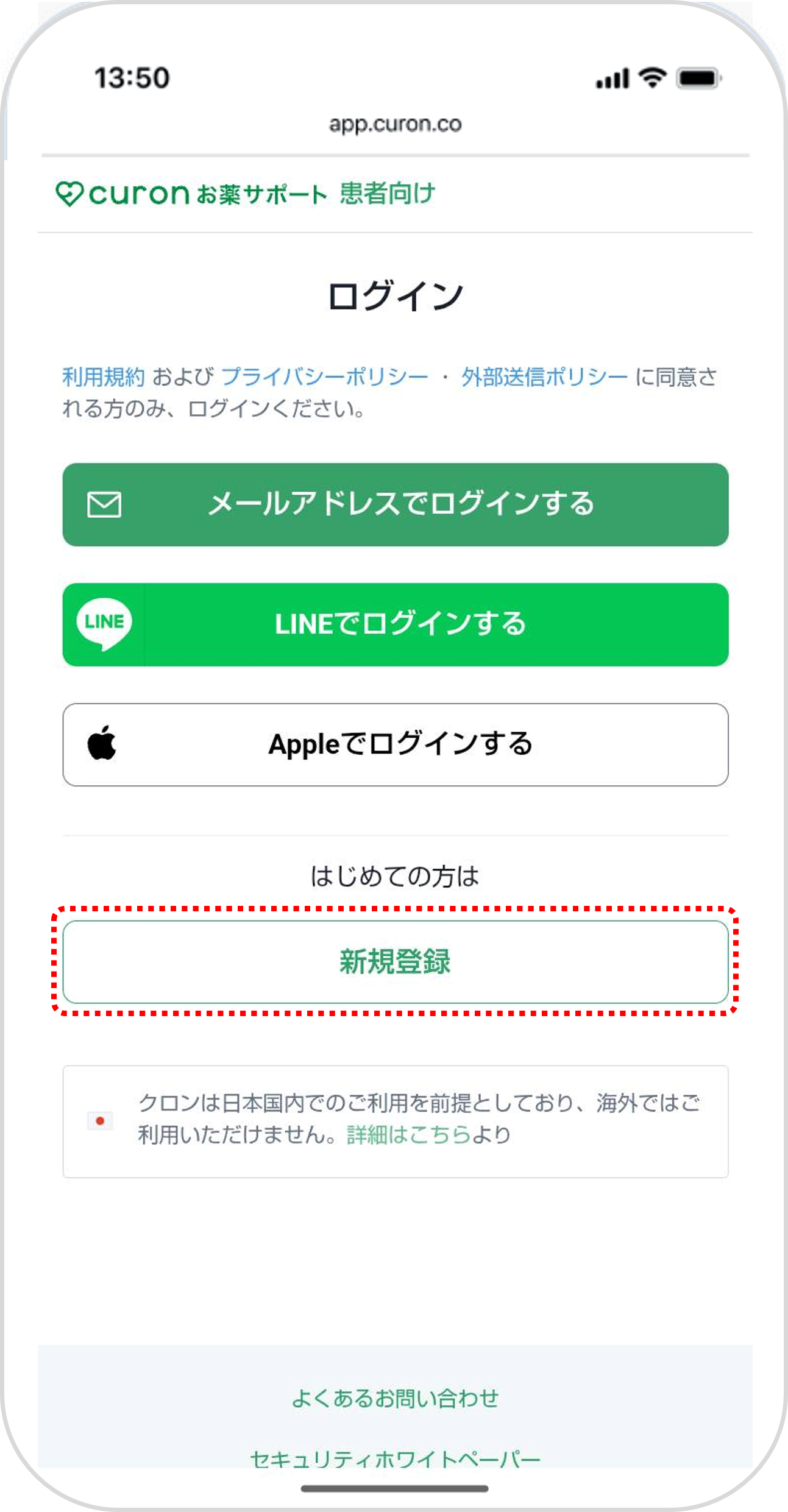 | ■ 新規登録 はじめての方は「新規登録」を選択 |
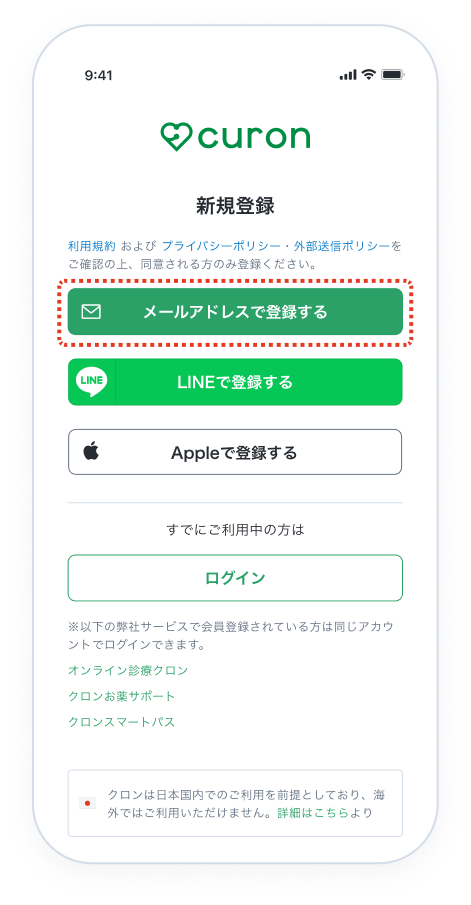 | ■ 登録方法を選択 メールアドレスで登録される方は「メールアドレスで登録する」を選択 ※LINEアカウントまたはApple IDでも登録できます。その場合、パスワードの設定は不要です。 |
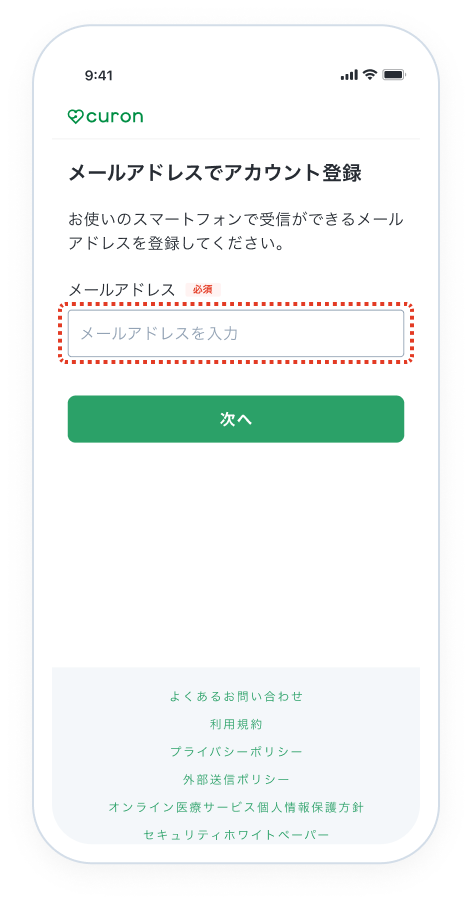 | ■ メールアドレスを入力 お使いのメールアドレスを入力し「次へ」 |
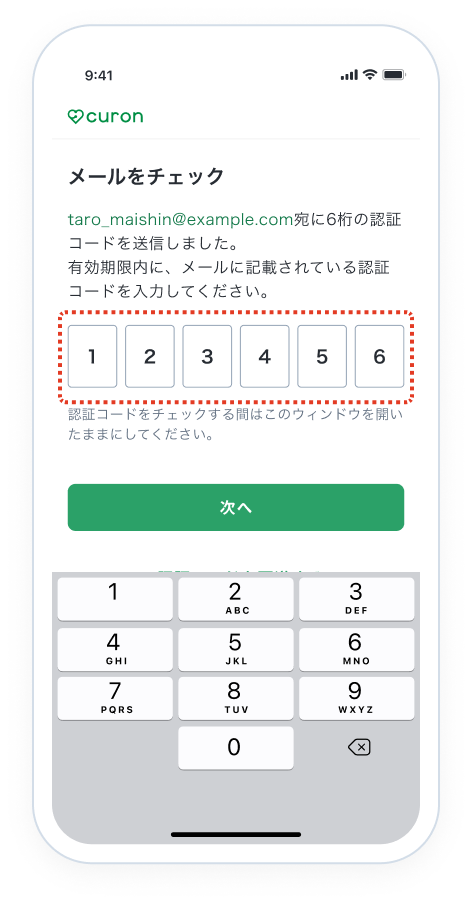 | ■ 認証コードを入力 登録したメールアドレス宛に、6桁の認証コードがメールで届きます。 メールに記載してある数字を登録画面に入力し「次へ」 認証コードを受信できない、またはエラー等により認証できない場合は「認証コードを再送する」より再送してください。 ※ 画像内の認証コードはサンプルです。 |
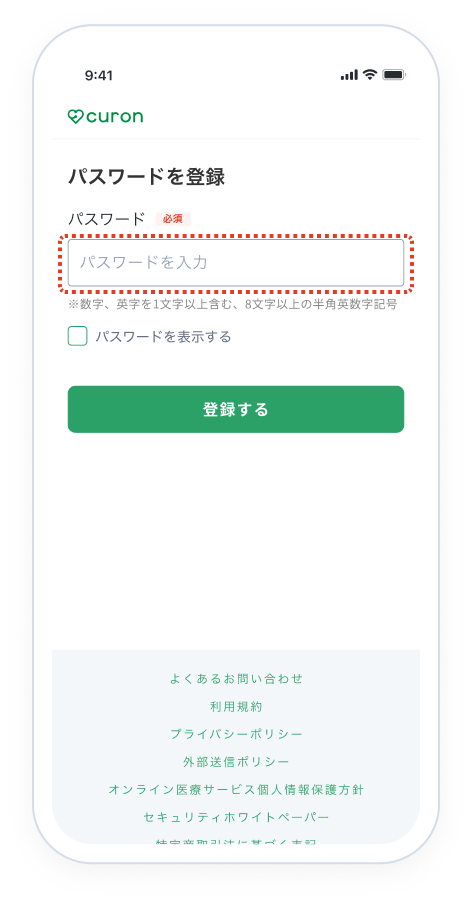 | ■ パスワードを入力 ご自身で決めたパスワード(数字と英字を1文字以上含む、8文字以上の半角英数字記号)を入力し「登録する」 これで登録は完了です。 |
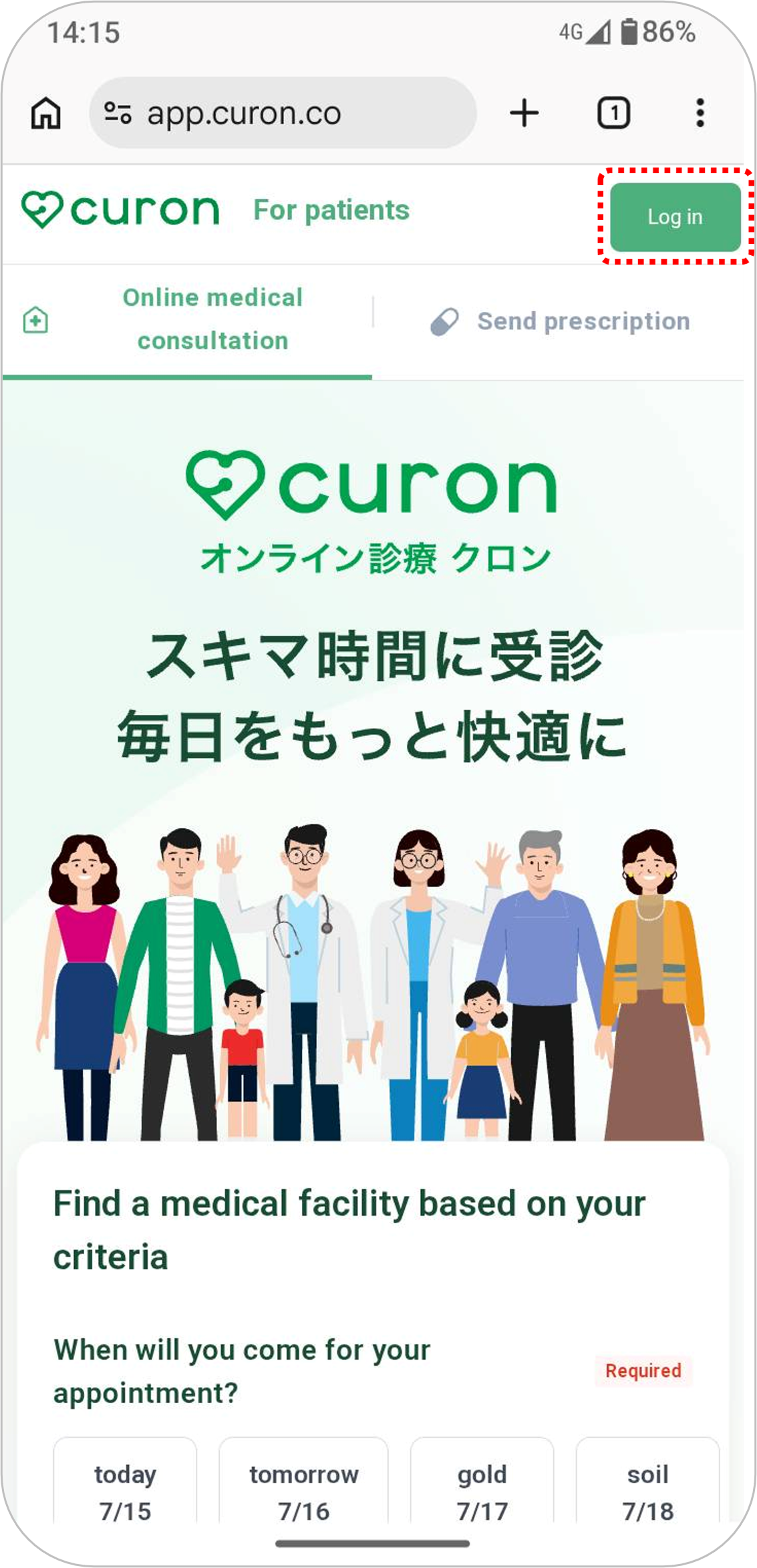 | ■ Accessing the curon website Go to the curon website from your smartphone. Translate web pages using Google Translate. Use the Chrome browser. https://app.curon.co Click "Login." |
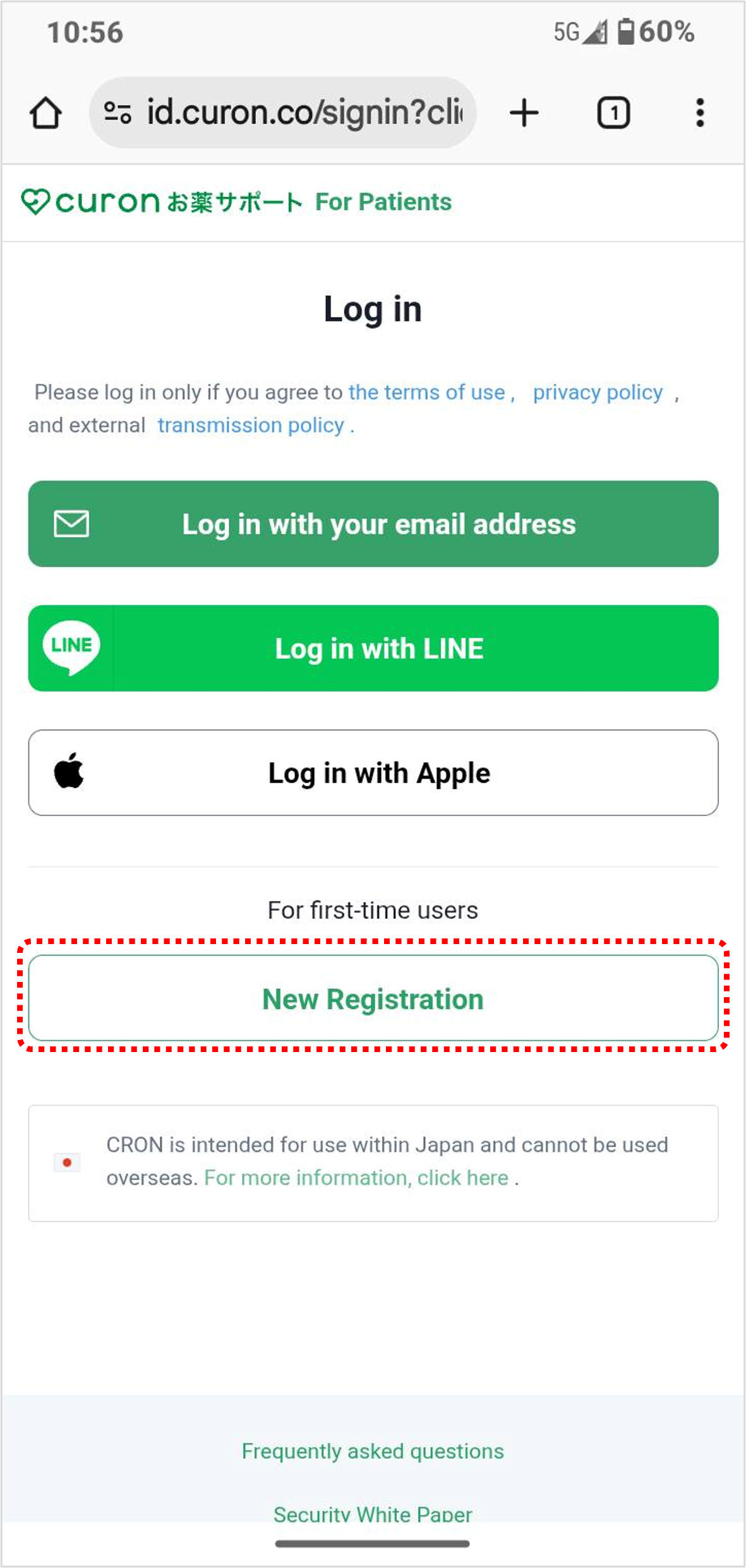 | ■ New Registration Select "New Registration." |
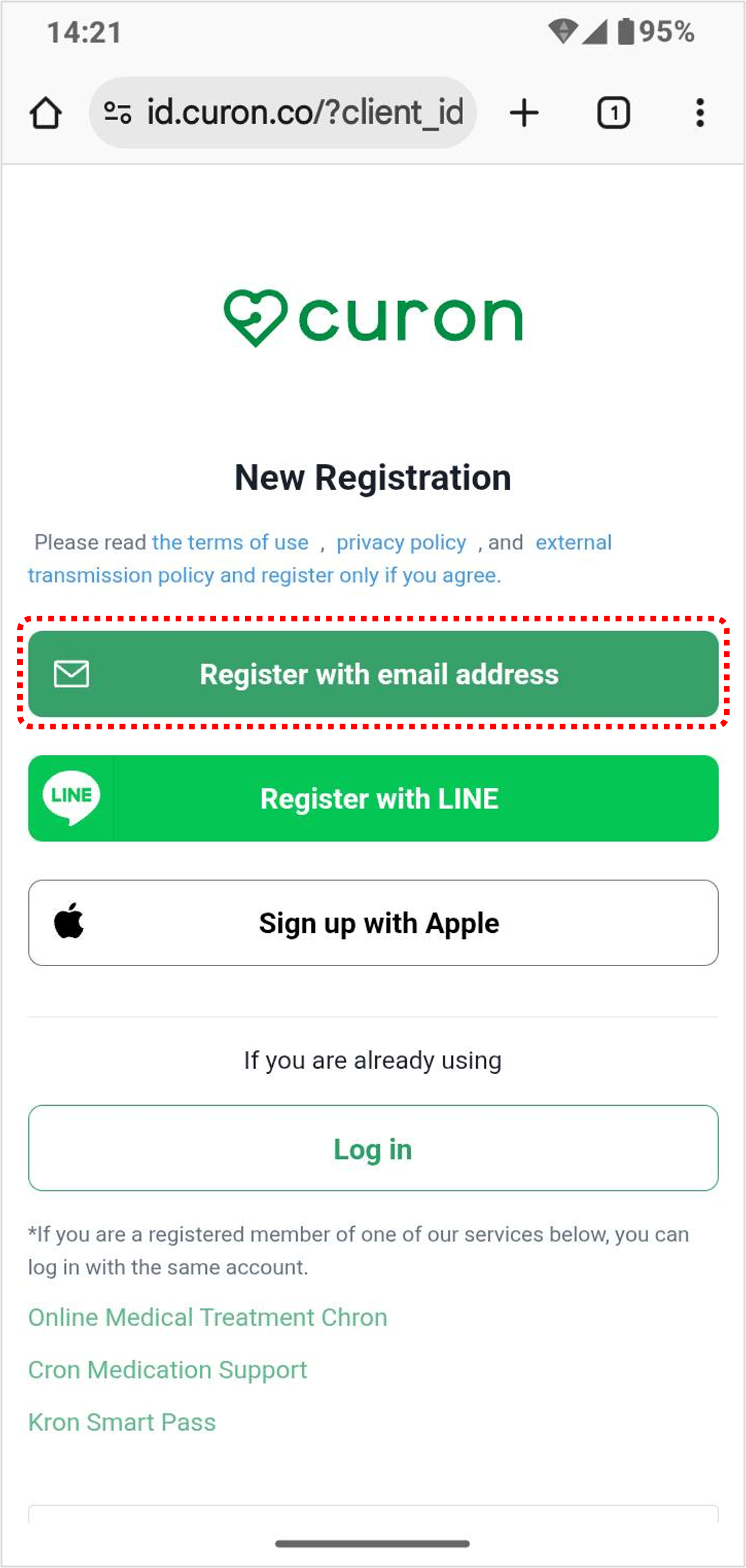 | ■ Select a registration method If you would like to register with an email address, select "Register with email address." *You can also register using your LINE account or Apple ID. No password is required. |
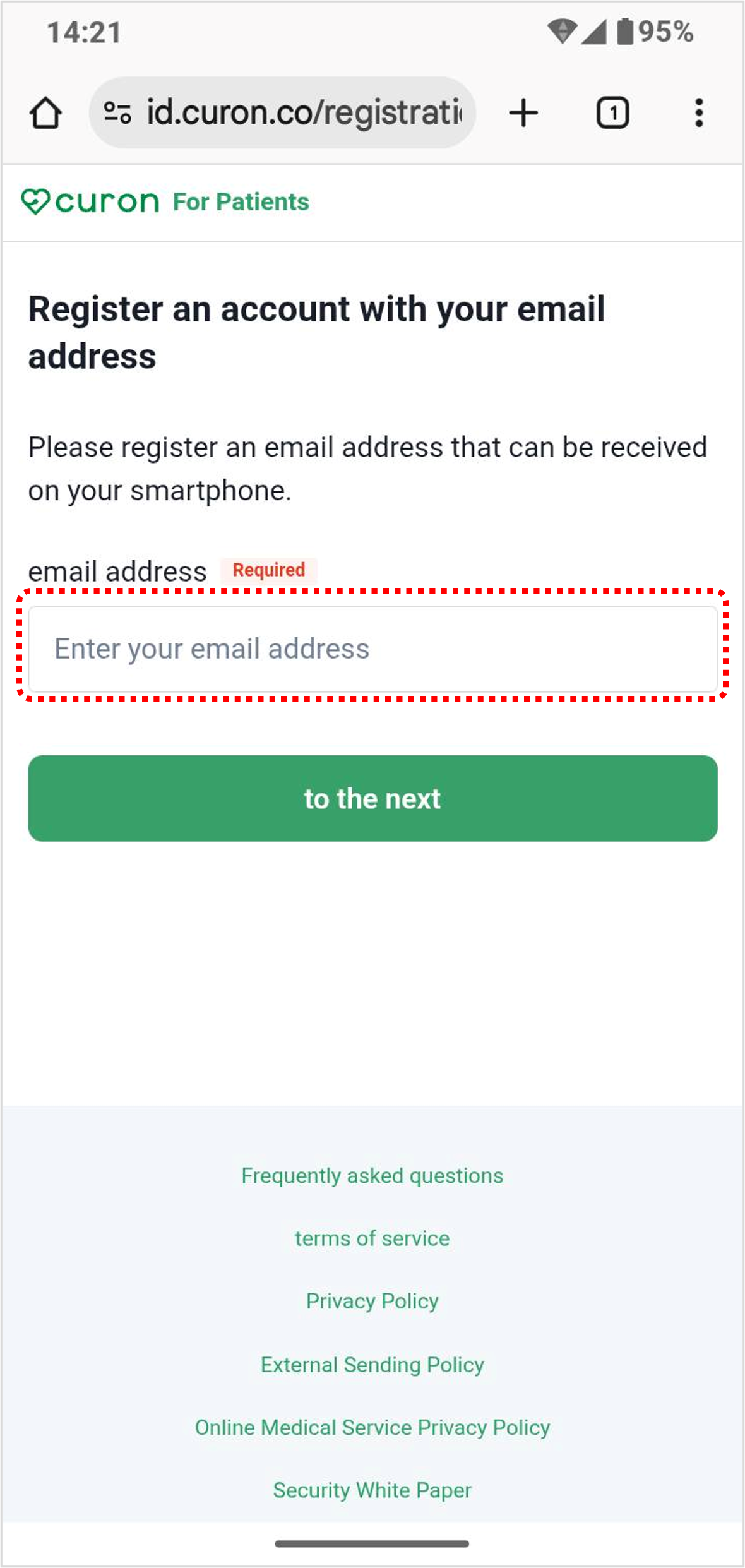 | ■ Enter your email address Enter your email address and click "to the next" |
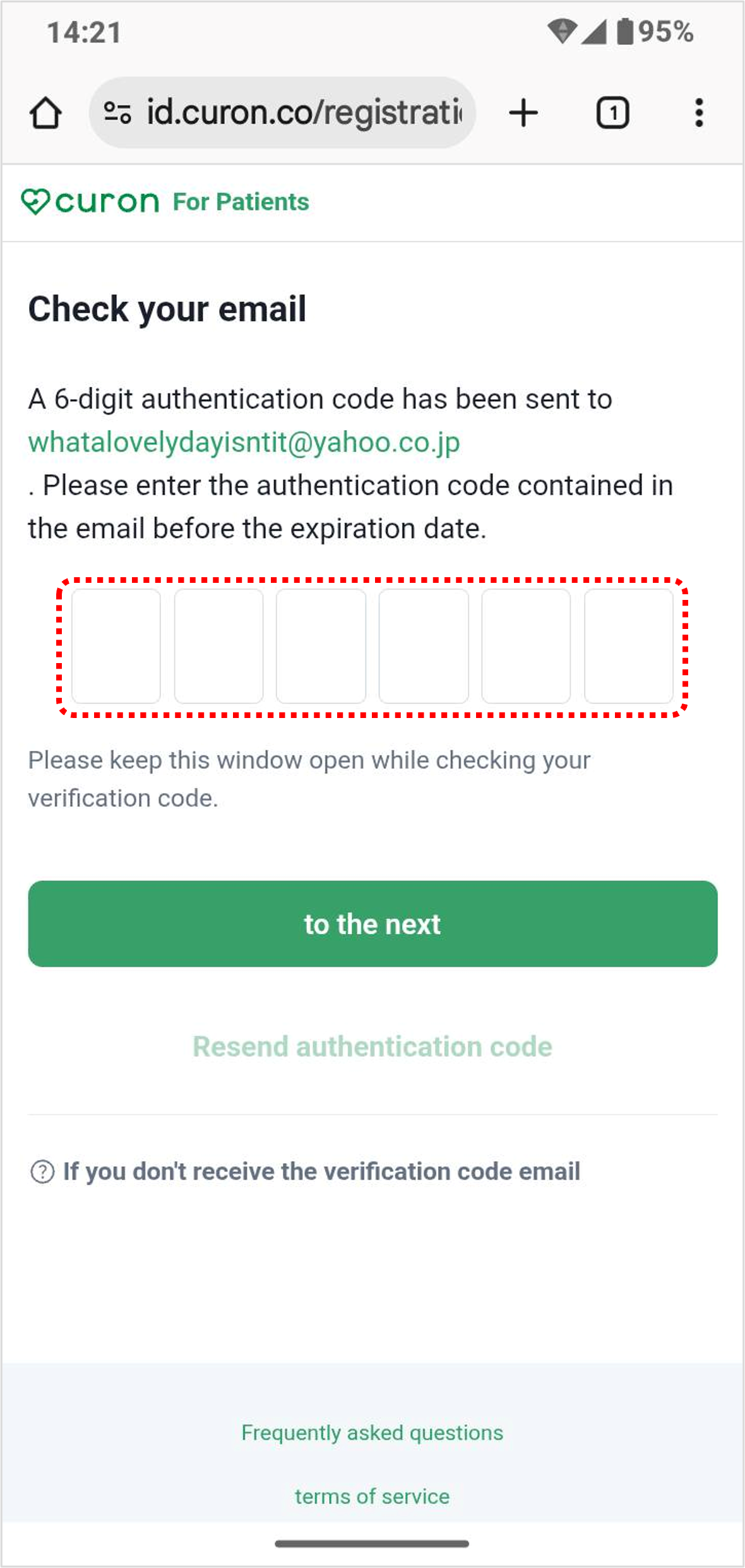 | ■ Enter an authentication code An authentication code (6-digit) will be sent to your registered email address. Enter the authentication code and click "to the next." If you are unable to receive the authentication code or are unable to complete authentication due to an error, please resend it by clicking "Resend authentication code." |
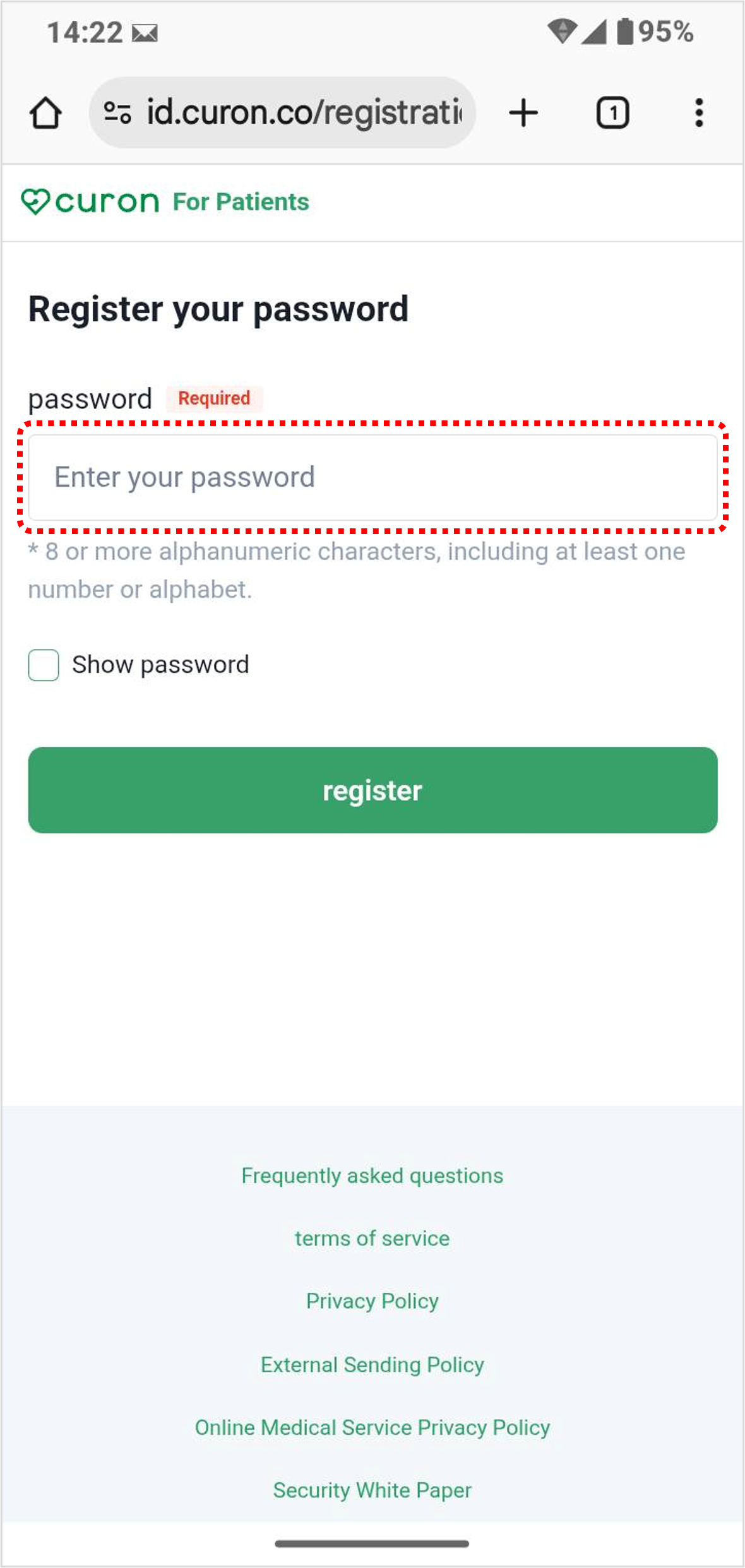 | ■ Enter your password Enter your password (8 or more characters, including at least one number and one alphabet) and click "Register." Registration is complete. |
STEP2 予約
Appointment
予約方法
How to make an appointment
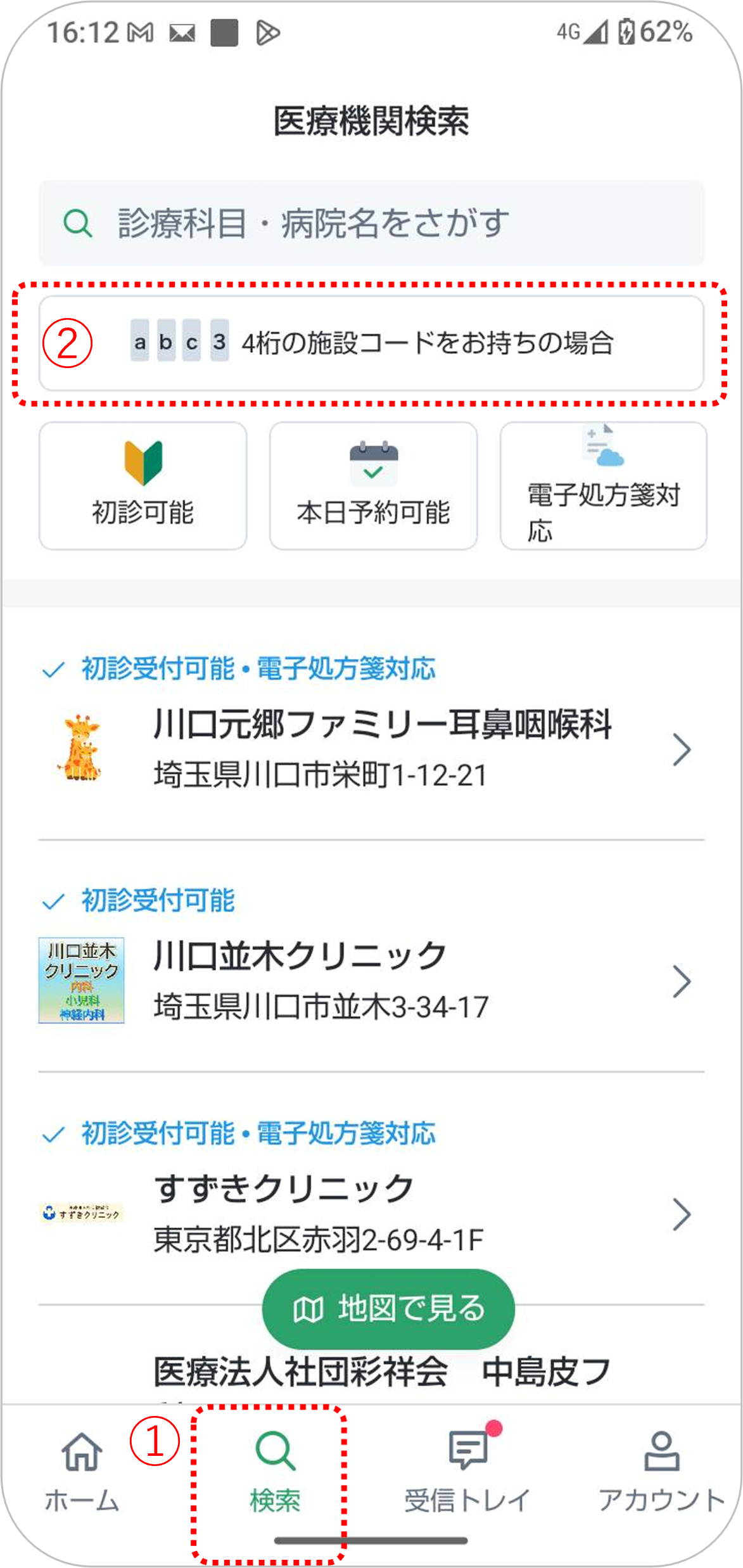 | ■ アプリを起動 curonアプリを起動し、ログイン後、 画面下の「検索」タブ より 「4桁の施設コードをお持ちの場合」をクリック |
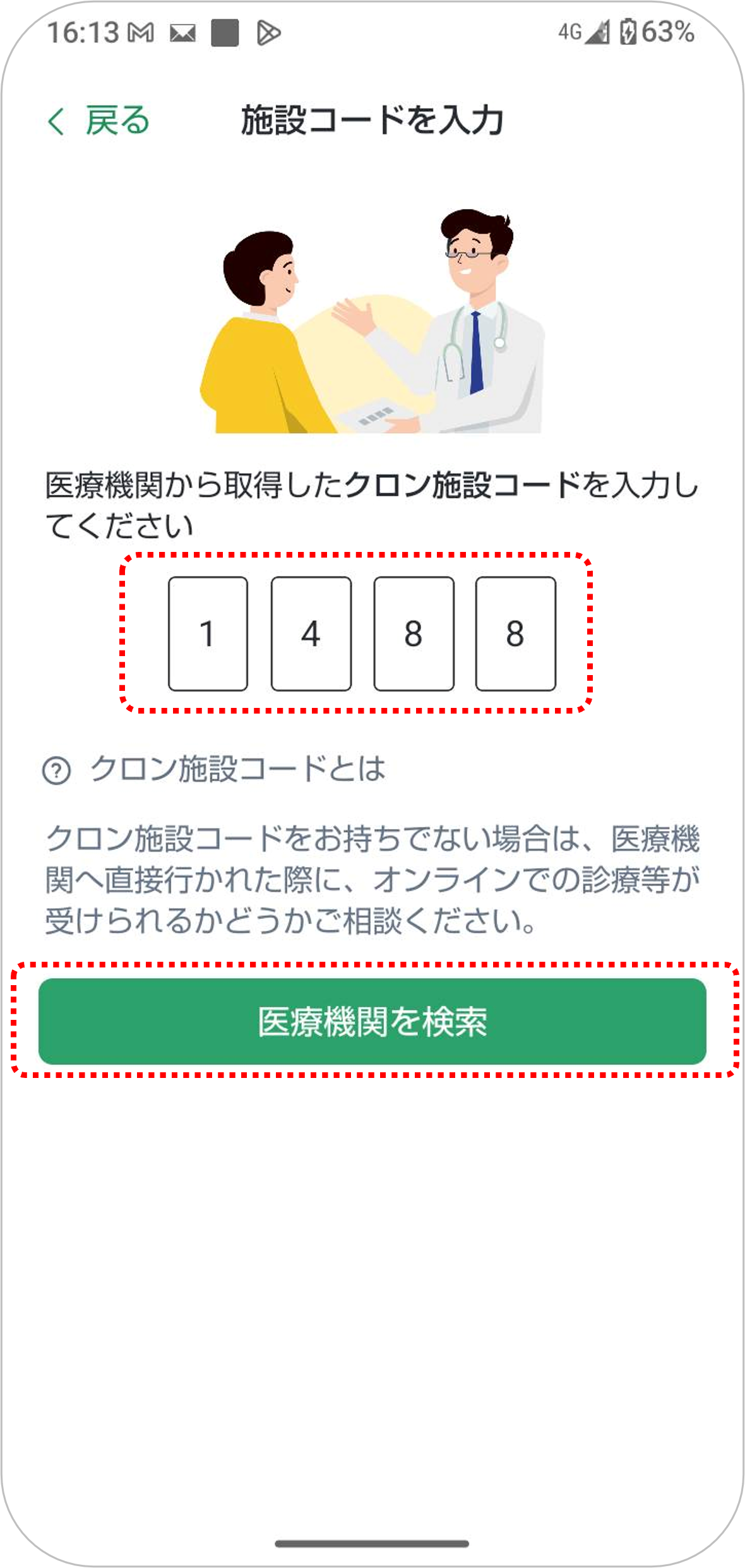 | ■ もちづき内科クリニックを検索 4桁の施設コードを入力します。 もちづき内科クリニック施設コード:1488 → 「医療機関を検索」 |
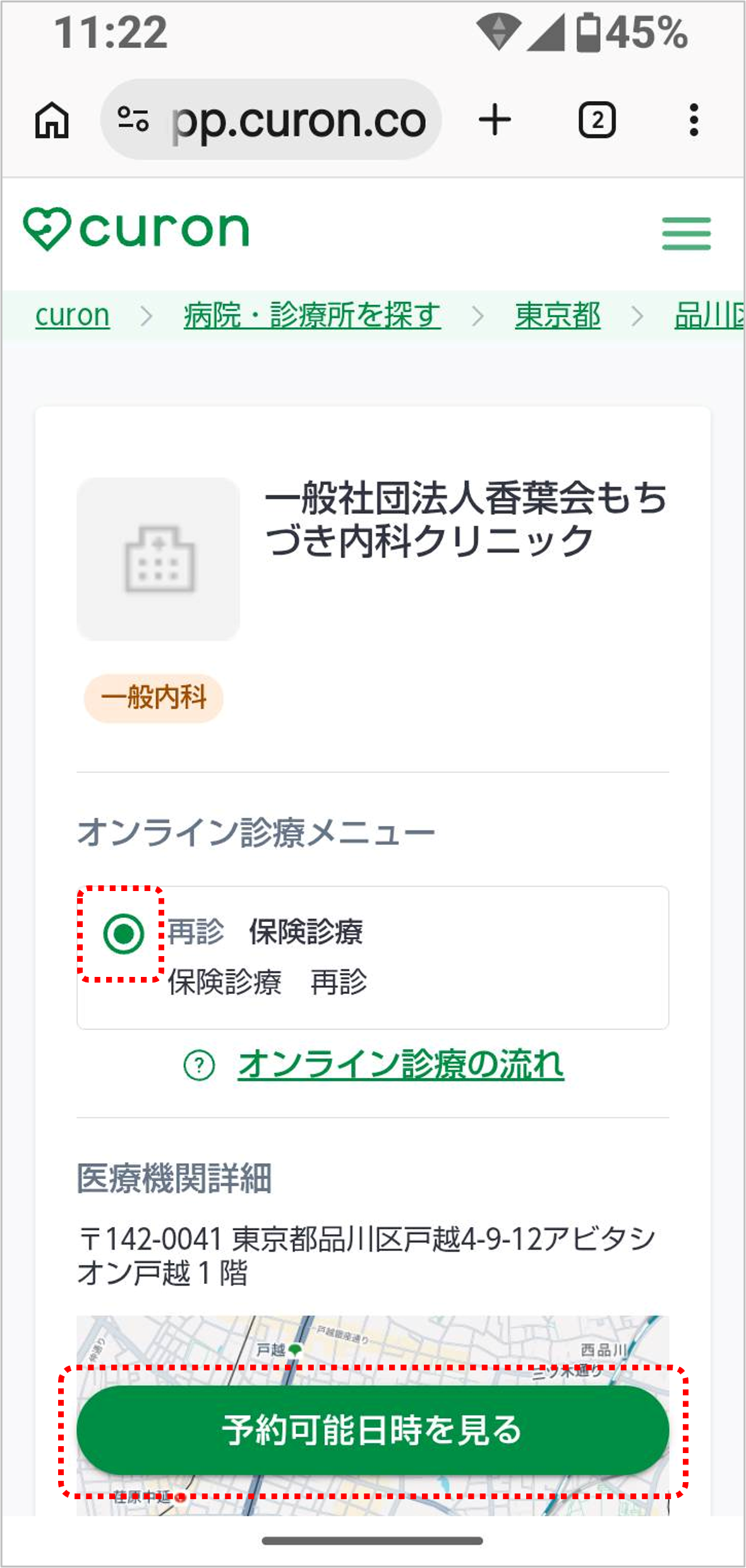 | ■ 受診メニューを選択 希望する診察メニューを選択し 「予約可能日時を見る」 |
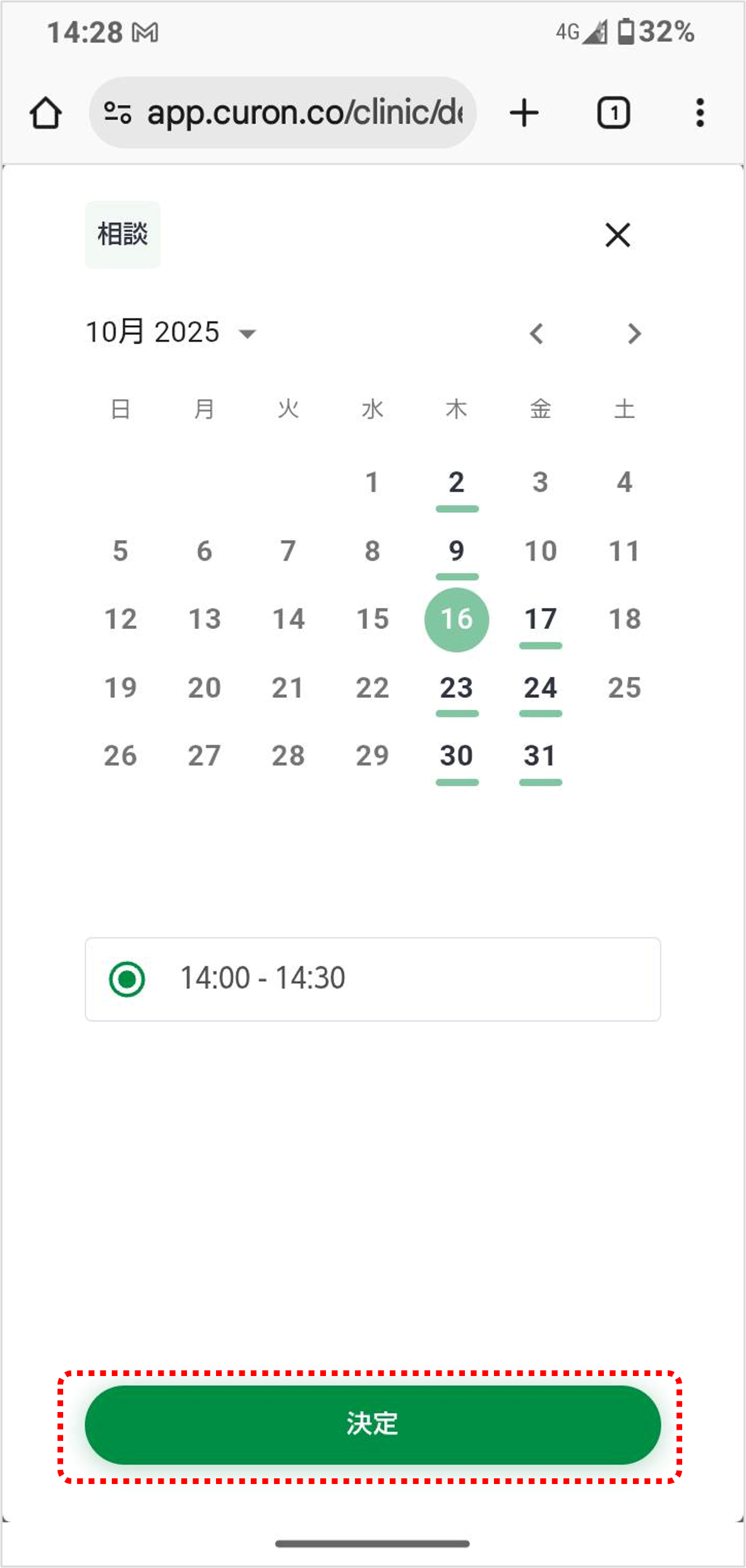 | ■ 予約日時を選択 選択したメニューの予約可能日時が表示されます。 診療希望日と時間を選択し 「決定」 |
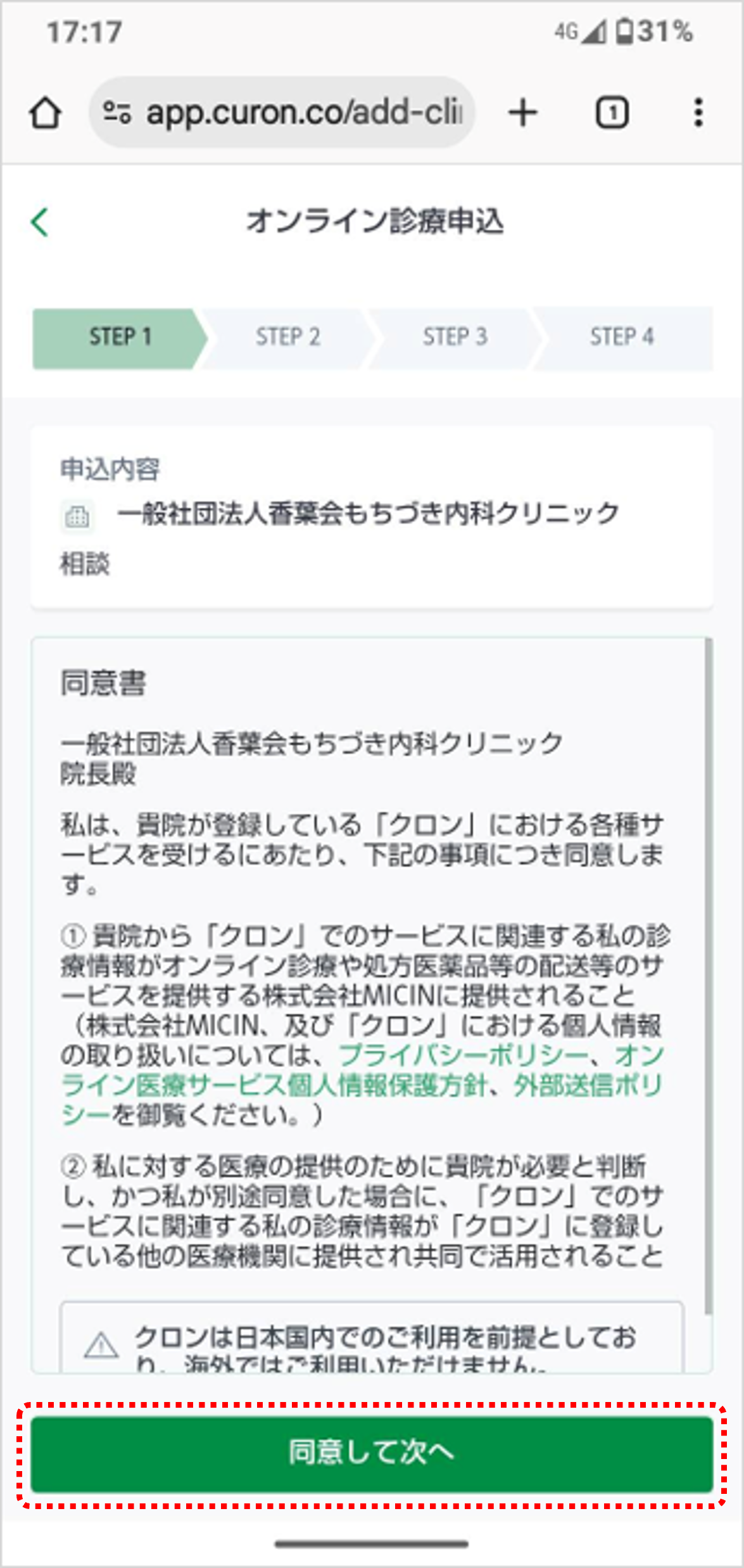 | ■ 同意書を確認 クロンを通じて当院を受診するにあたっての確認事項をお読みいただき 「同意して次へ」 |
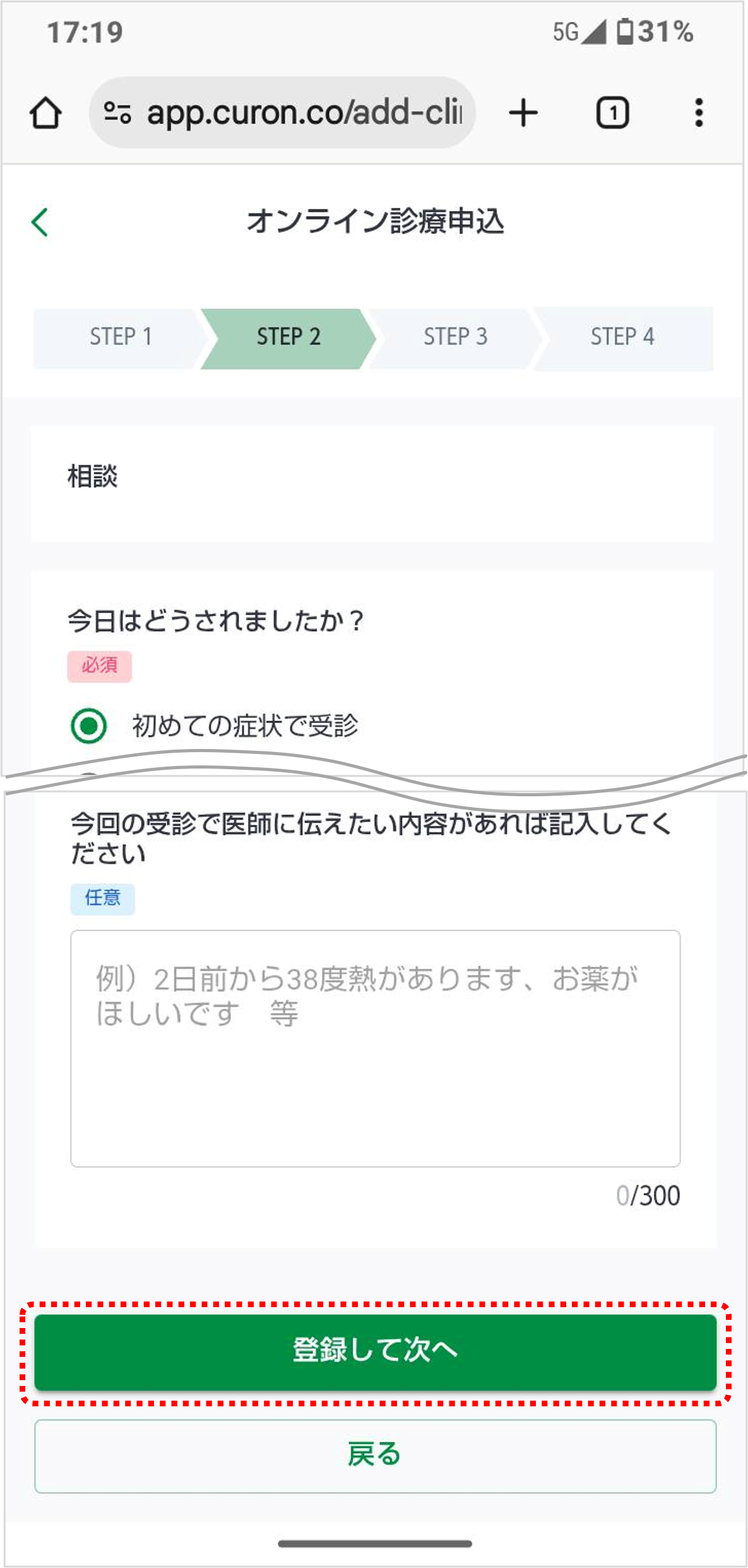 | ■ 受診理由を入力 今回診察を申し込む理由や、具体的な症状などを入力し 「登録して次へ」 |
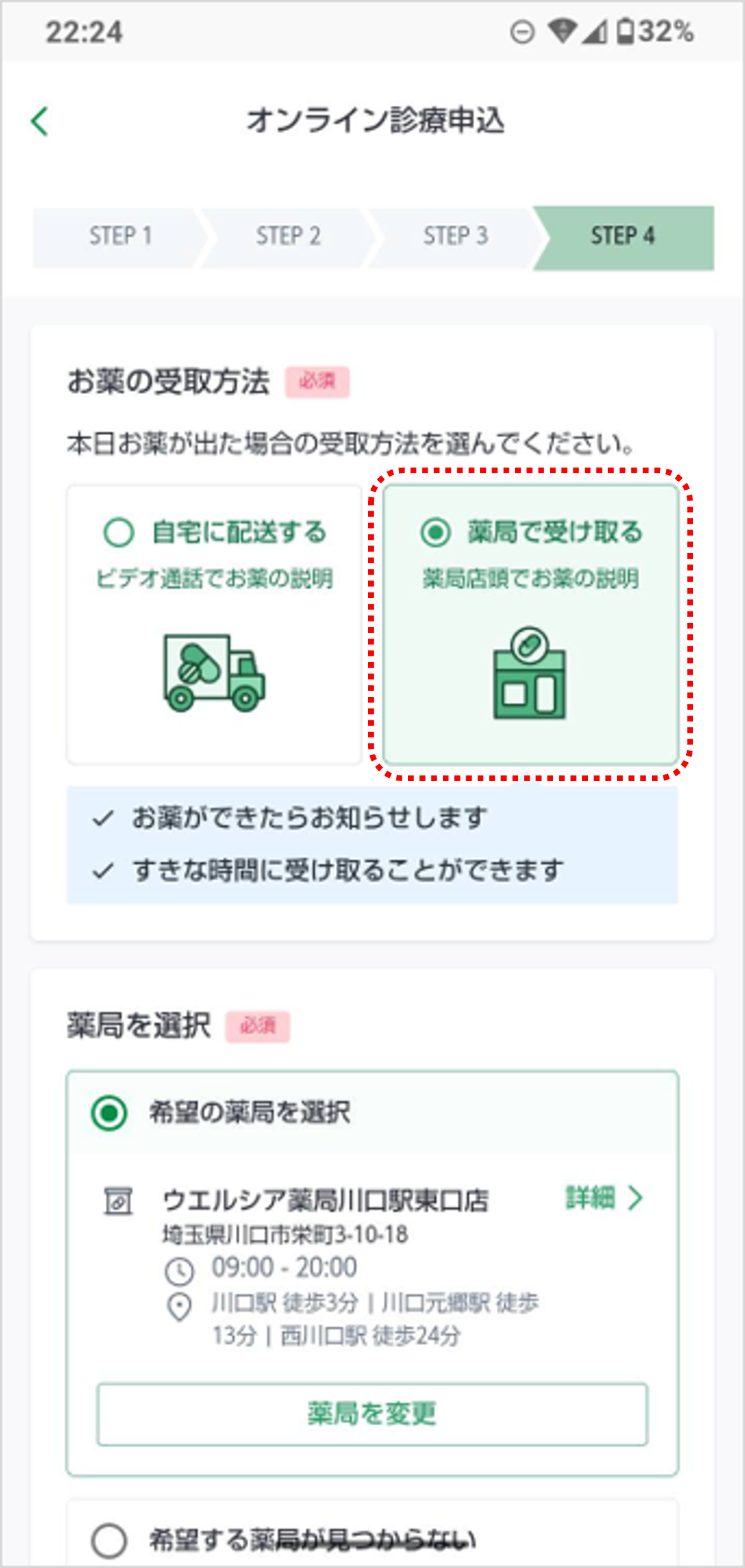 | ■お薬の受け取り薬局を選択 お薬の受け取りを希望する薬局を選択します。 希望の「薬局詳細」画面で 「この薬局を選択」 薬局一覧画面上の「地図で見る」を押すと、地図上でも検索できます。 ※診察内容によっては、お薬が処方されない場合があります。 |
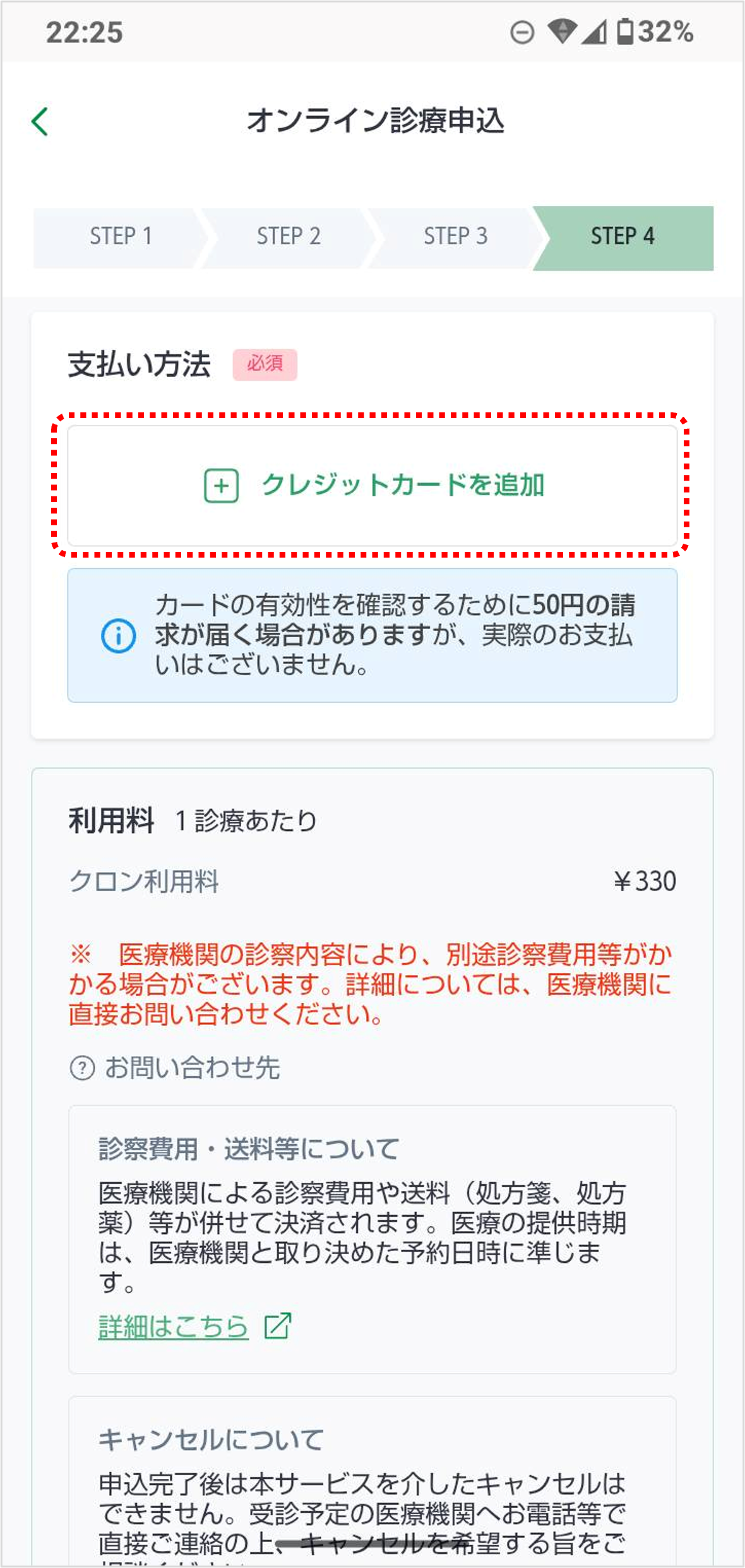 | ■ 支払い方法を追加 「クレジットカードを追加」を押して、お支払いに使用するカード情報を登録します。 カード情報入力後 「登録」 |
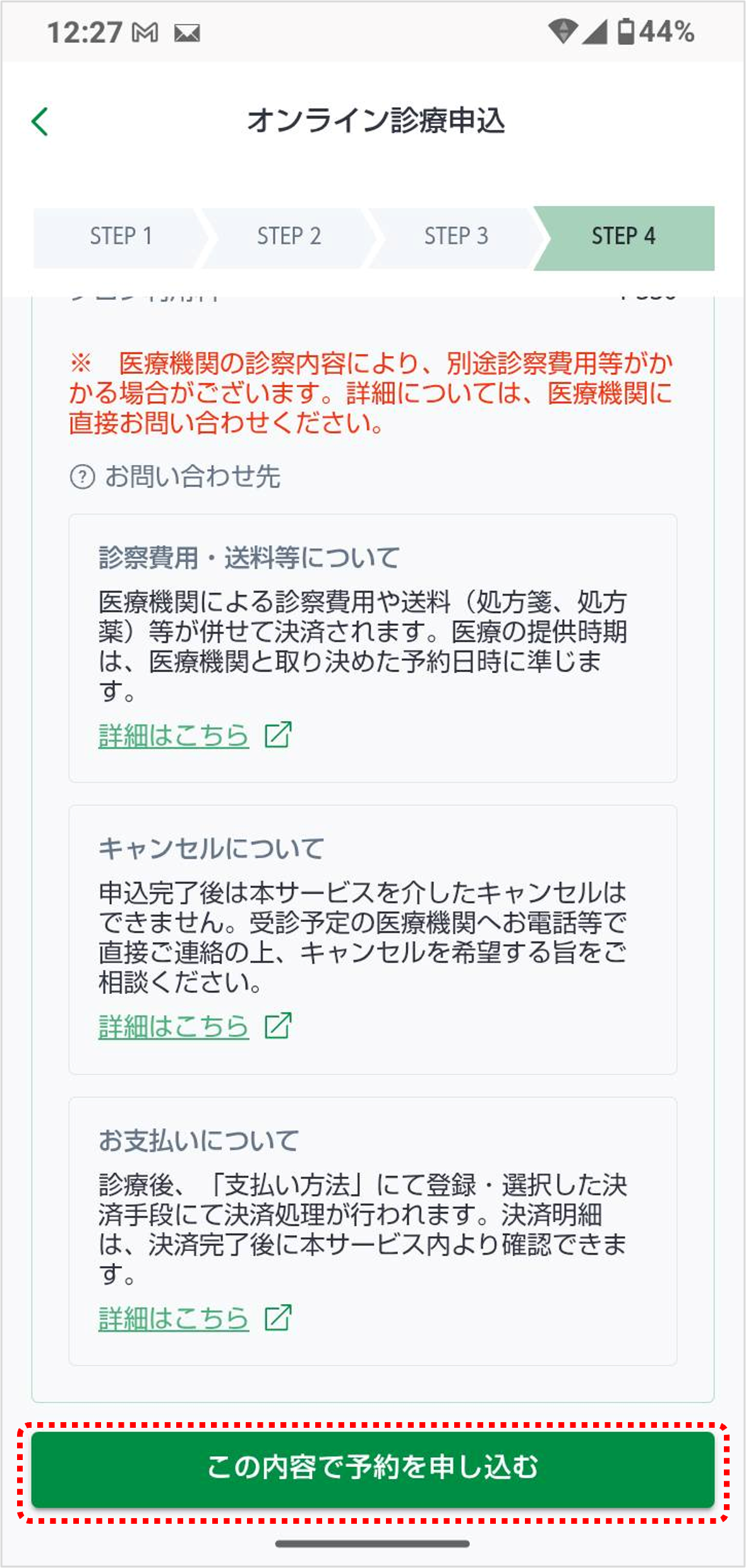 | ■ 申込完了 利用料などをご確認いただき 「この内容で予約を申し込む」 |
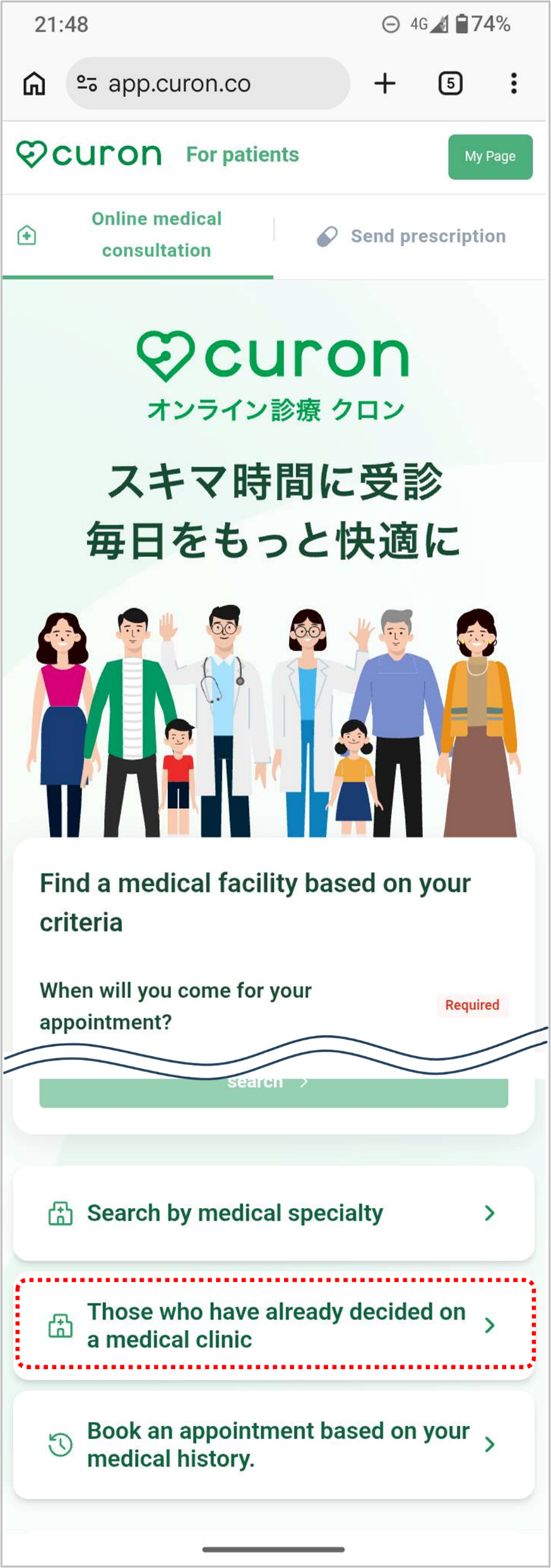 | ■ Accessing "curon" Go to the curon website from your smartphone. Translate web pages using Google Translate. Use the Chrome browser. https://app.curon.co Click "Those who have already decided on a medical clinic" |
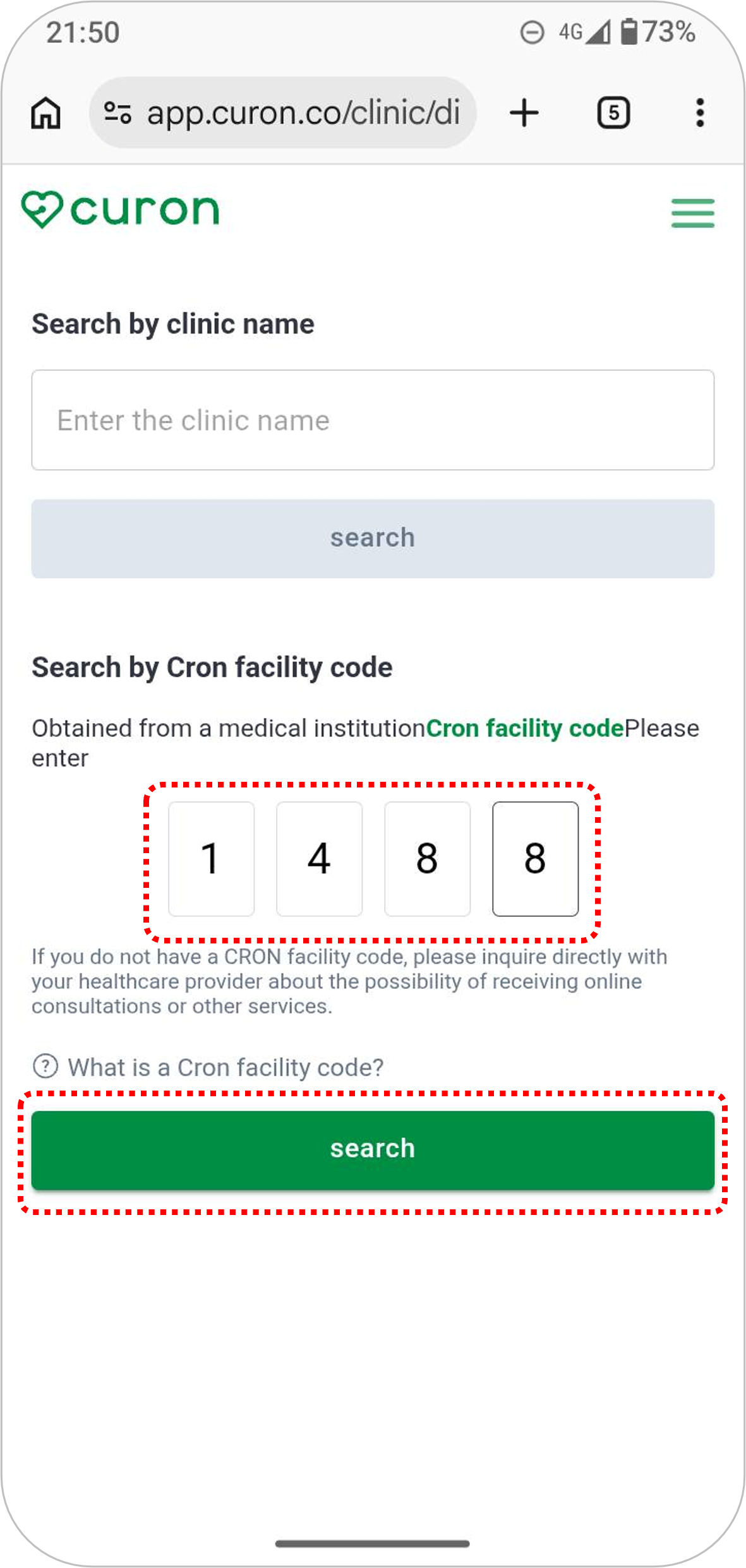 | ■ Enter the Facility Code Enter the 4-digit Facility Code for Mochizuki Medical Clinic. Our Clinic's Facility Code: 1488 Click “Search” |
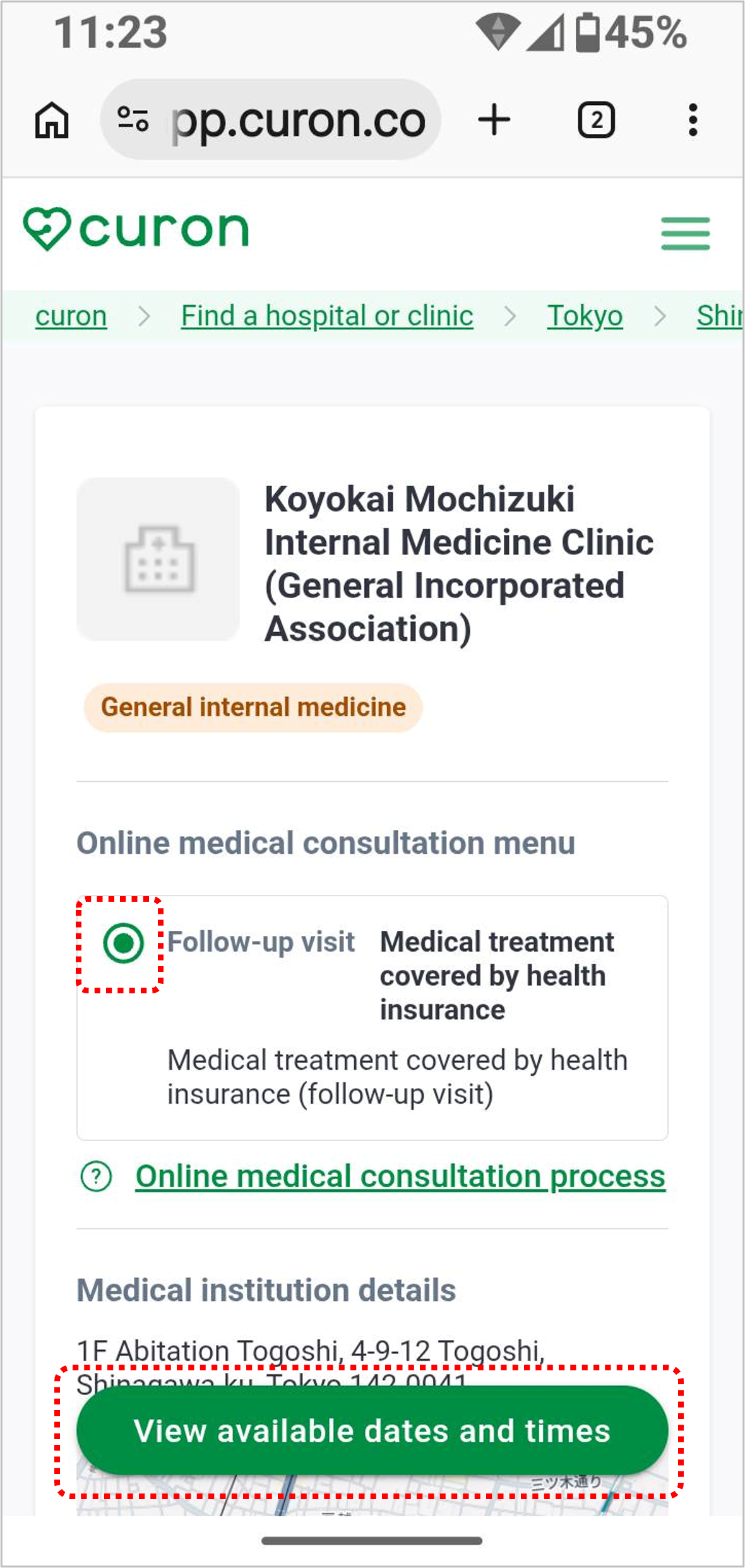 | ■ Select the consultation menu After Login, please select the consultation menu and click "View available appointment dates and times." |
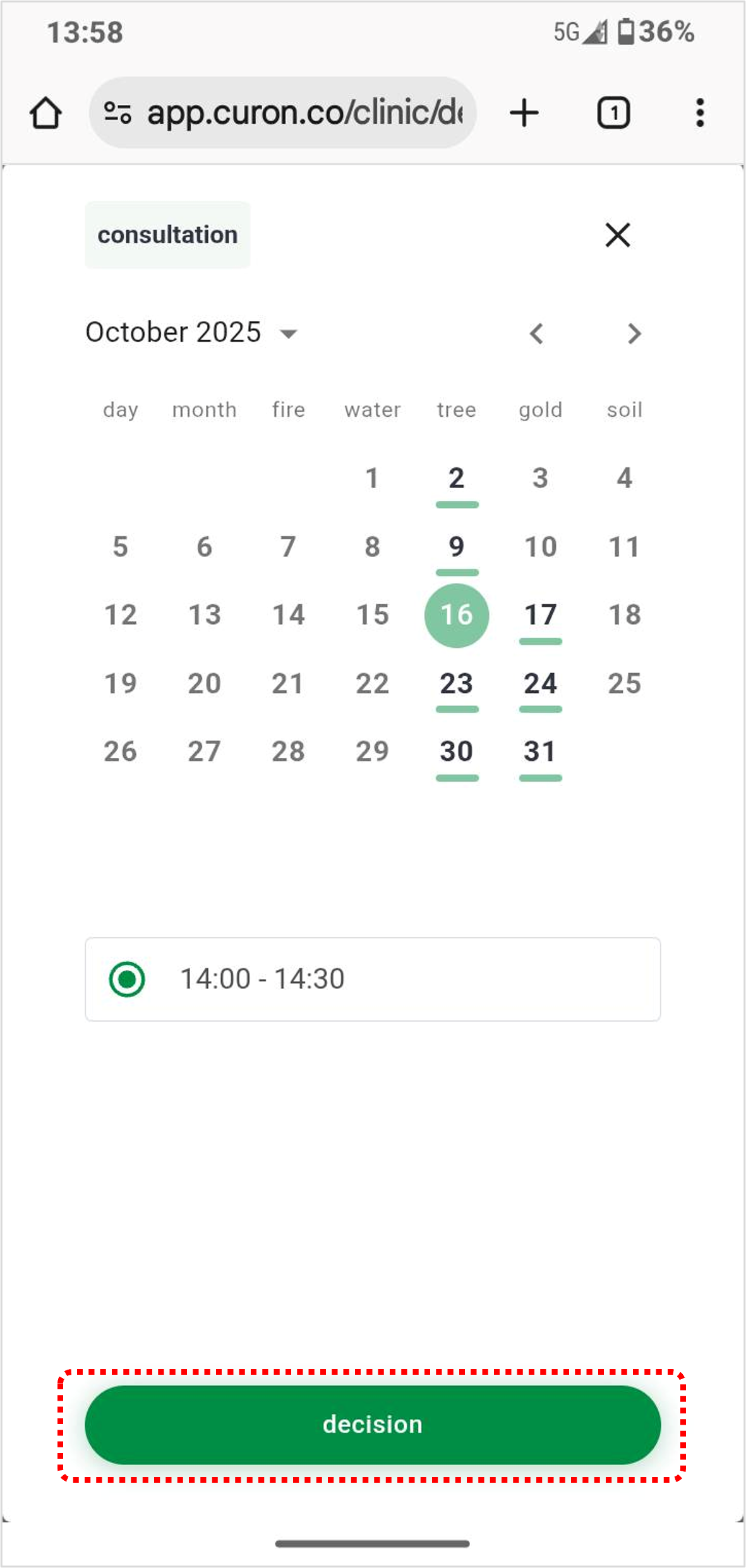 | ■ Select reservation date and time Available reservation dates and times will be displayed. Select the desired date and time slot and click "decision". |
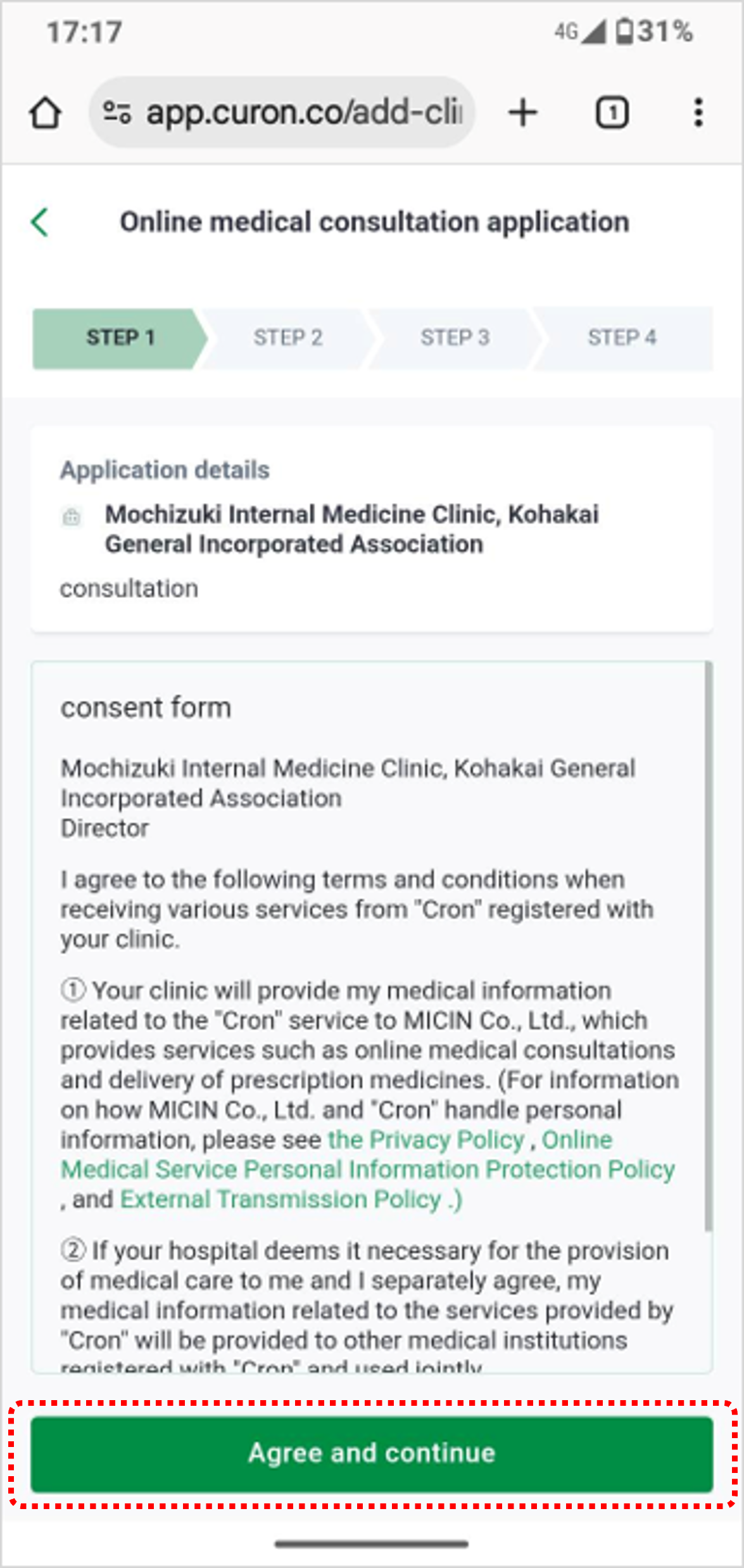 | ■ Check the consent form Please read the consent form before starting your online consultation through curon and click "Agree and continue". |
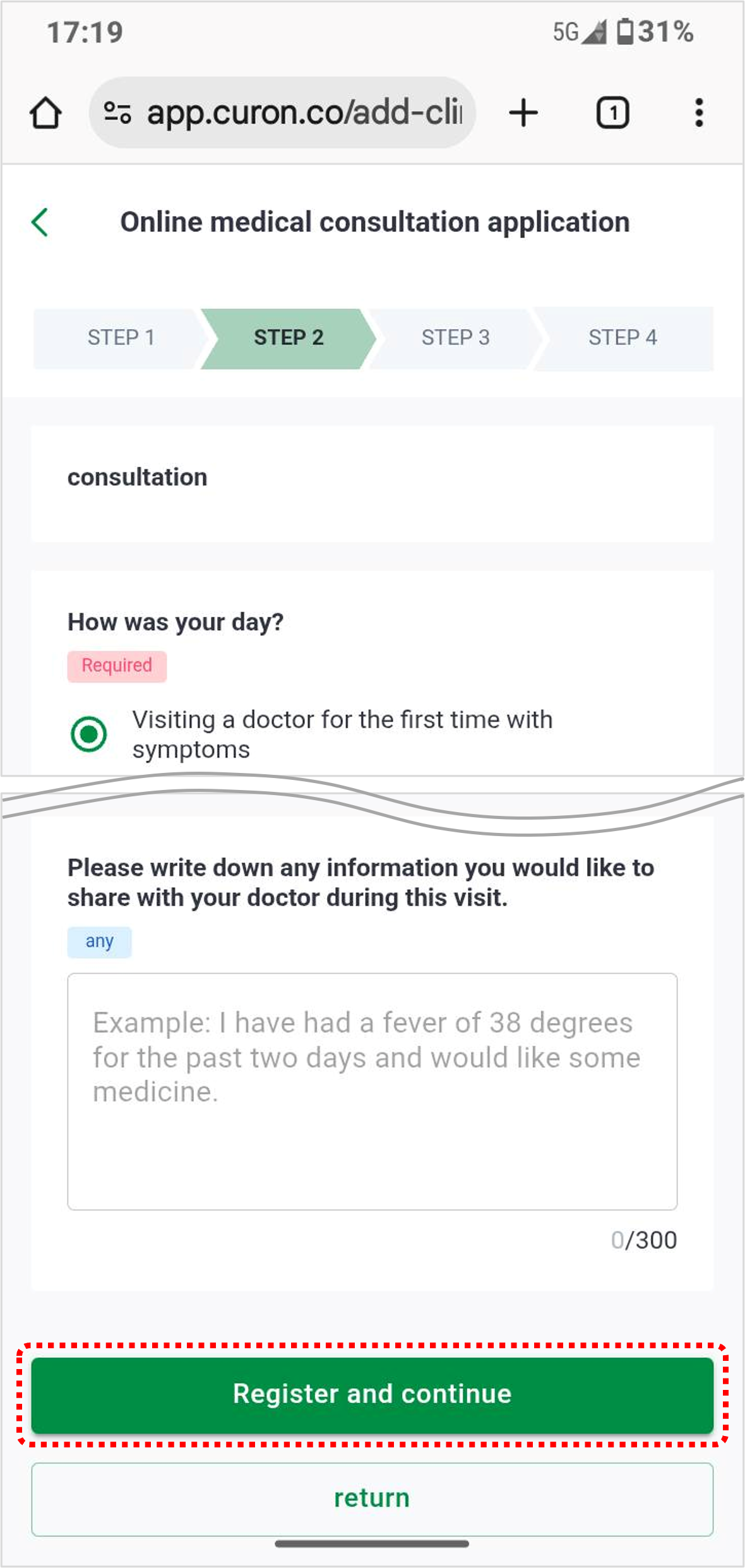 | ■ Enter the reason for your visit Please enter the symptoms and click "Register and continue". |
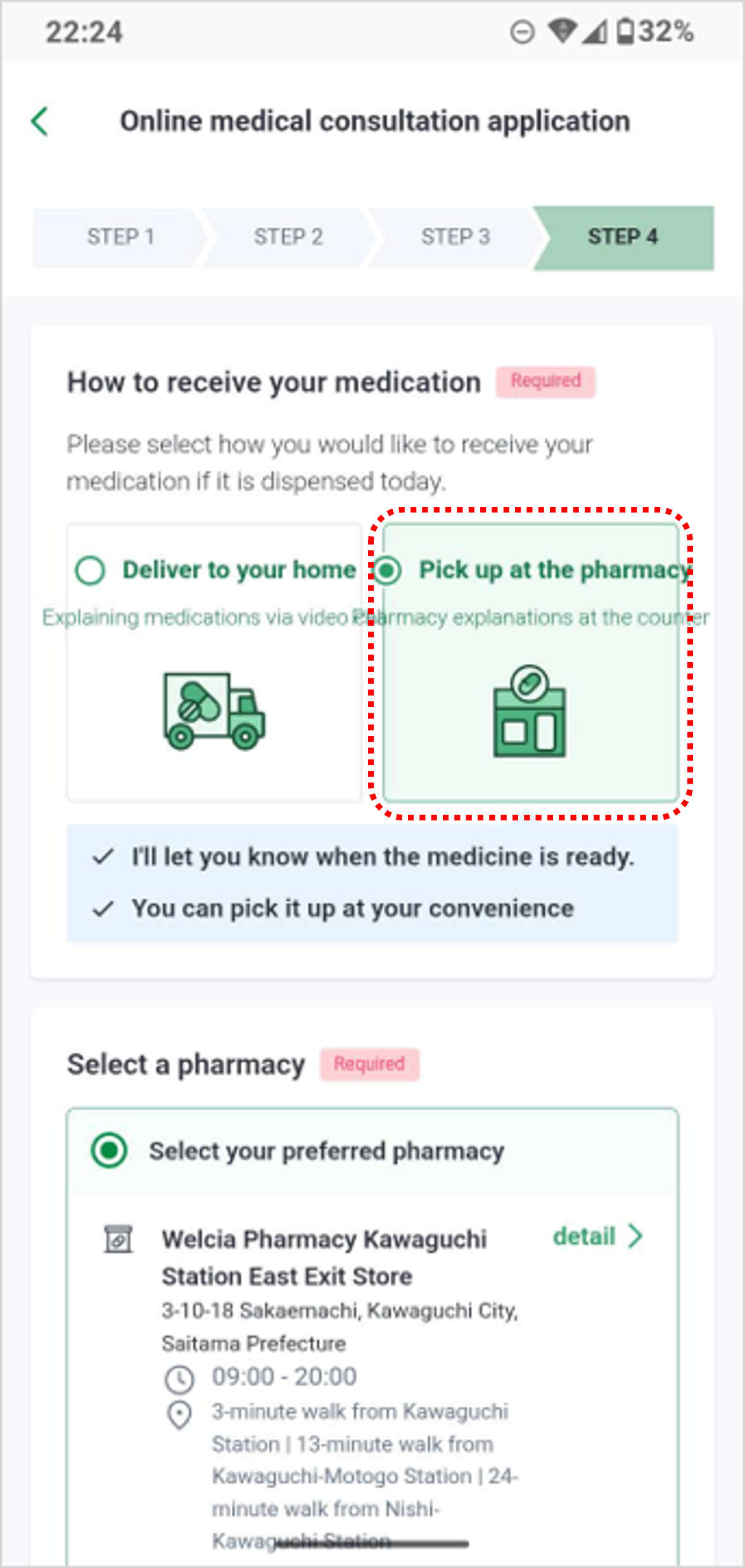 | ■ Select a pharmacy to pick up your medication You can select a pharmacy where you would like to pick up your medication. Depending on your medical condition and the consultation, the doctor may decide not to prescribe any medication. |
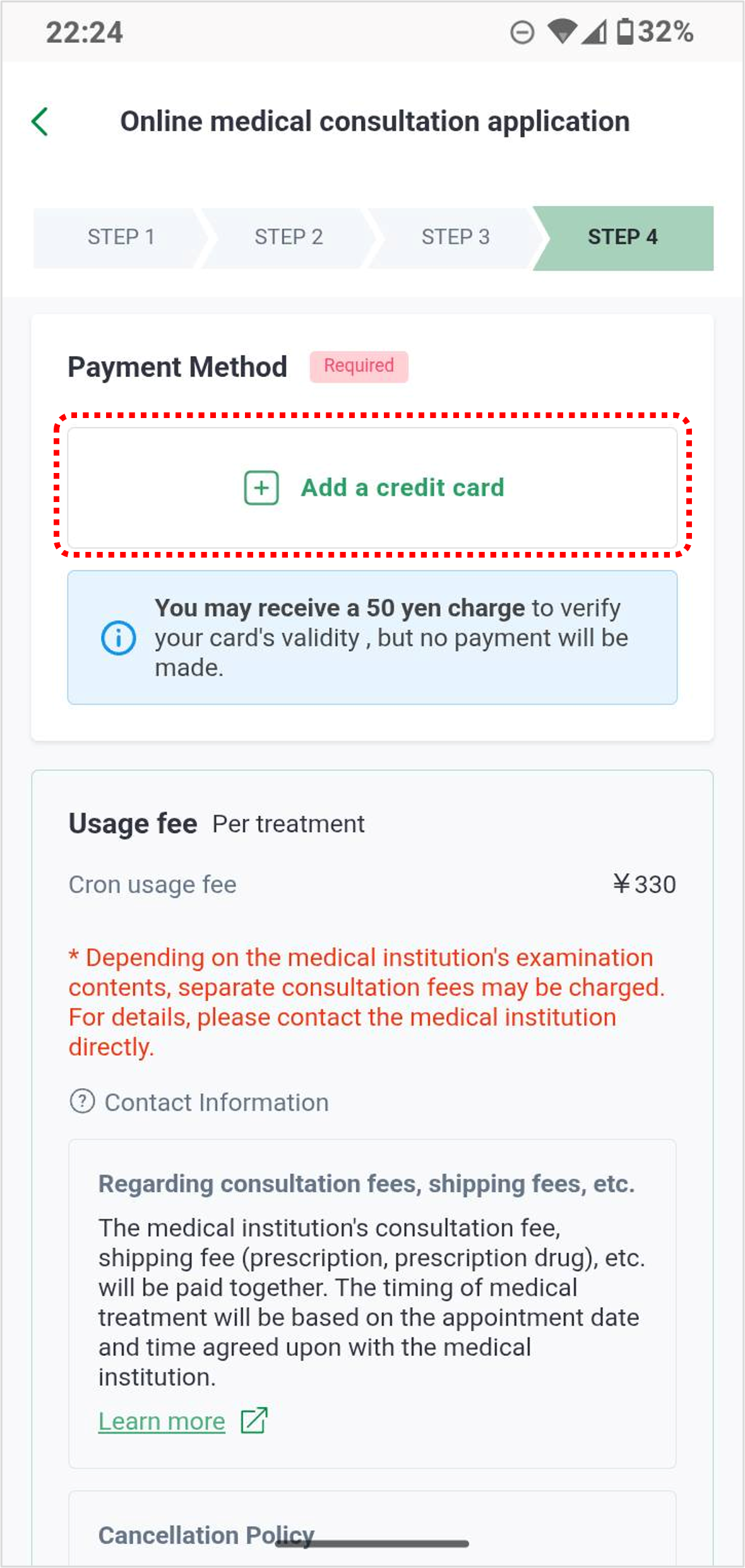 | ■ Add a payment method Click "Add a credit card" to register the card information that you will use for this payment. After entering your card information, click "Register." |
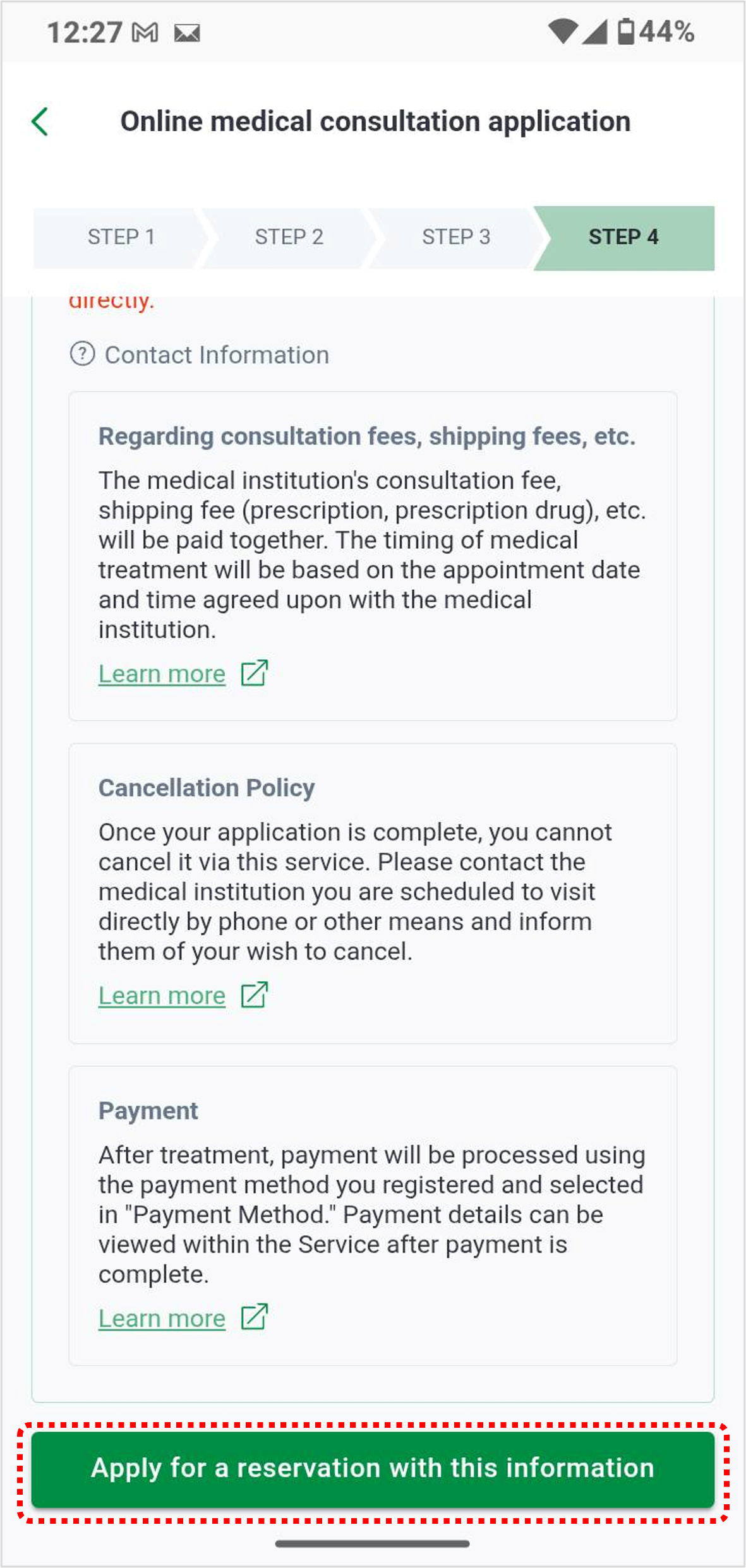 | ■ Application complete Confirm the usage fee, cancellation policy and payment, and click "Apply for reservation with this information". |
マイナ保険証の登録
Register Your My Number Health Insurance Card
お手元にマイナンバーカードをご用意ください。
Please have your My Number Card ready.
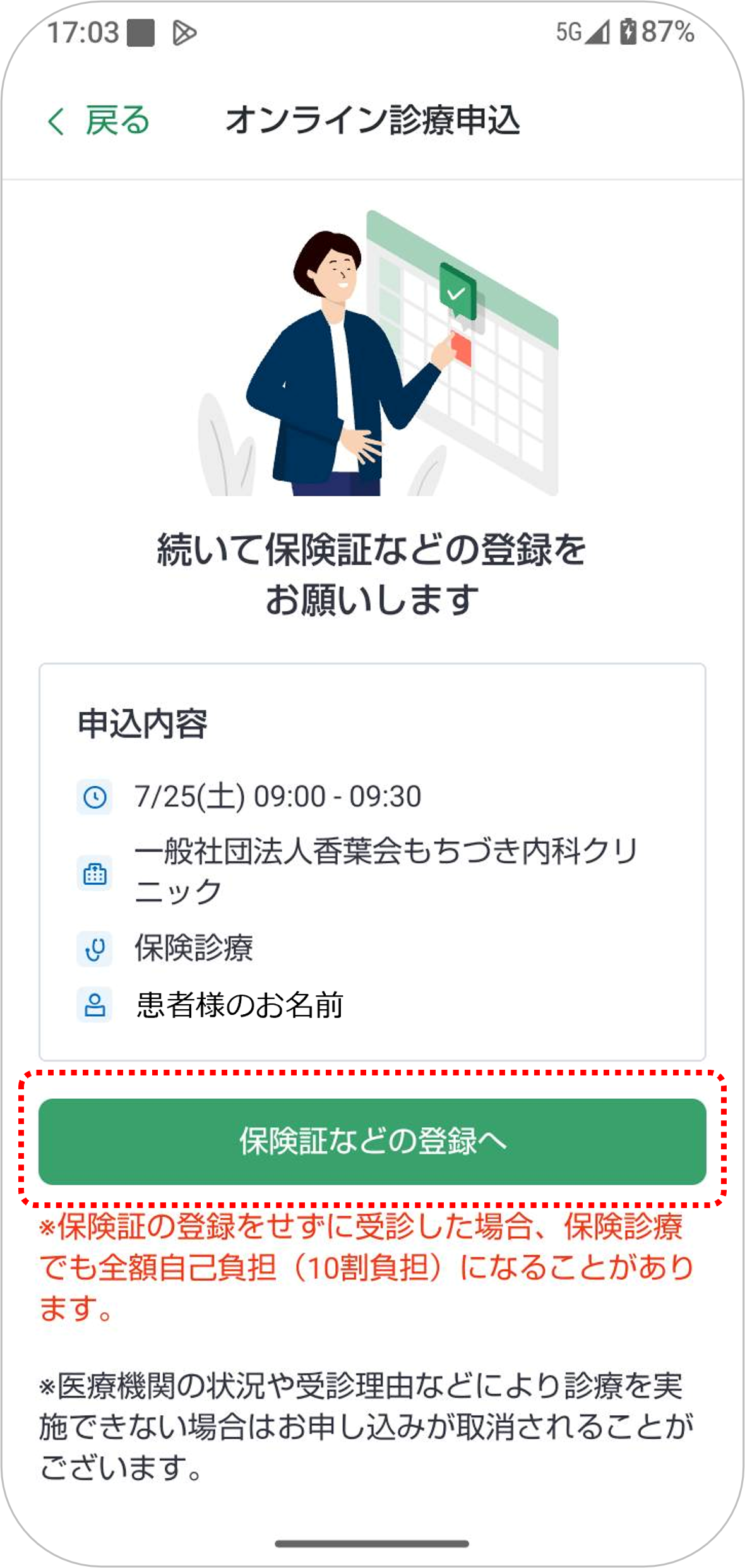 | ■ マイナ保険証の登録 予約が完了すると、引き続きマイナ保険証の登録へ移ります。 「保険証などの登録へ」をクリック ※事前に「マイナアプリ」をダウンロードしてください。 ※事前にマイナンバーカードの健康保険証等利用の申込を済ませておく必要があります。 ※お手元にマイナンバーカードをご用意ください。 ※マイナ保険証(または資格確認書)は、同月内でも受診のたびに登録します。 |
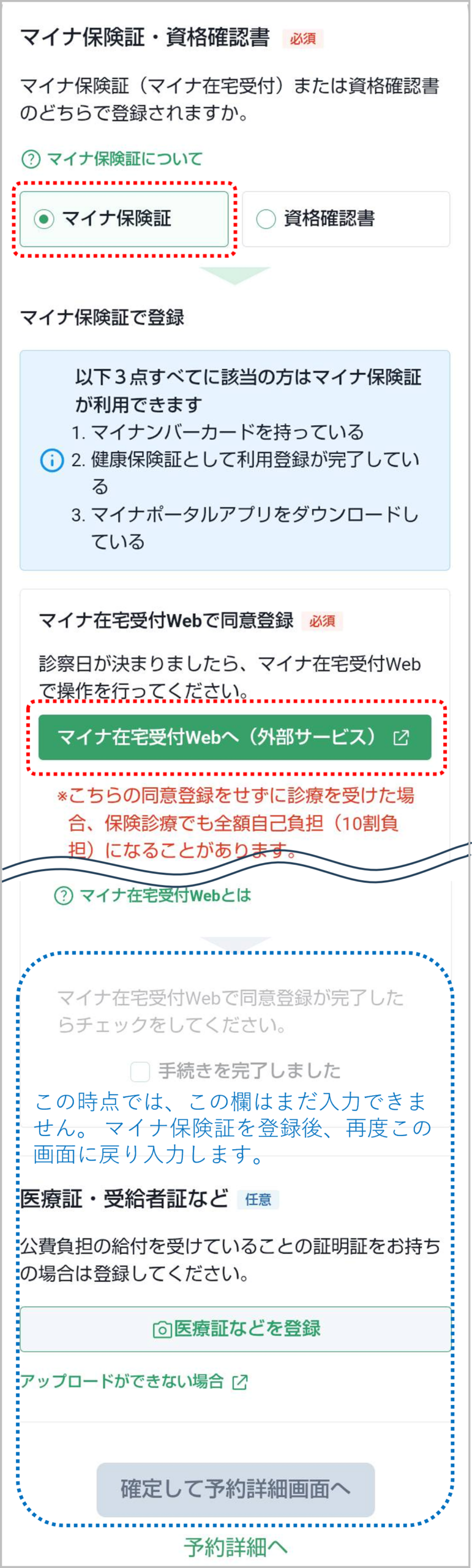 | 「マイナ保険証」を選択し、 「マイナ在宅受付webへ(外部サービス)」をクリック 【重要】 このあと外部サービスへ移動します。 手続き完了後、再びこの画面に戻りますので、現在開いているcuronアプリやブラウザの画面は閉じないでください。 ※画面を閉じると手続きがリセットされ、最初からやり直しになります。 ※マイナ保険証をお持ちでない方、またはマイナ保険証の登録ができない方は、資格確認書でもご利用いただけます。 登録方法はこちらをご覧ください。 |
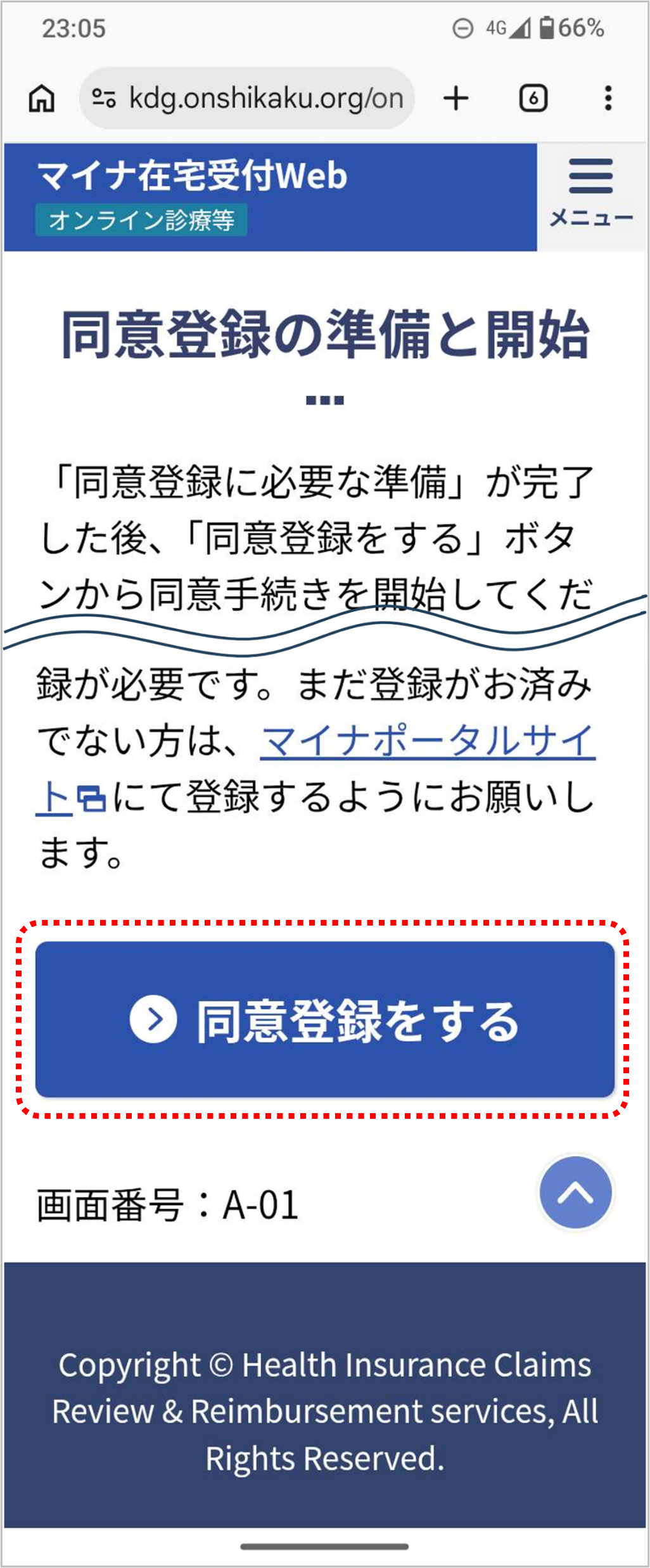 | ■ 同意登録の準備 自動的にマイナアプリが起動し、マイナ在宅受付webへ移動します。 「同意登録をする」 |
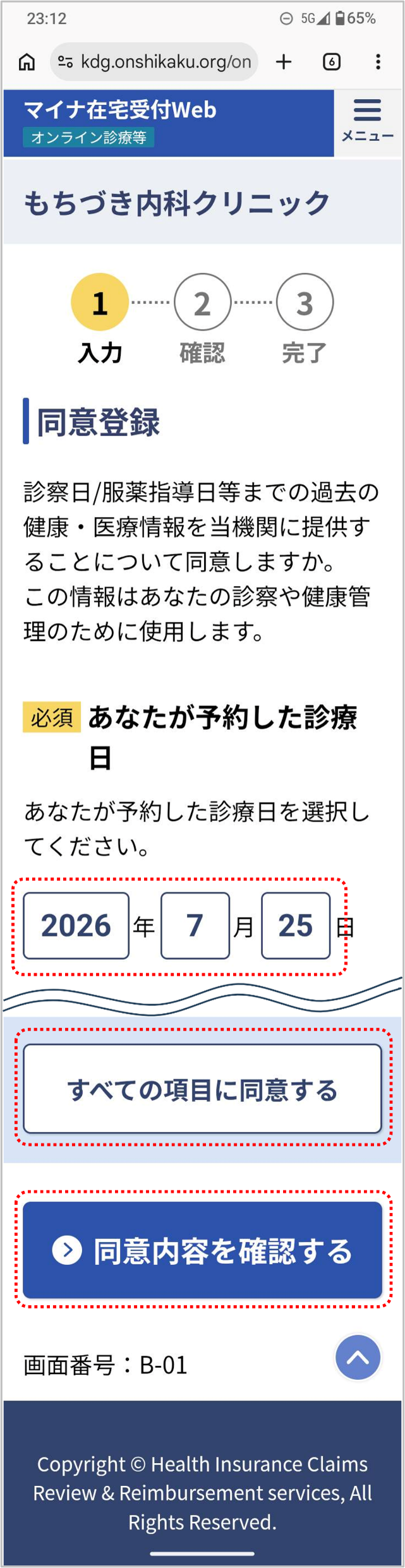 | ■ 同意登録 患者様が予約された日時(来院予定日)を入力し、 「すべての項目に同意する」 →「同意内容を確認する」 |
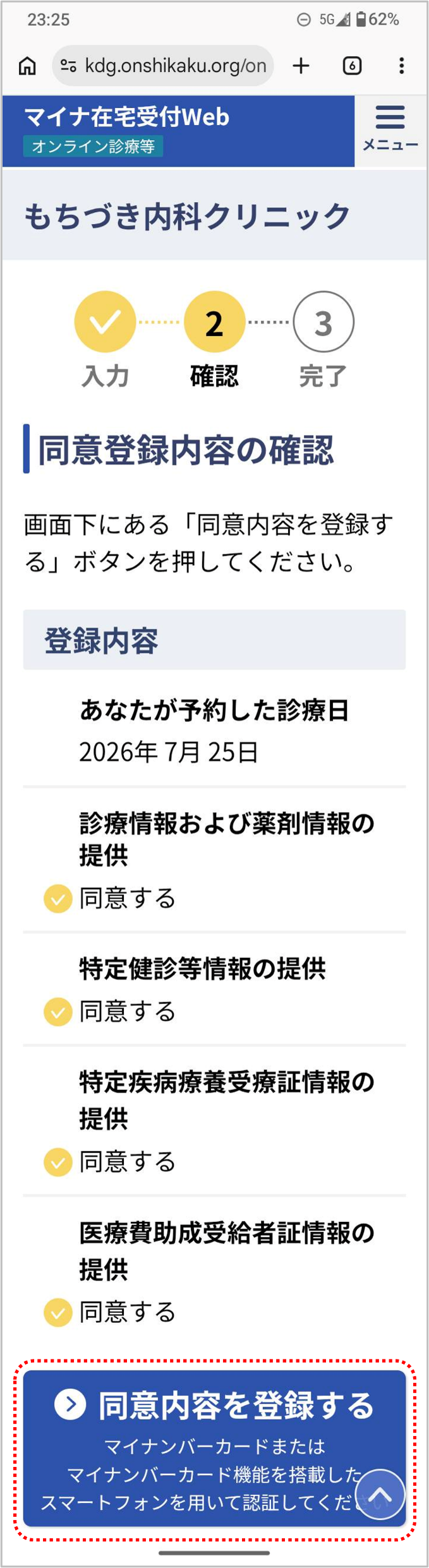 | ■ 同意登録内容の確認 入力した内容をご確認いただき、 「同意内容を登録する」 |
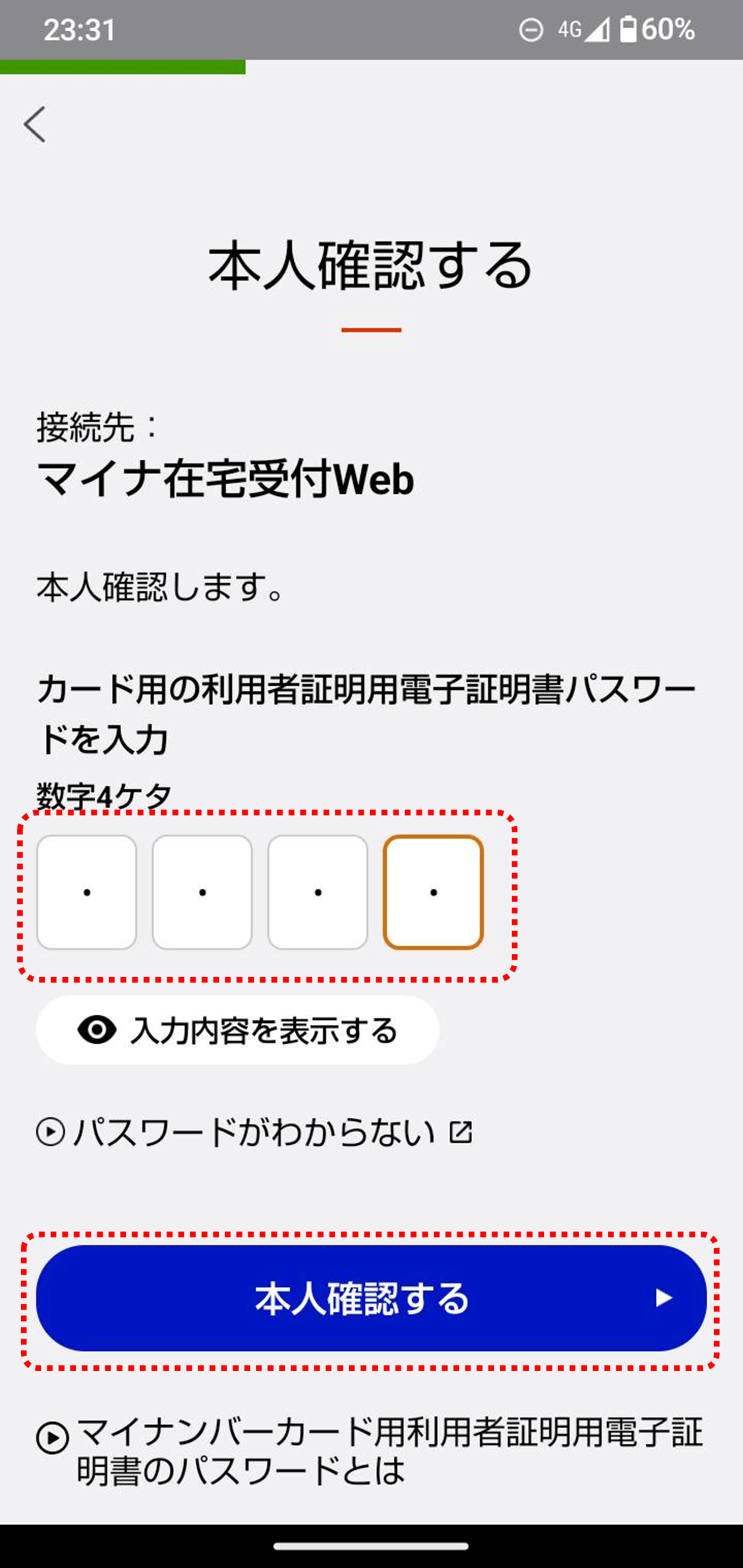 | ■ 本人確認 マイナンバーカードのパスワードを入力し、 「本人確認する」 ※生体認証(顔や指紋など)、PIN、パターン でログインする方は、この工程はスキップします。 |
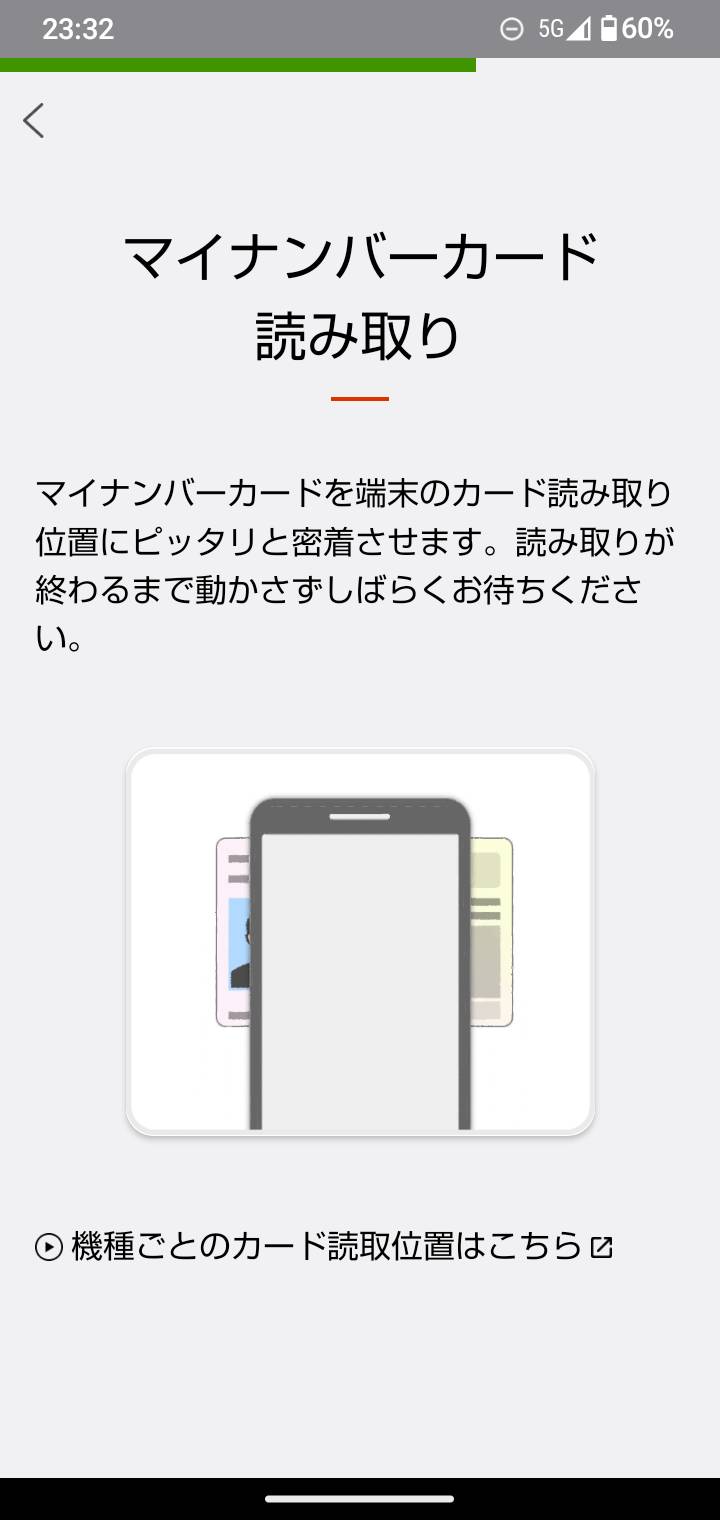 | ■ マイナンバーカードの読み取り マイナンバーカードをスマートフォンの背面にあてて、カードを読み取ります。 ※生体認証(顔や指紋など)、PIN、パターン でログインする方は、この工程はスキップします。 |
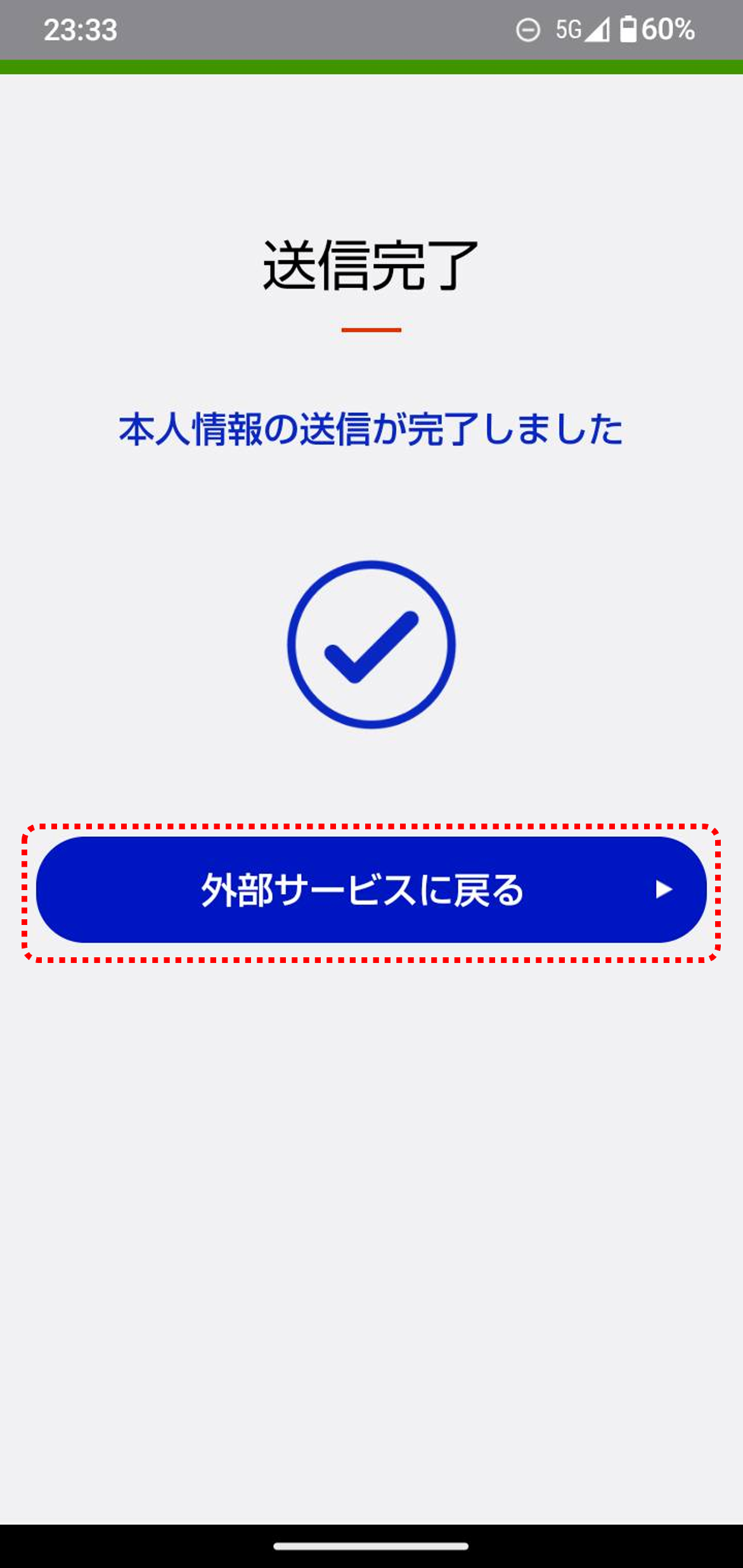 | 読み取りに成功したらカードをはずし、 「外部サービスに戻る」 ※生体認証(顔や指紋など)、PIN、パターン でログインする方は、この工程はスキップします。 |
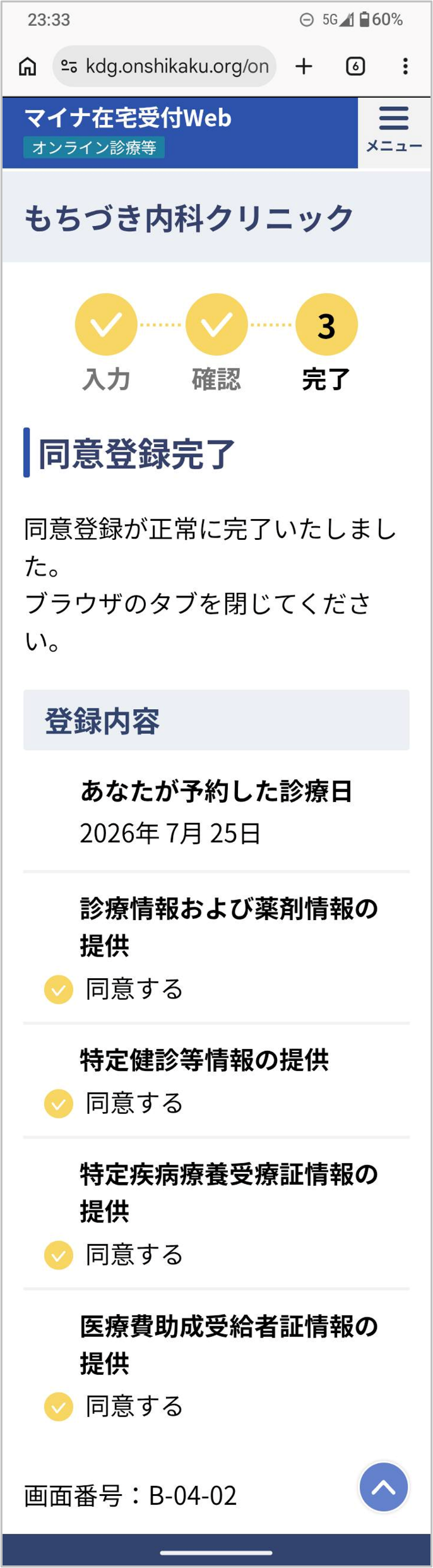 | ■ 同意登録完了 同意内容が表示されます。 |
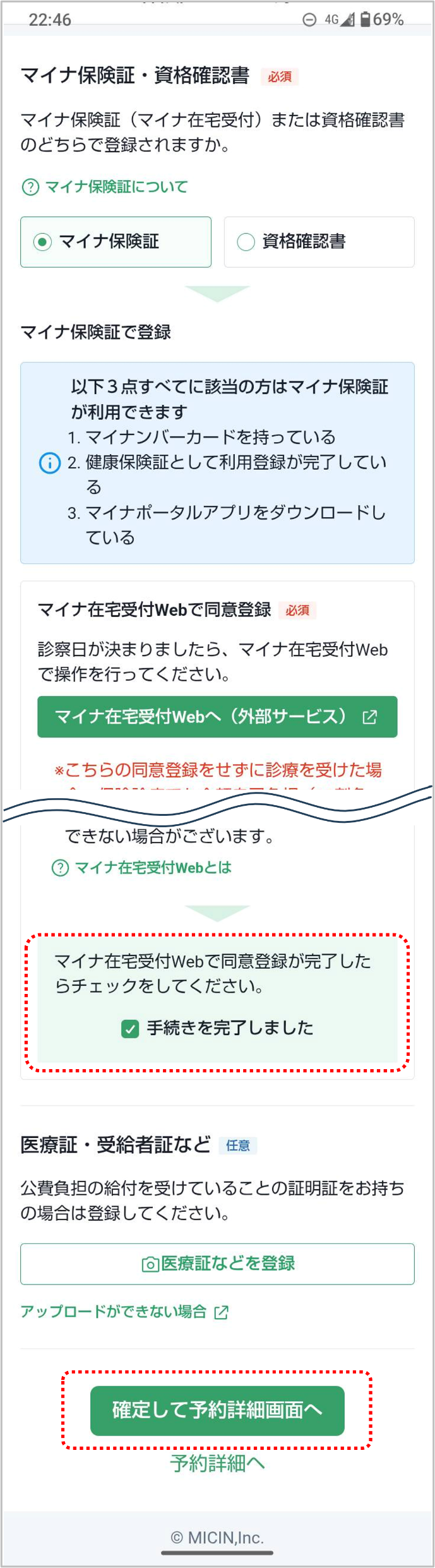 | ■ 同意登録を確定 開いたままにしてあった curonアプリに戻ります。 「手続きを完了しました」に✔を入れ、 「確定して予約詳画面へ」 この手順をやらないままcuronアプリを閉じてしまうと、手続きが未完了となり、最初からやり直しになるのでご注意ください。 |
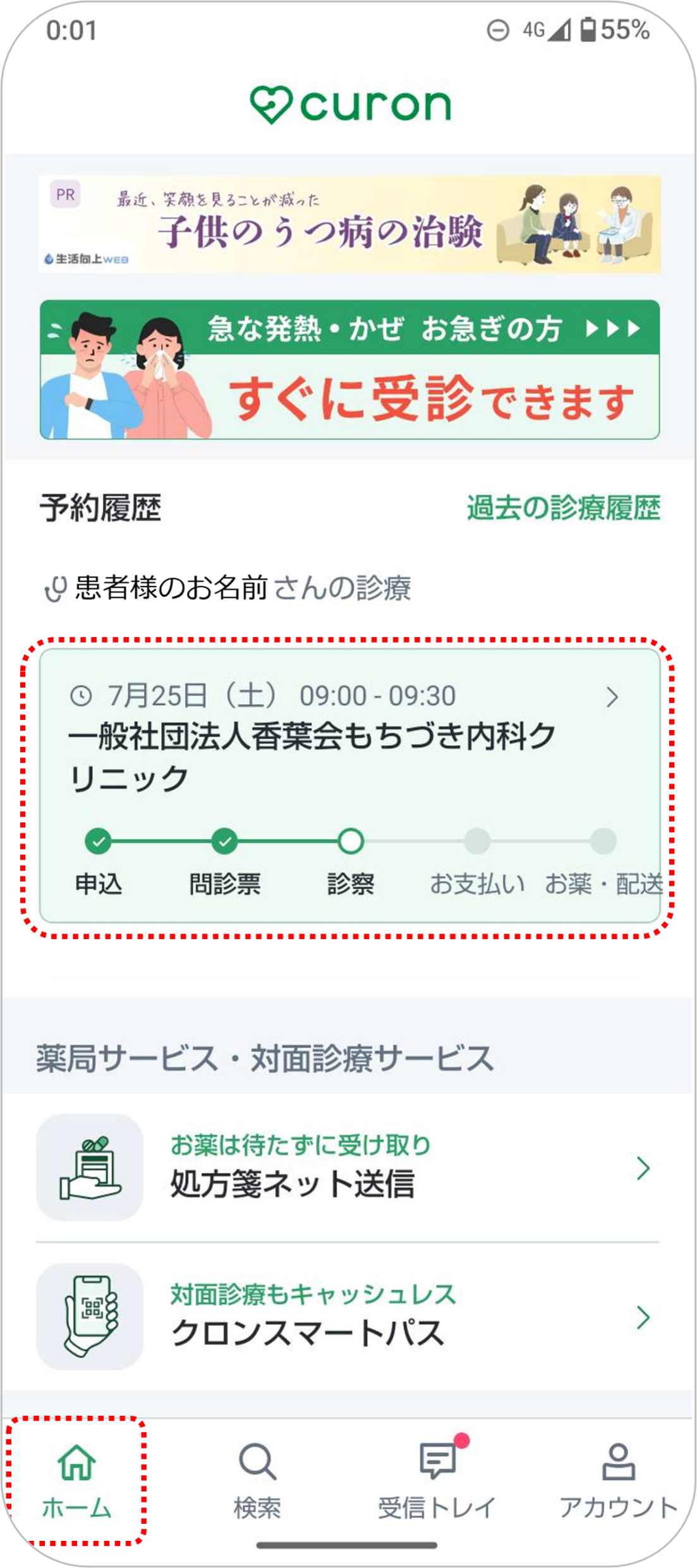 | ★同意登録が正しくできているか確認します ホームタブ → 予約履歴をクリック |
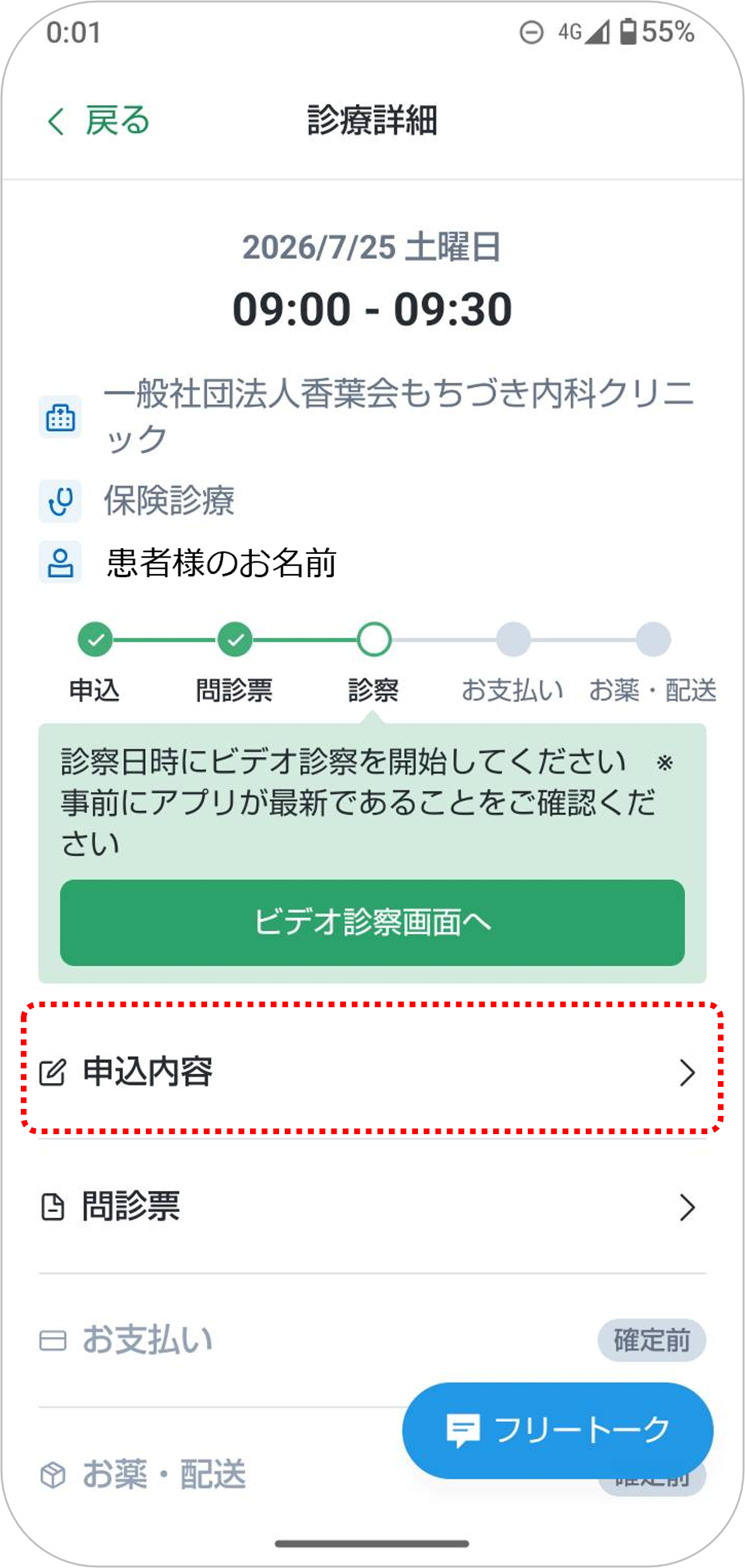 | 「申込内容」をクリック |
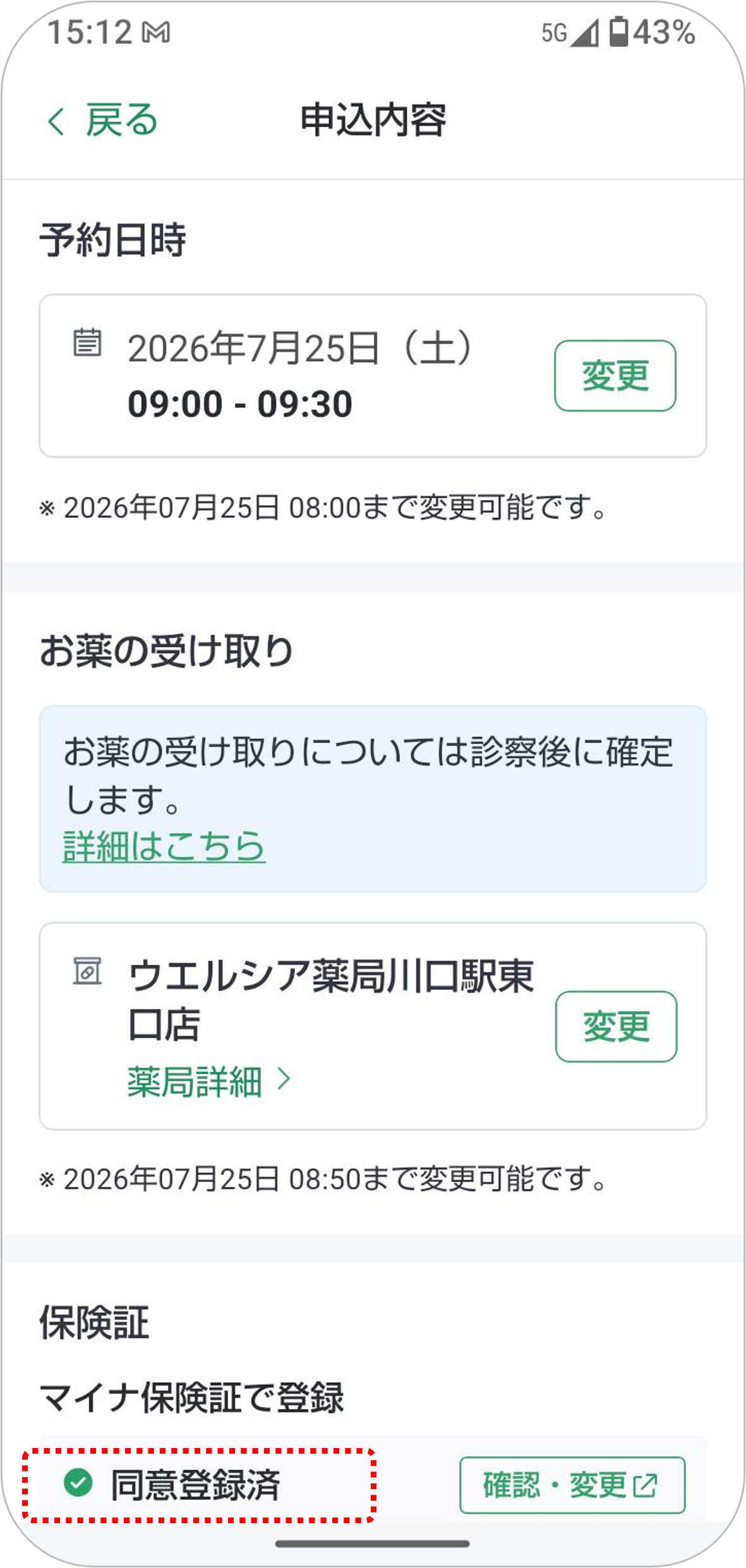 | 「マイナ保険証で登録」が図のように「✅同意登録済み」と表示されれば、きちんと登録が完了しています。 |
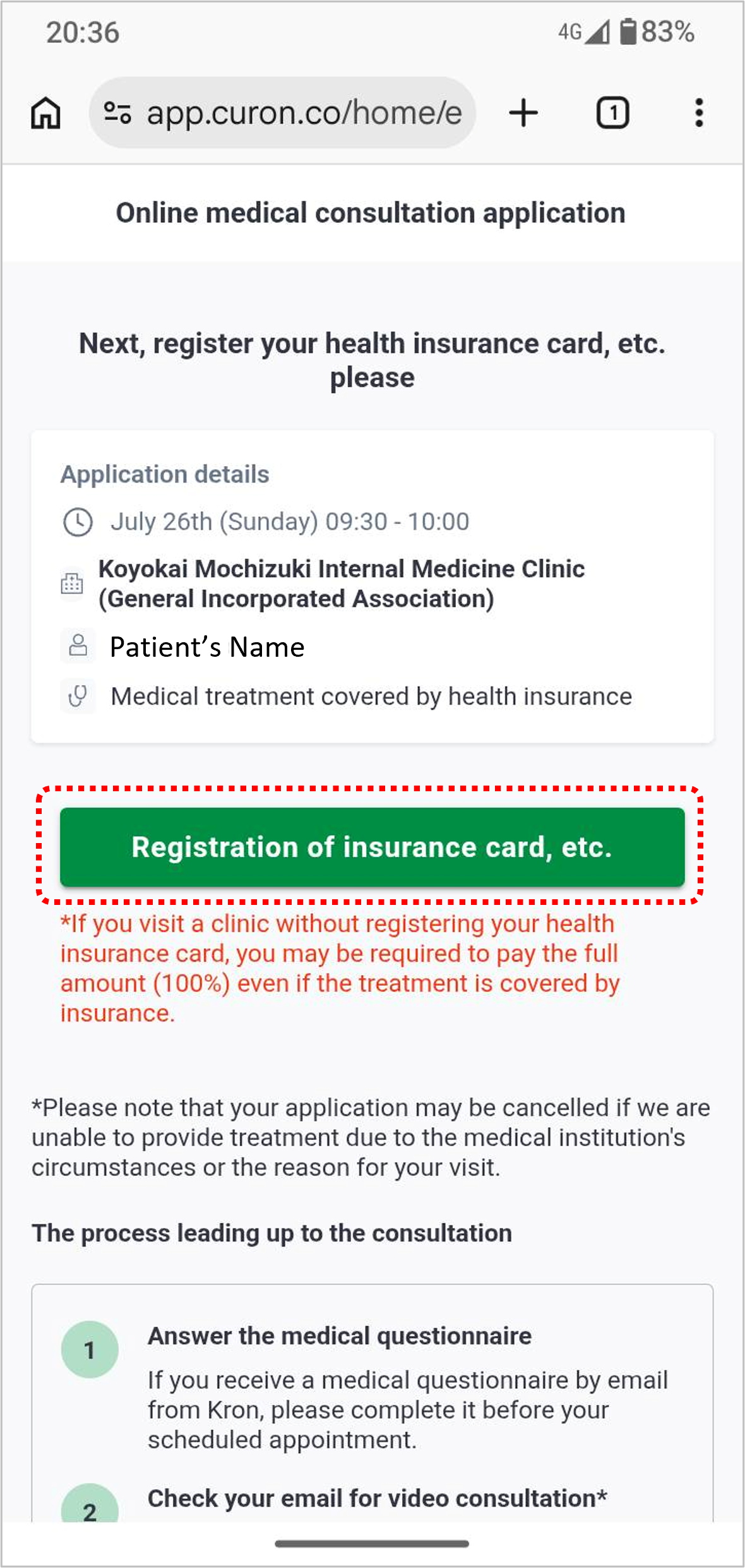 | ▮ Register Your My Number Health Insurance Card After your appointment is confirmed, you will need to register your health insurance card. Click "Register Your Health Insurance Card, etc." *Please download the “Myna App” in advance. *You must complete the application to use your My Number Card as a health insurance card in advance. *Please have your My Number Card ready. *Your My Number Health Insurance Card (or Certificate of Eligibility) must be registered for each consultation, even within the same month. |
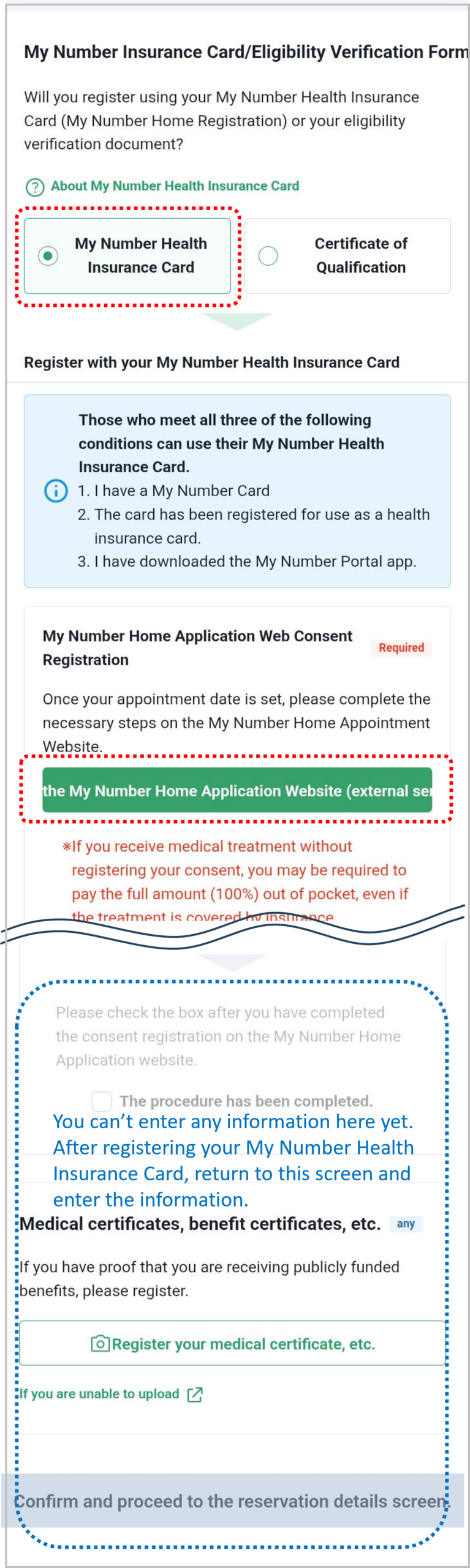 | Select "My Number Health Insurance Card", then tap " the My Number Home Application Website (external service)." "the My Number Home Application Website" is the same as "Myna ZAITAKU UKETSUKE Web." Important You will be redirected to an external service. After completing the procedure, you will need to return to this screen. Please do not close the curon app or browser window that is currently open. *If you close this screen, the procedure will be reset and you will need to start over from the beginning. *If you do not have a My Number Health Insurance Card, or if you are unable to register it, you may use your Eligibility Confirmation Certificate instead. Click here for instructions on how to register. |
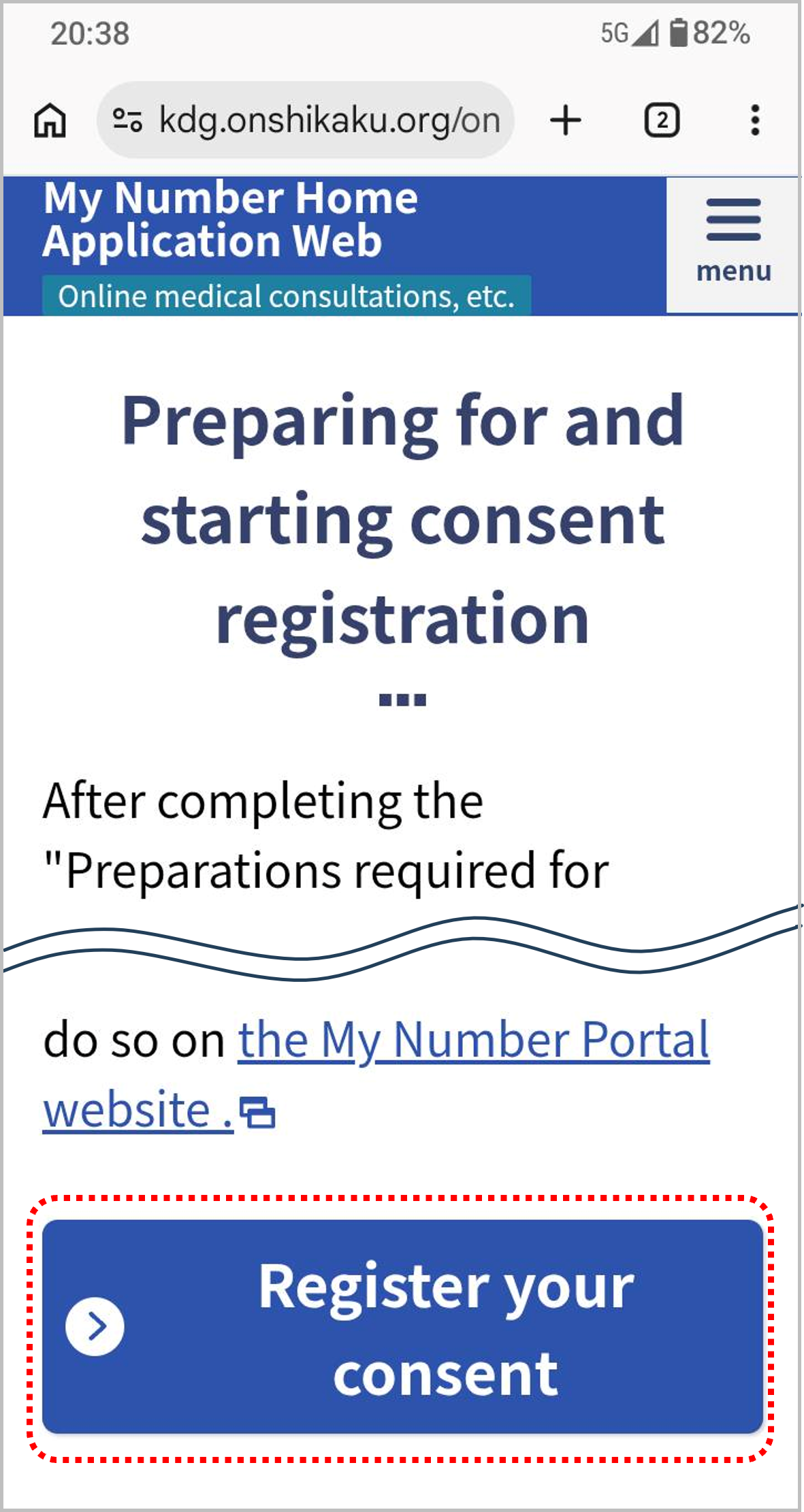 | ▮ Prepare to Register Your Consent The Myna App will automatically open and redirect you to "the My Number Home Application Web." (Myna ZAITAKU UKETSUKE Web) Click "Register your consent" |
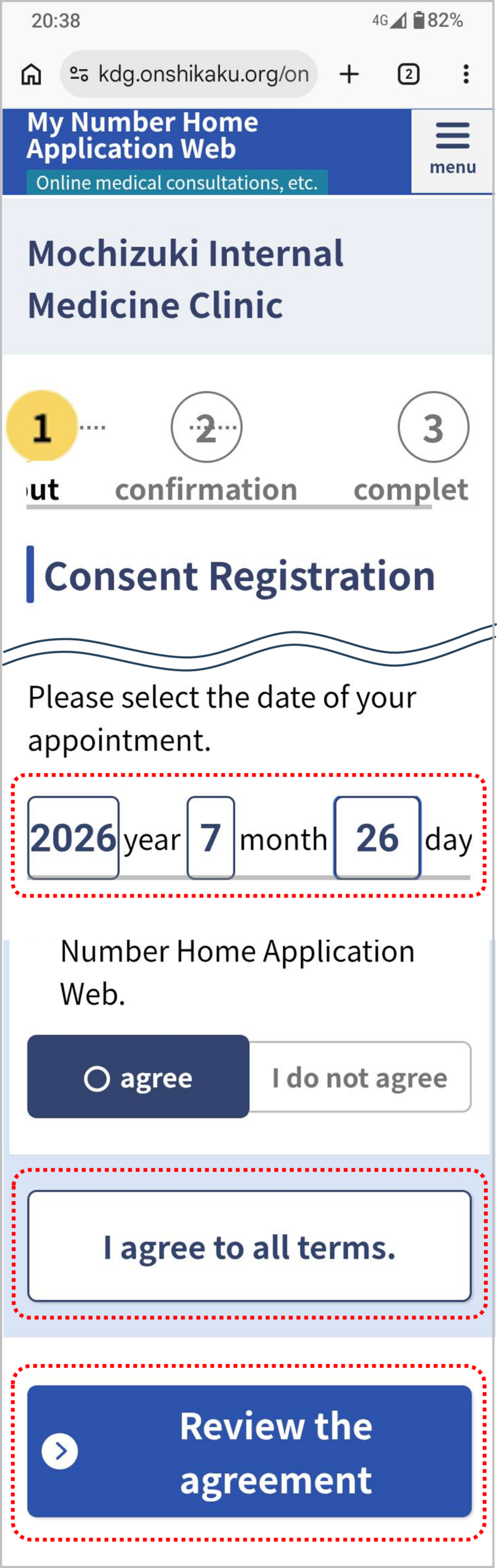 | ■ Consent Registration Enter the date of the patient's scheduled appointment. Click "I agree to all terms" → "Review the agreement" |
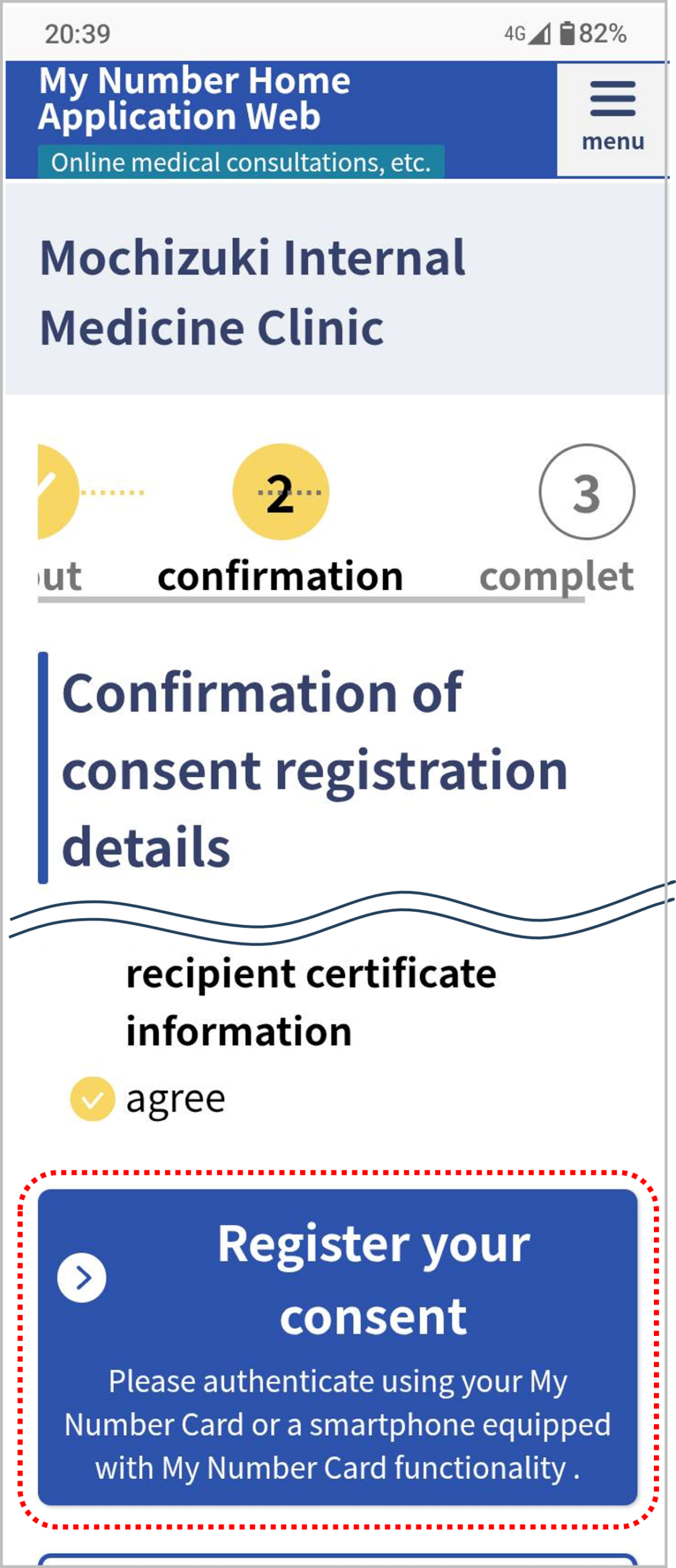 | ■ Confirmation of Consent Registration Details Please review the information you entered. Click "Register your consent" |
| ■ Identity Verification Enter your My Number Card password. Click "本人確認する(Verify Identity)" *If you log in using biometric authentication (such as facial recognition or fingerprint), a PIN, or a pattern, skip this step. |
| ■ Reading Your My Number Card Place your My Number Card against the back of your smartphone to read the card. *If you log in using biometric authentication (such as facial recognition or fingerprint), a PIN, or a pattern, skip this step. |
| After the card has been read successfully, remove the card. Click "外部サービスに戻る(Return to External Service)" *If you log in using biometric authentication (such as facial recognition or fingerprint), a PIN, or a pattern, skip this step. |
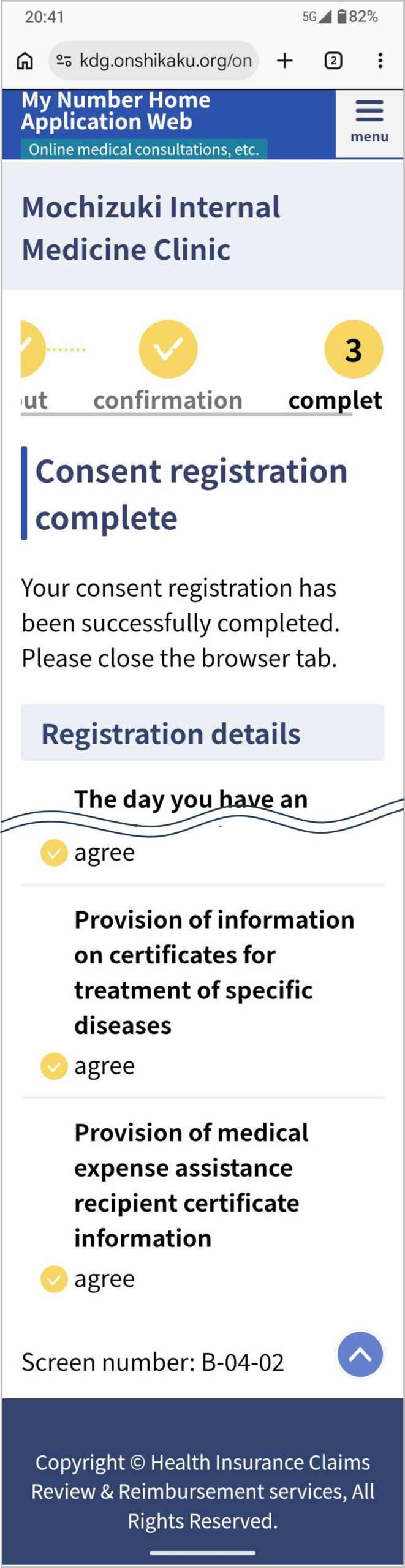 | ■ Consent Registration Completed Your consent details will be displayed. |
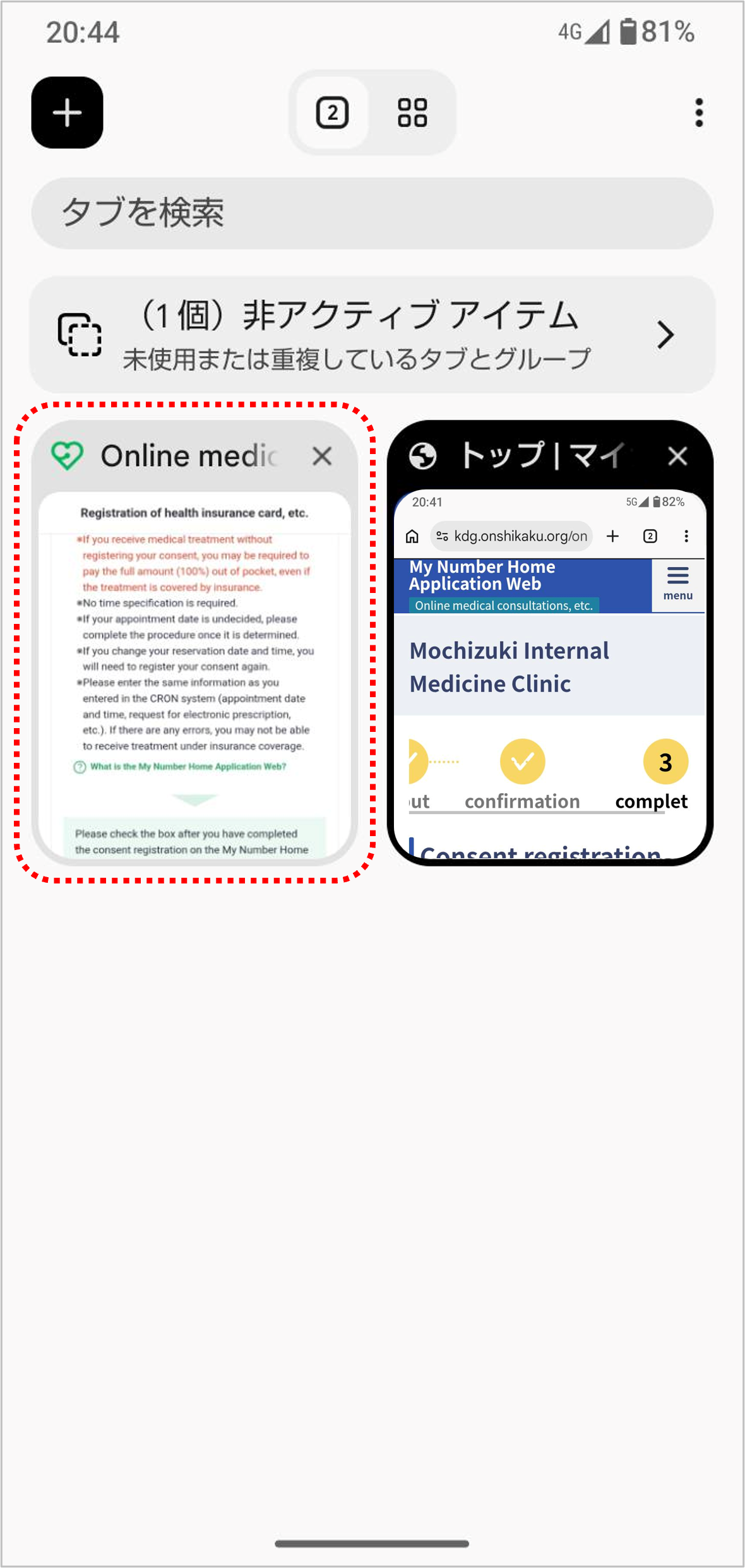 | ■ Return to the curon screen *Please note that if you close curon without completing the next step, "Confirm Consent Registration," the procedure will not be completed and you will need to start over from the beginning. |
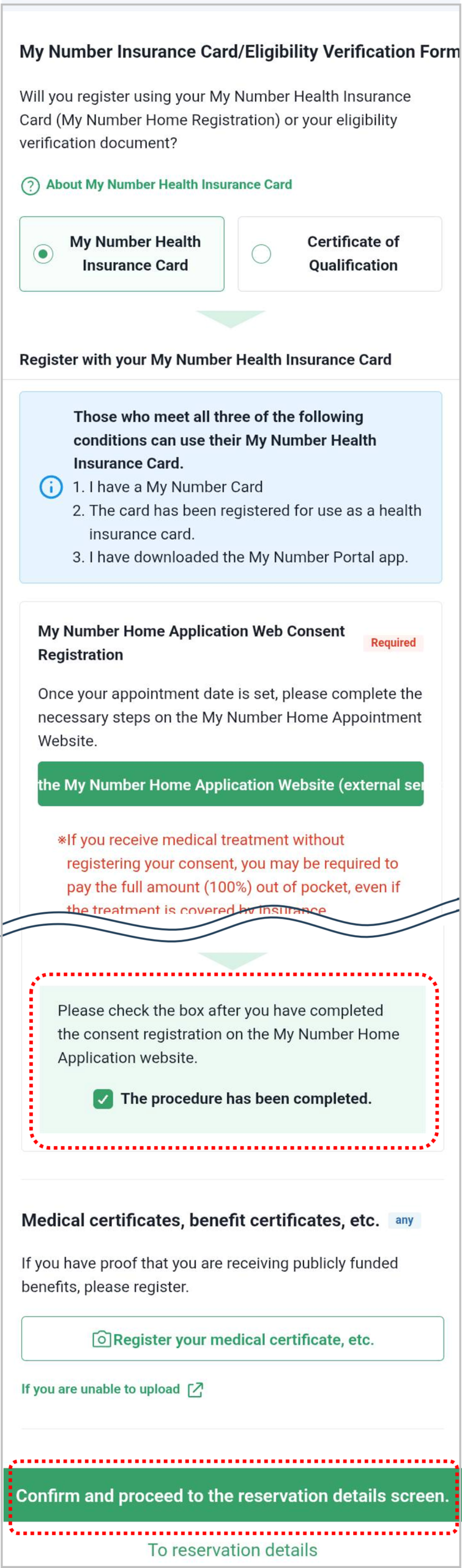 | ■ Confirm Consent Registration Check the box next to “The procedure has been completed.” Then click “Confirm and proceed to the reservation details screen.” |
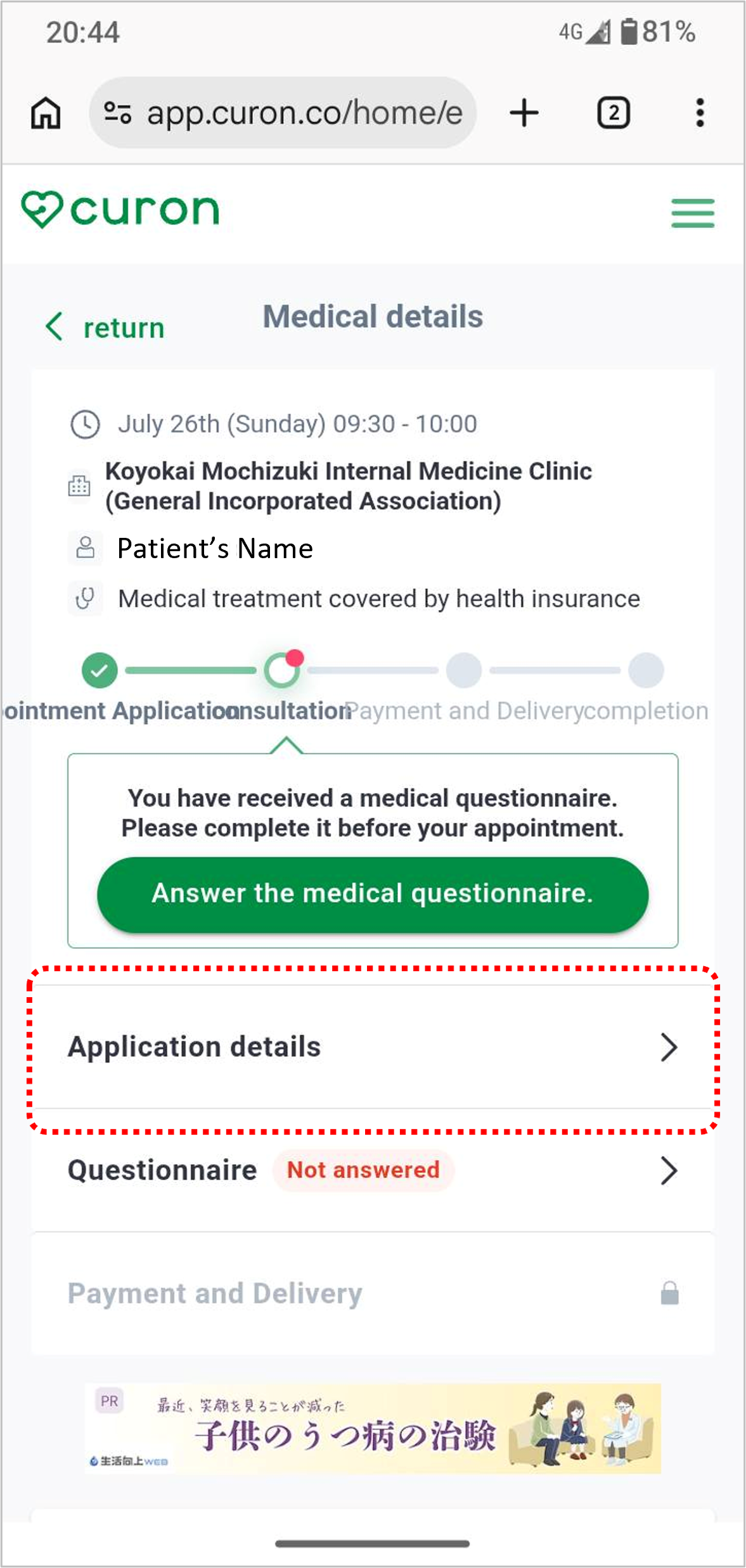 | ★Check that your consent registration has been completed correctly. Select “Application details.” |
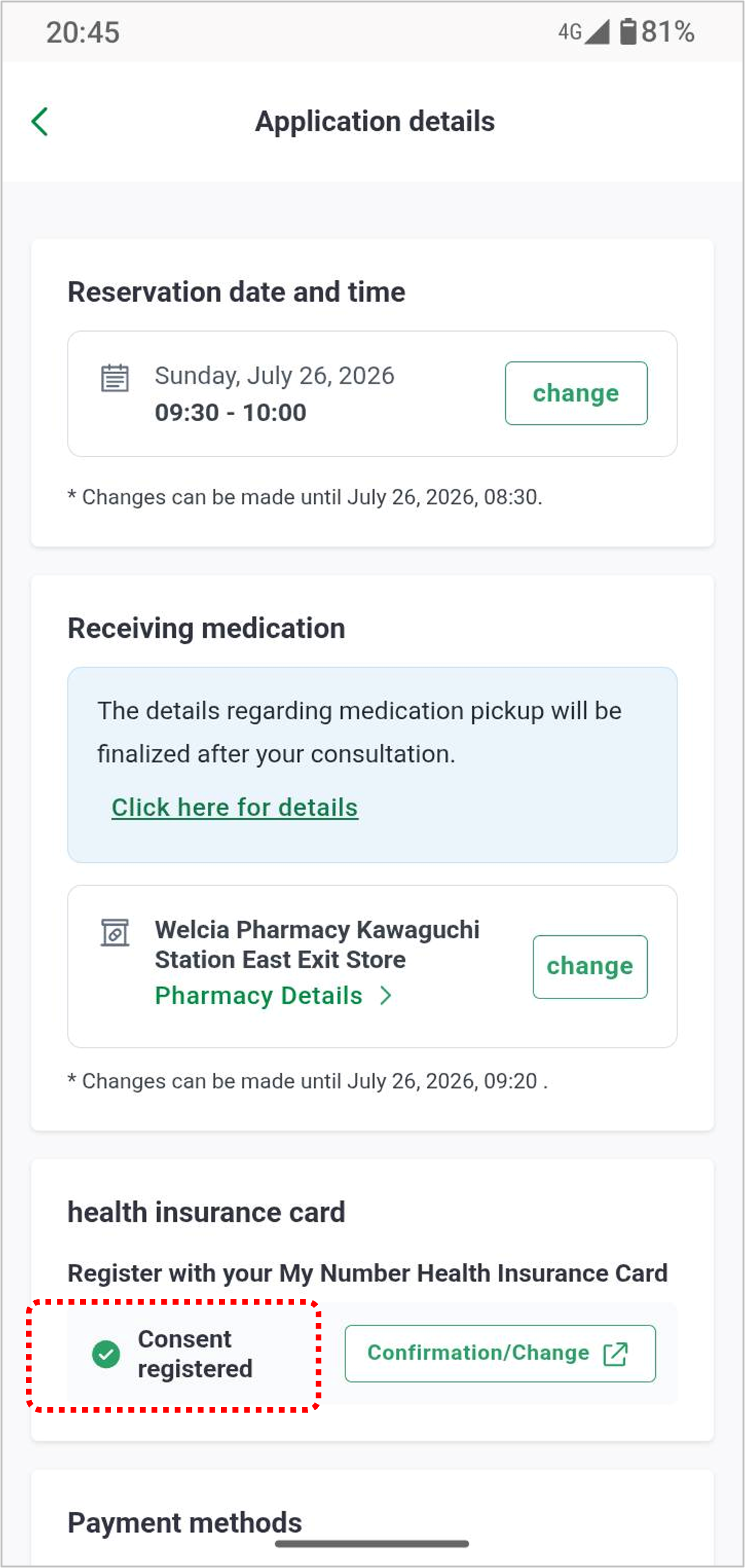 | If “Register with your My Number Health Insurance Card” is displayed as “✅ Consent registered” as shown in the image, your registration has been completed successfully. |
anchor11
資格確認書で登録
Register using a Certificate of Eligibility
マイナ保険証の登録がうまくいかない場合は、代わりに資格確認書でもご登録いただけます。
If you are unable to register using your My Number Health Insurance Card, you can register using your Certificate of Eligibility instead.
| ■ 資格確認書の登録 予約が完了すると、引き続き保険証の登録へ移ります。 「保険証などの登録へ」をクリック |
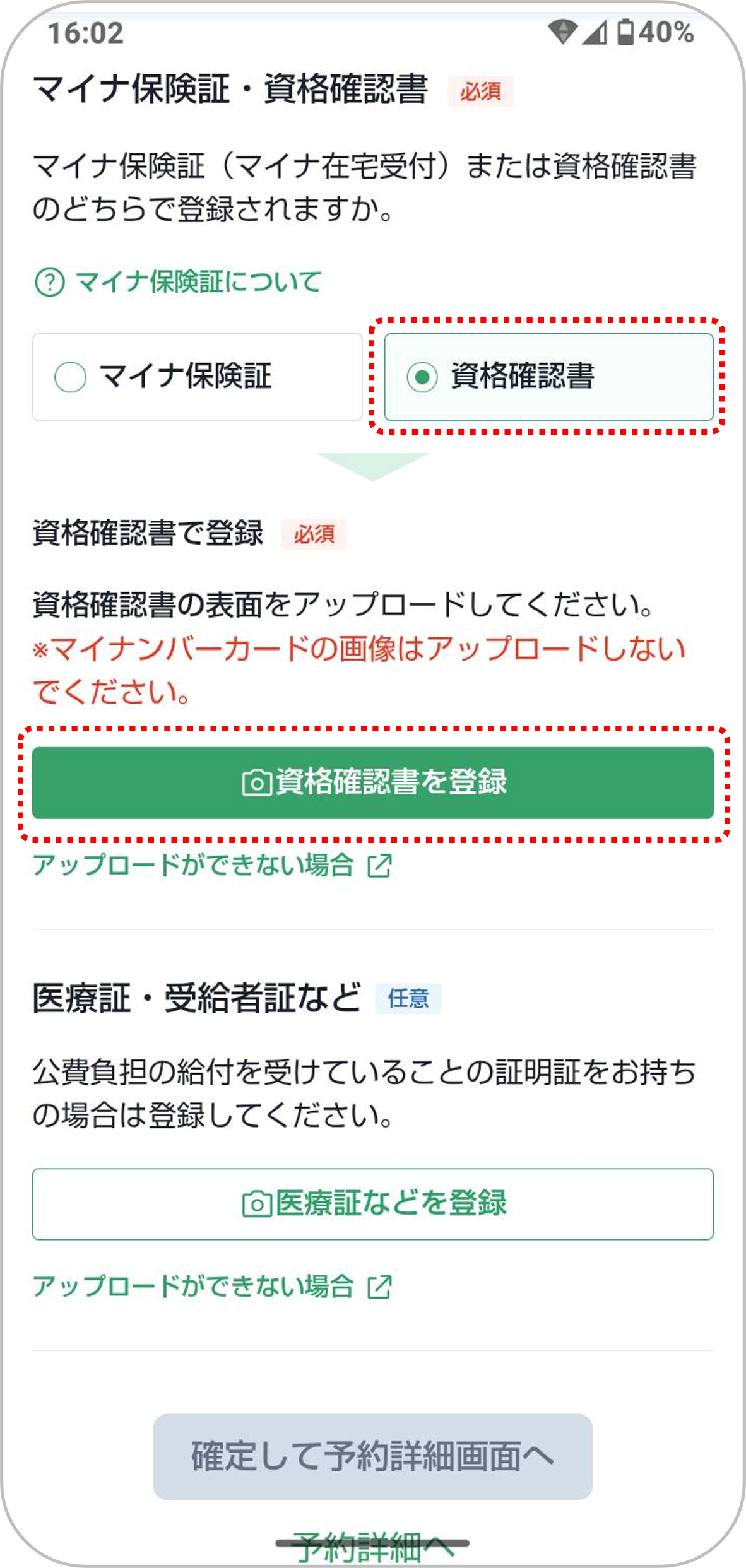 | ■ 「資格確認書」を選択 「資格確認書」を選択し、 「資格確認書を登録」から、次の①~③のいずれかをアップロードしてください。 |
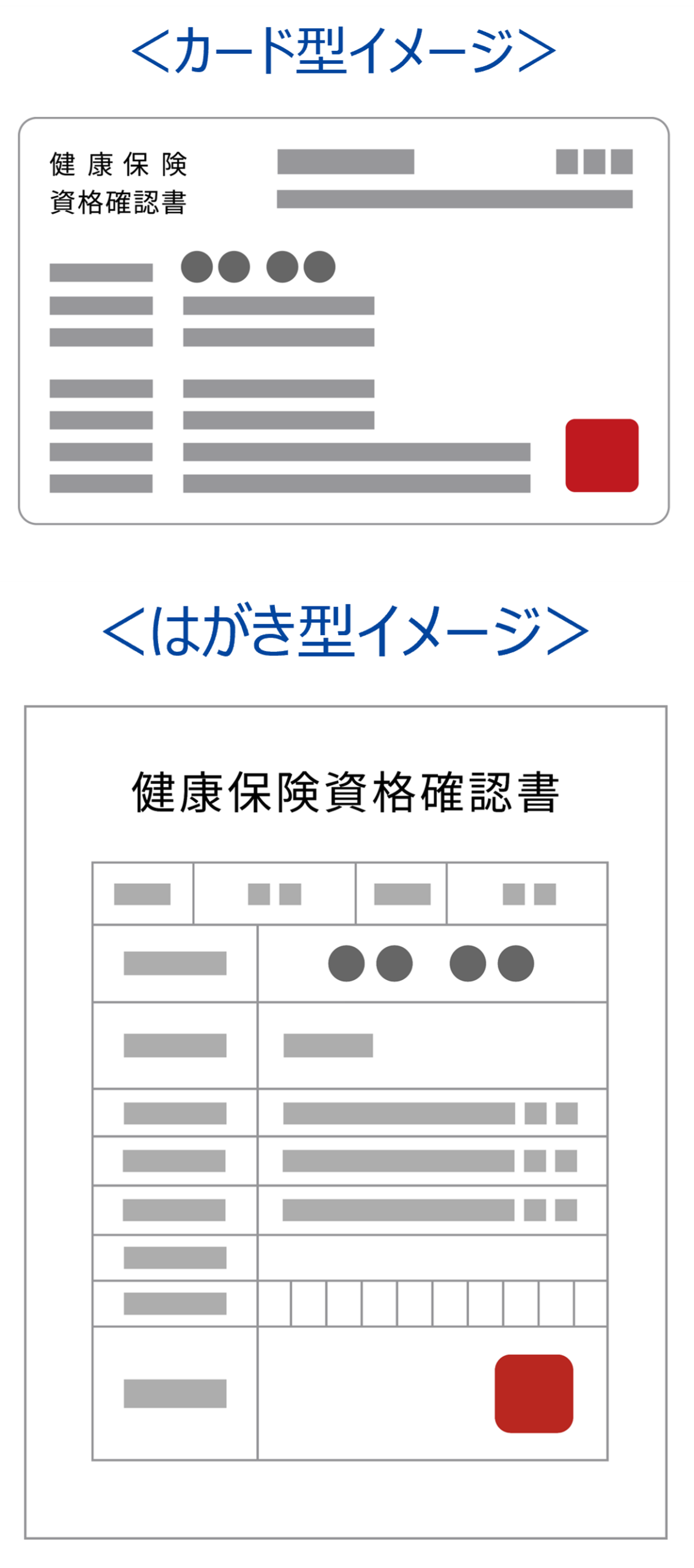 | ① 資格確認書の写真 カードまたはハガキサイズの書類です。 マイナンバーカードとは違うものです。 マイナンバーカードの画像をアップロードしないようご注意ください。 または ② 資格情報のPDF または ③ 資格情報のスクリーンショット ※1. ③をご利用の際は、以下の注意点をご確認ください。 ※ ②・③は、マイナアプリより取得可能です。 取得方法は、こちらの「資格情報の取得方法」をご覧ください。 |
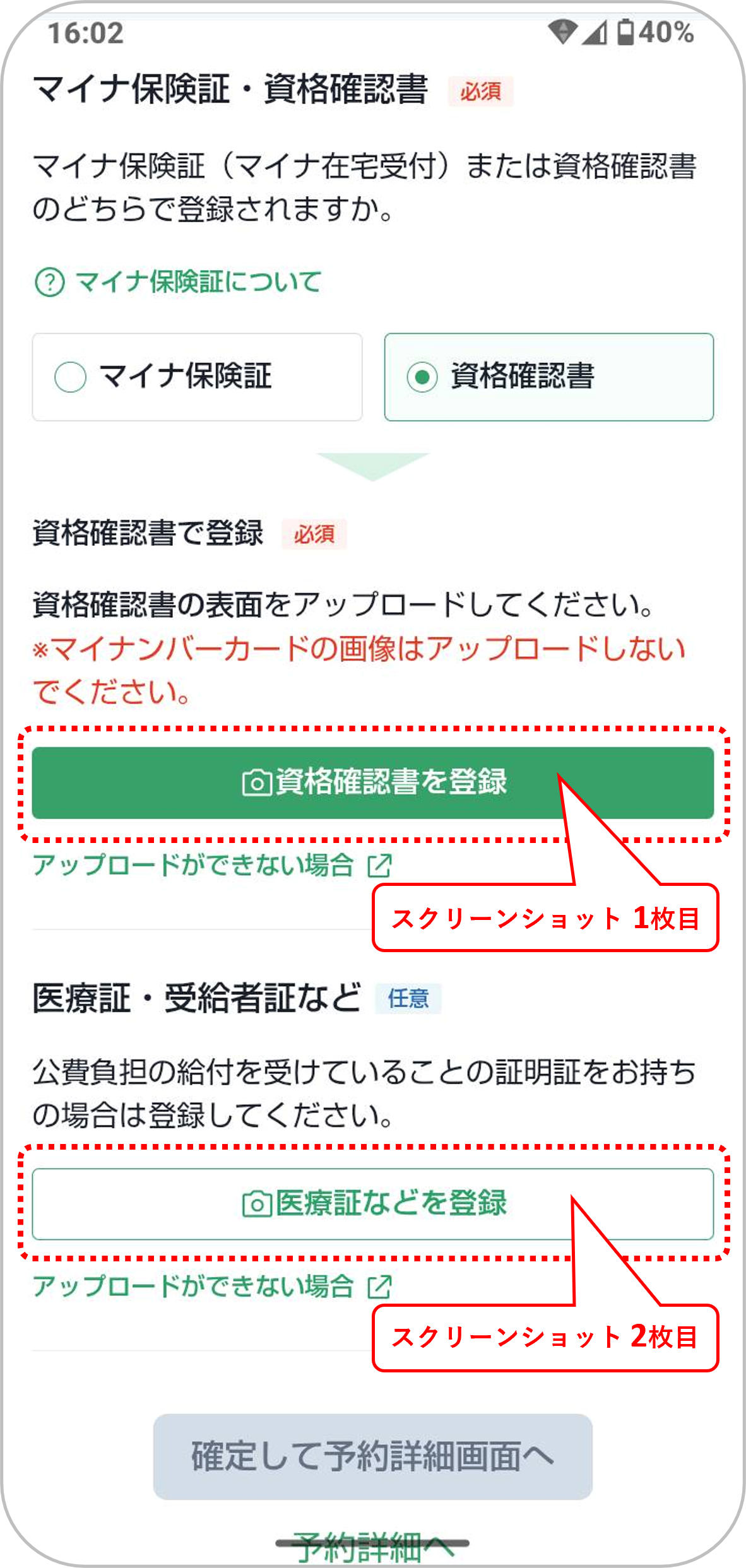 | ※1. ③のスクリーンショットをアップロードする際の注意点 資格情報のスクリーンショットは2枚になるため、2枚目は「医療証などを登録」にアップロードしてください。 |
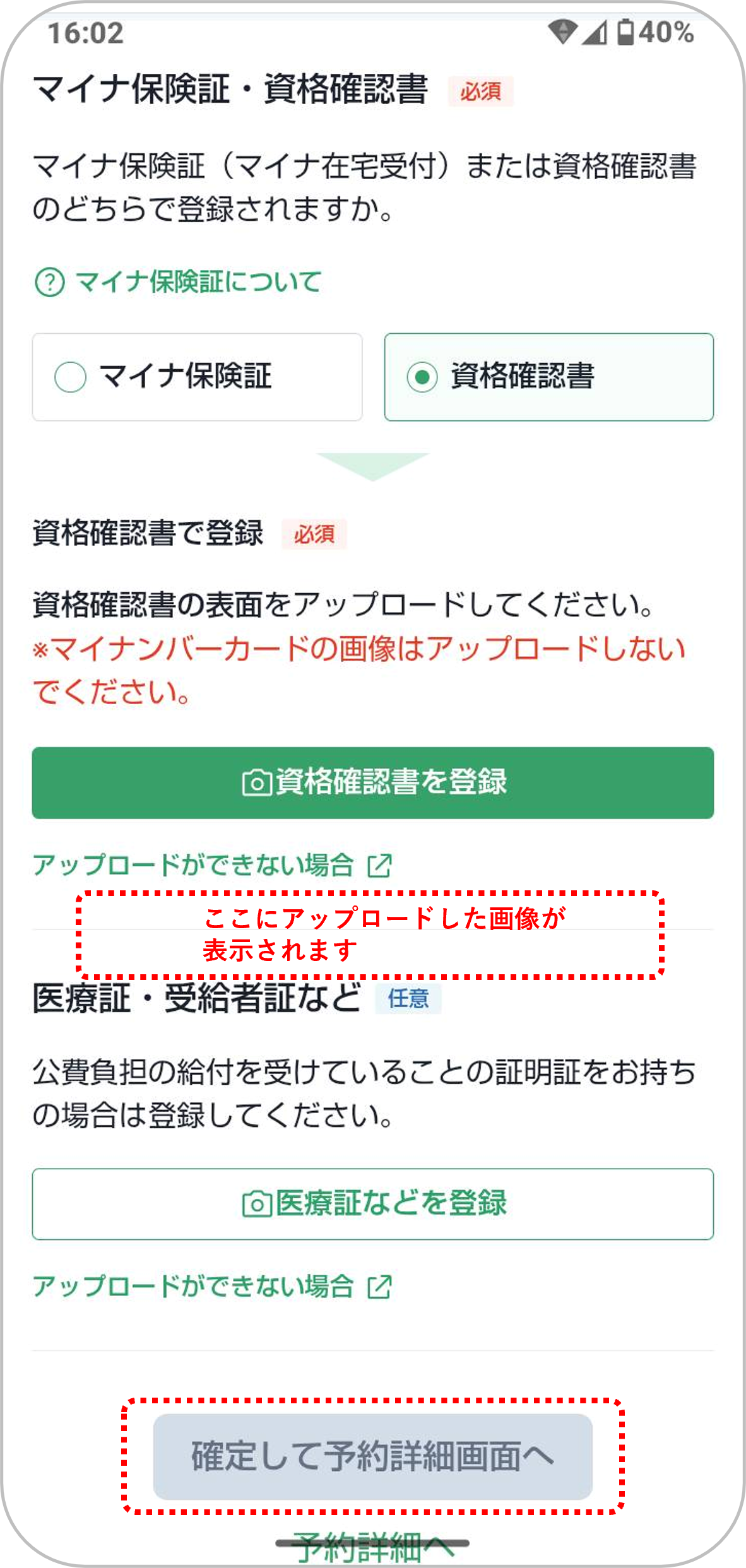 | ①~③のいずれかをアップロードしたら「確定して予約詳細画面へ」 |
| ■ Register Your Certificate of Eligibility After your appointment is confirmed, you will proceed to register your health insurance information. Click “Registration of insurance card, etc.” |
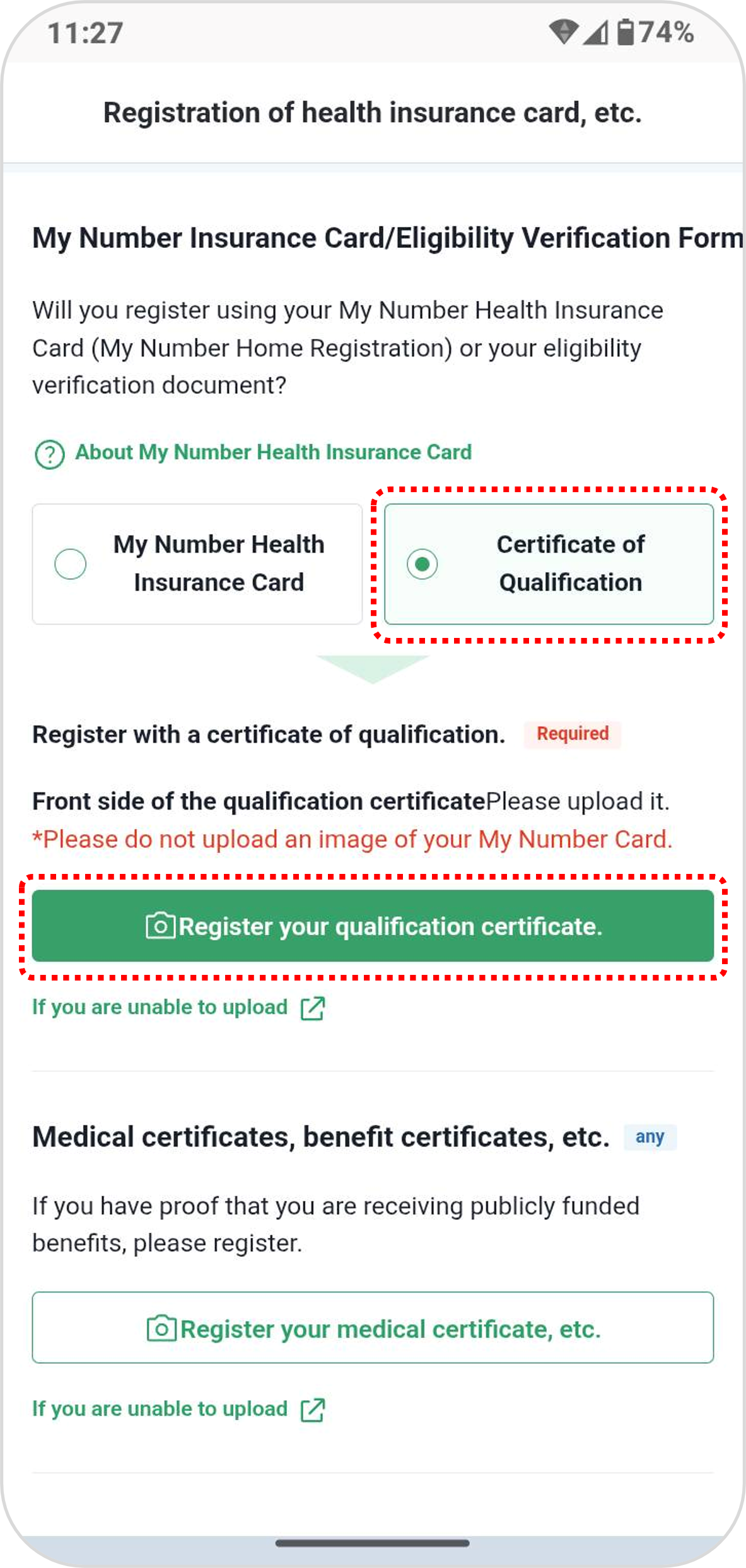 | ■ Select “Certificate of Qualification” Select “Certificate of Qualification.” Then, click “Register your qualification certificate.” and upload one of the documents listed in ①–③ below. |
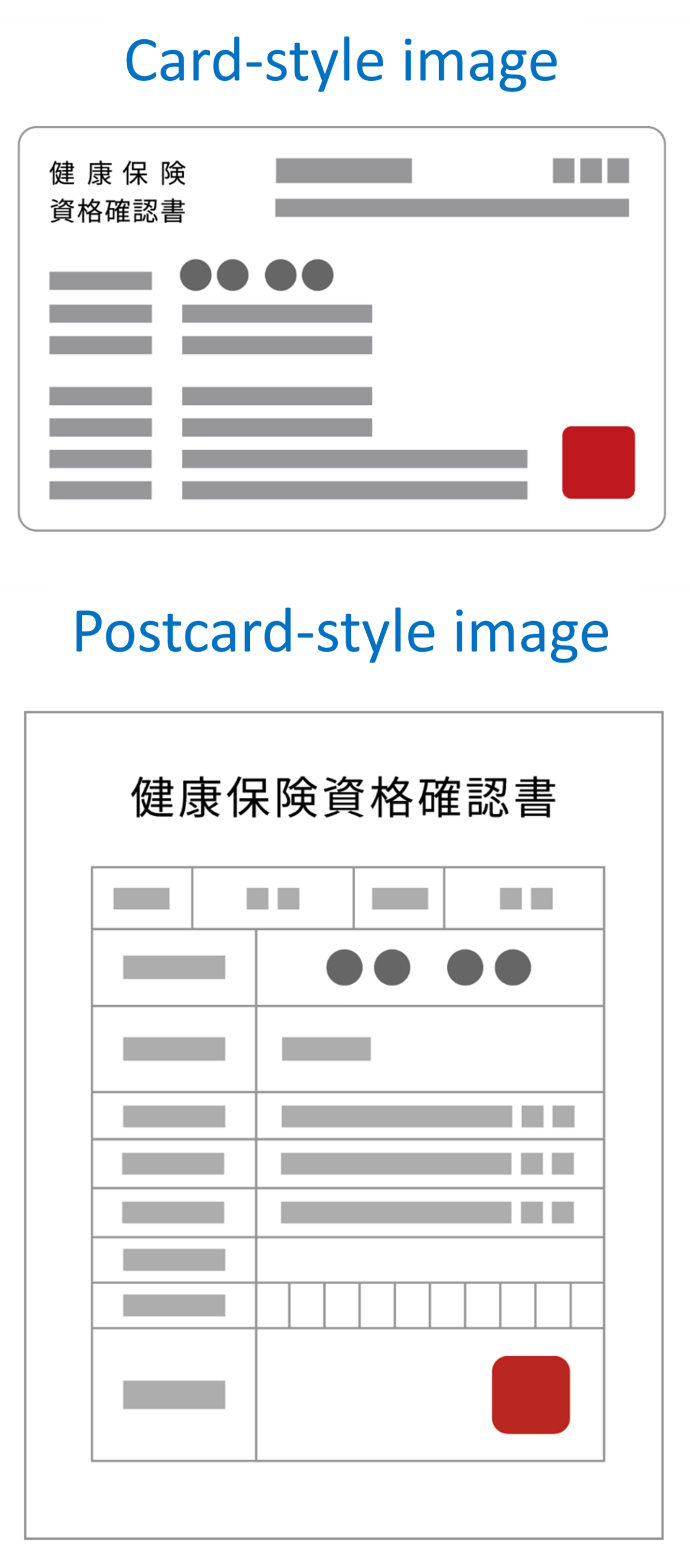 | ① Photo of Your Certificate of Eligibility This is a card- or postcard-sized document. Please note that this is different from your My Number Card. Be careful not to upload a photo of your My Number Card. or ② PDF of Your Health Insurance Eligibility Information or ③ Screenshot of Your Health Insurance Eligibility Information *1. If you choose ③, please check the important notes below. * You can get the documents in ② and ③ through the Mynaportal app. For instructions, please see “How to Get Your Eligibility Information.” |
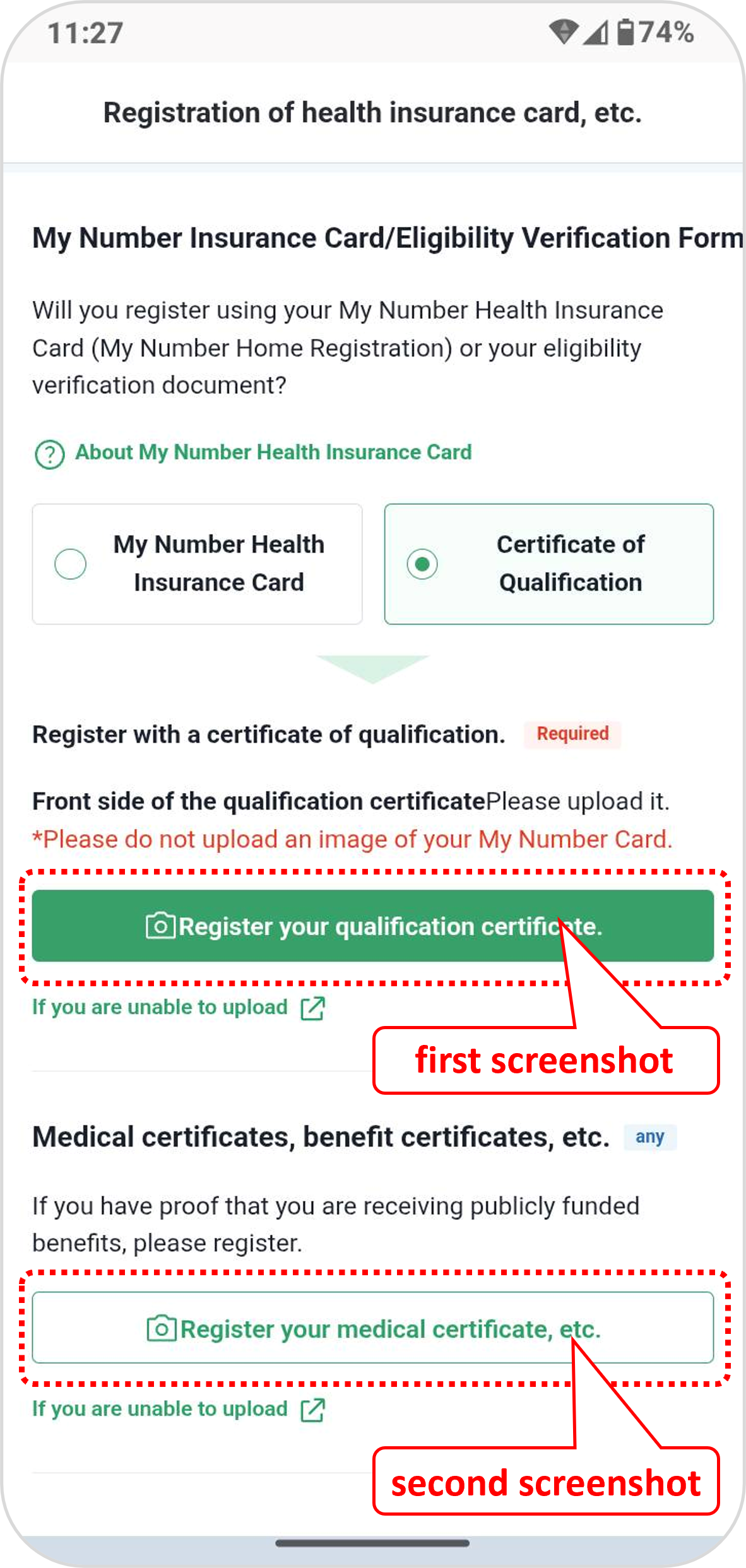 | *1. Important Notes When Uploading Screenshots of ③ Your health insurance eligibility information requires two screenshots. Please upload the first screenshot under “Register your qualification certificate.” and the second screenshot under “Register your medical certificate, etc.” |
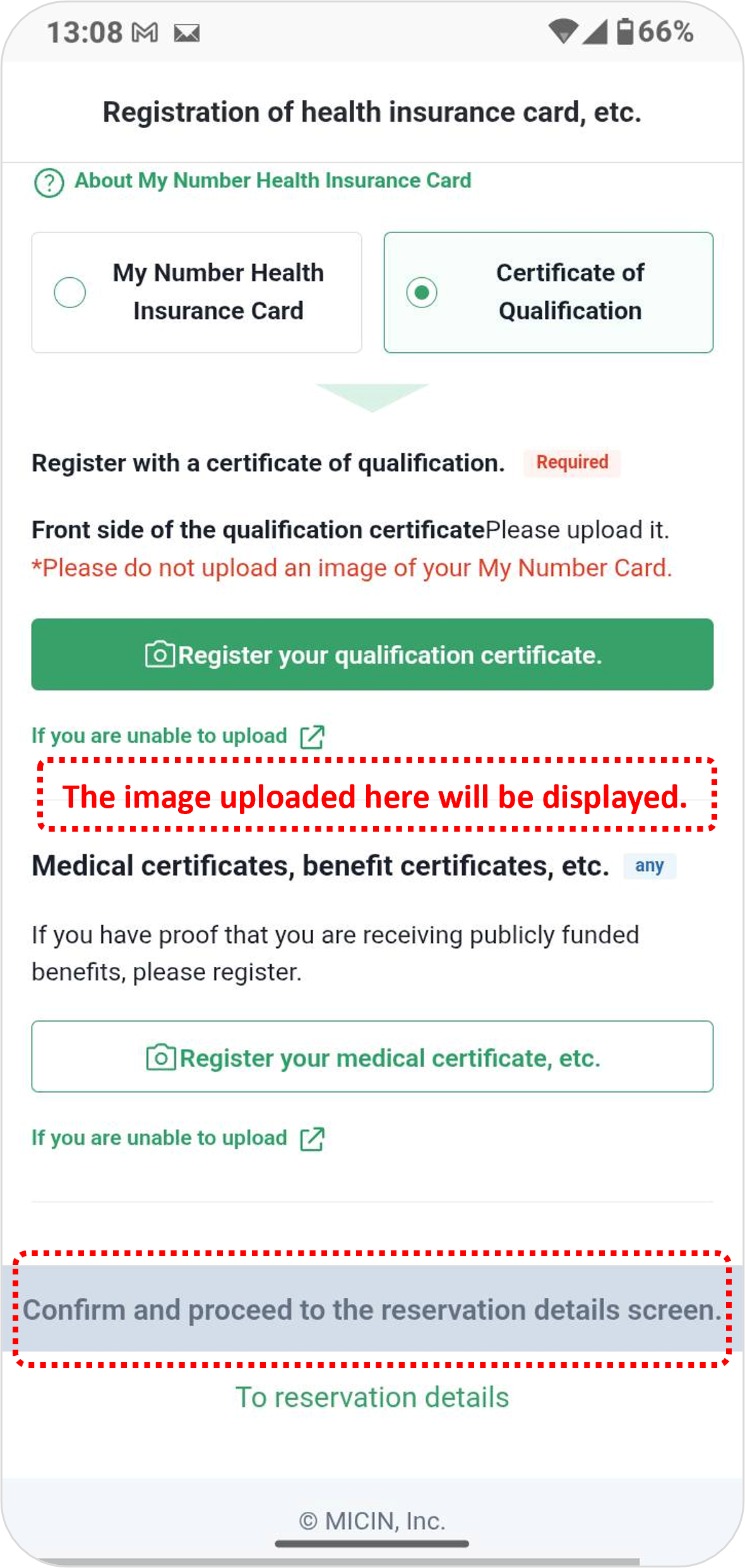 | After uploading one of the documents listed in ①–③, click “Confirm and proceed to the reservation details screen.” |
anchor12
資格情報の取得方法(② PDF / ③ スクリーンショット)
How to Get Your Eligibility Information (② PDF / ③ Screenshot)
*You can use Google Translate in this app after logging in.
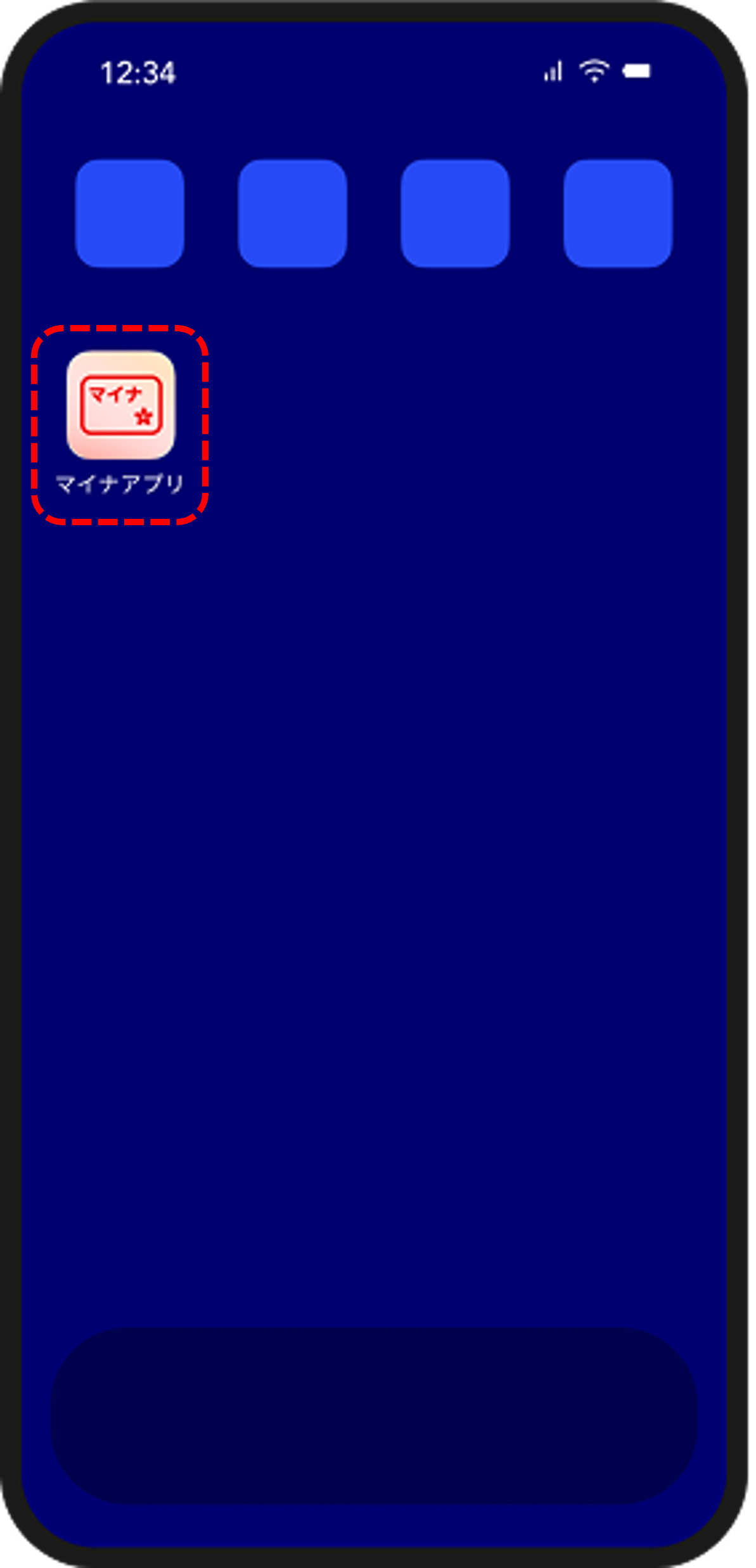 | マイナアプリを起動します。 Open the “Myna app”.  ios App Download » ios App Download »android App Download » |
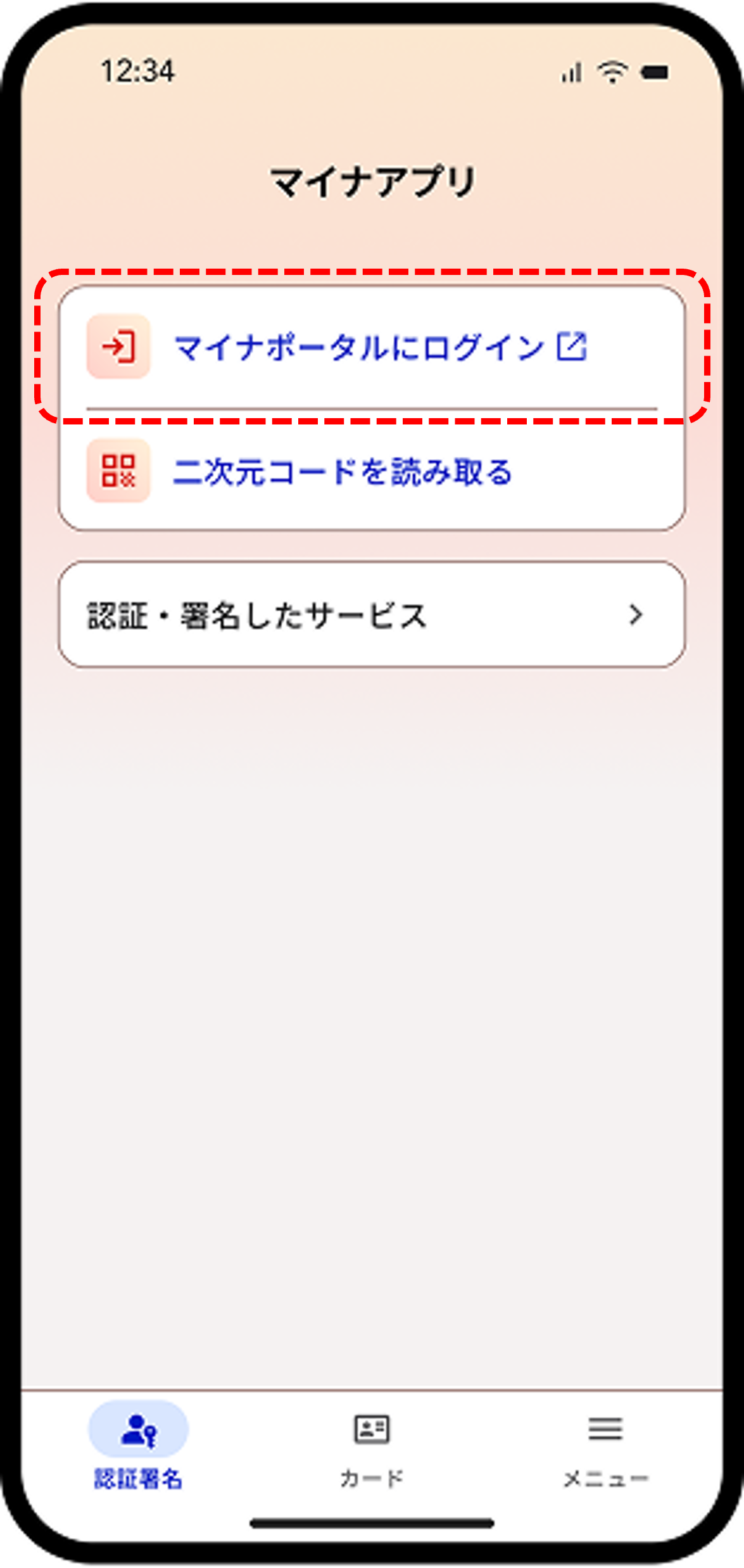 | Click「マイナポータルにログイン」 |
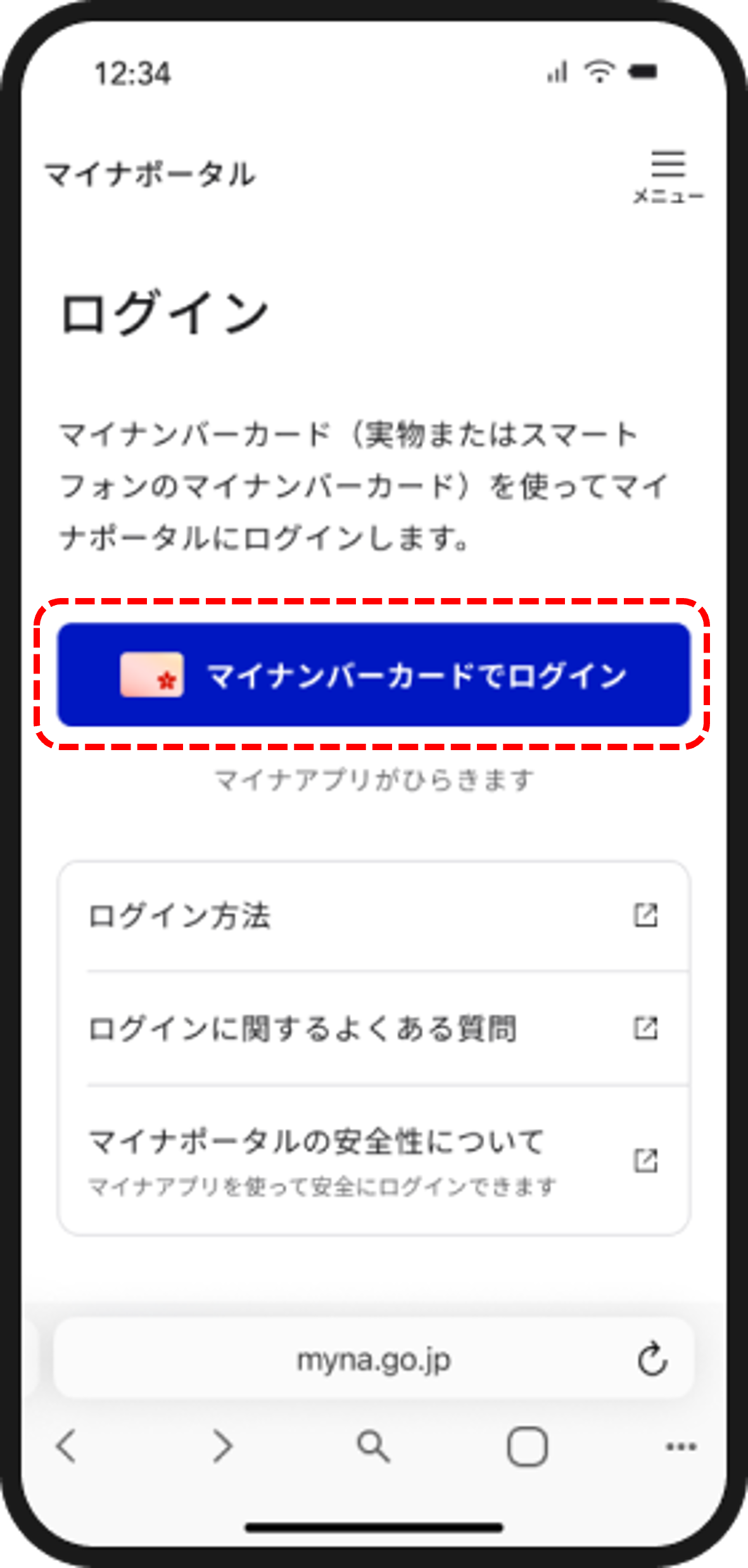 | Click「マイナンバーカードでログイン」 |
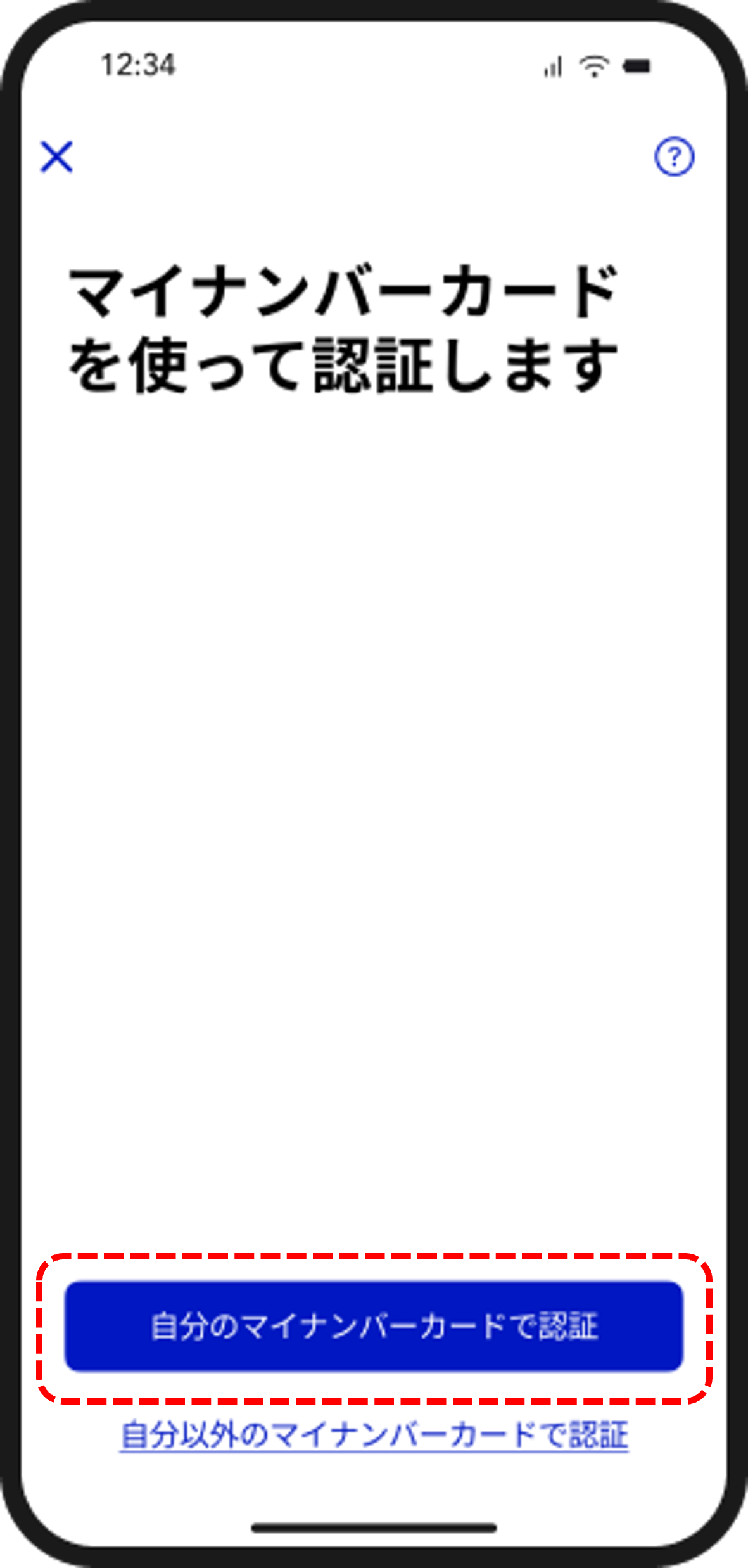 | Click「自分のマイナンバーカードで認証」 ※マイナアプリへのログインを、生体認証(顔や指紋など)、PIN、パターン等で行えるように設定している方は、そちらを選択してください。 *If you have set up biometric authentication (such as facial recognition or fingerprint), a PIN, pattern, or another method to log in to the Myna app, please select the method you have set up. |
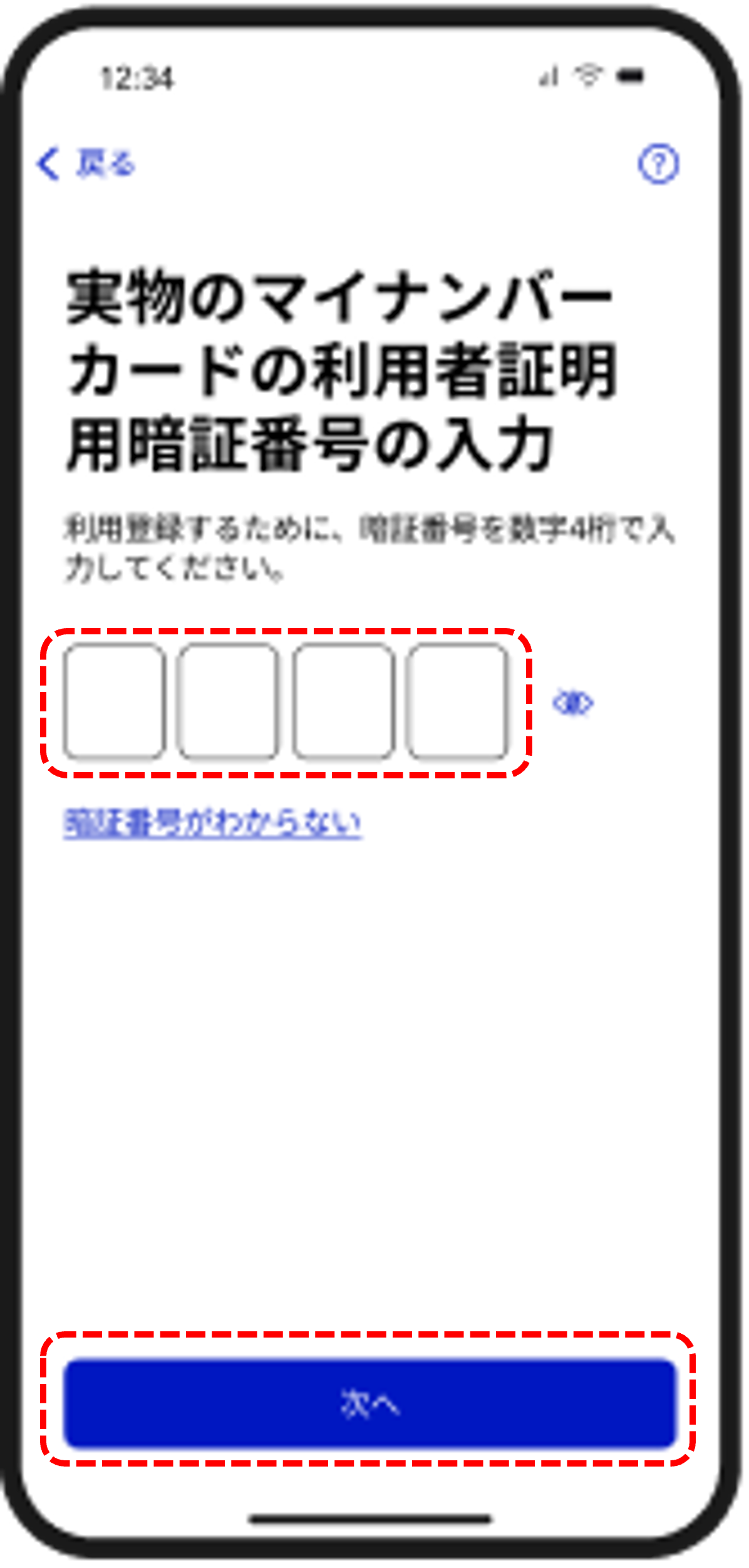 | 4桁の暗証番号を入力します。 Enter your 4-digit PIN. ※生体認証(顔や指紋など)、PIN、パターン でログインされる方は、この工程はスキップします。 *If you log in using biometric authentication (such as facial recognition or fingerprint), a PIN, or a pattern, skip this step. |
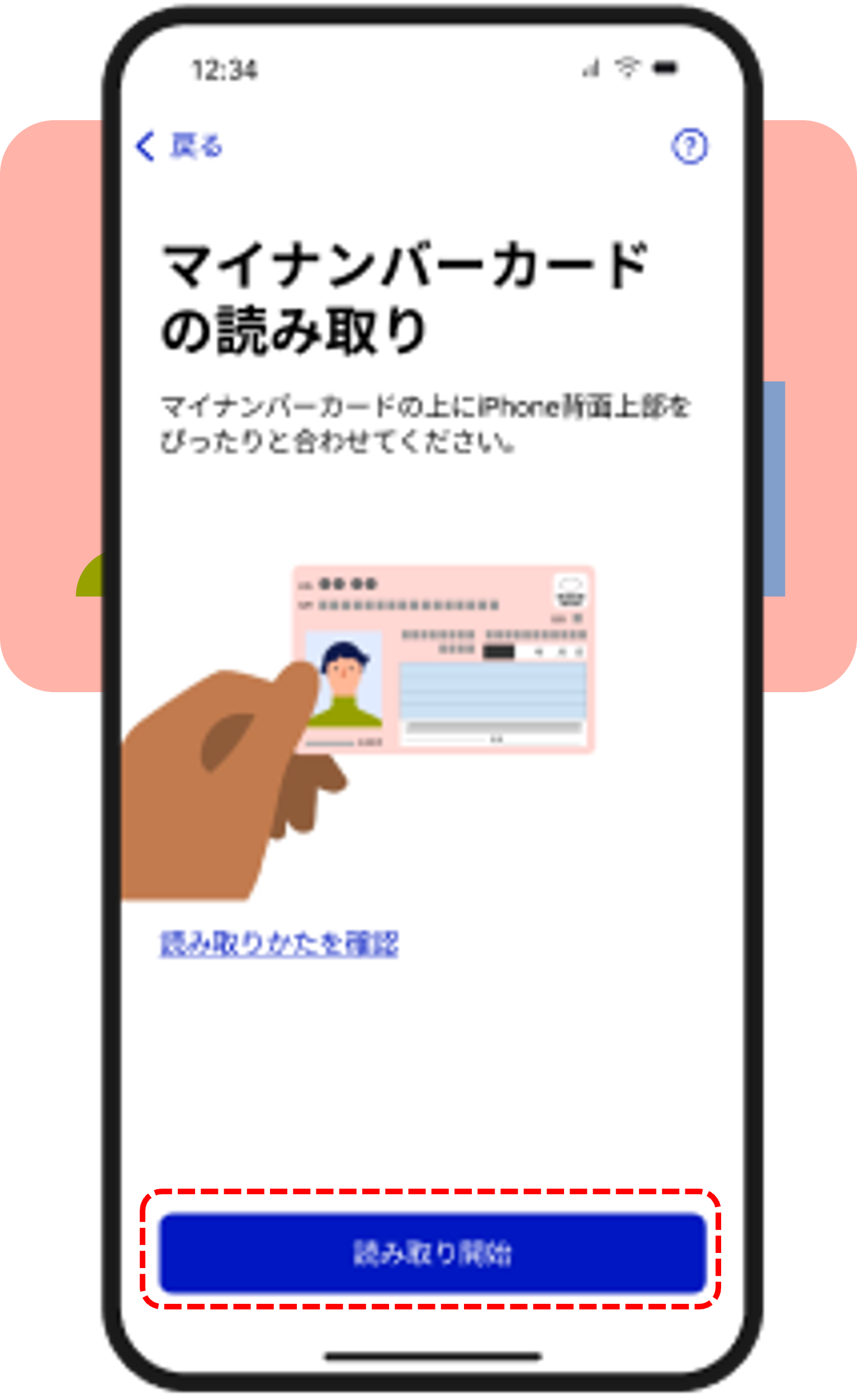 | マイナンバーカードを読み取り Scan Your My Number Card 実物のマイナンバーカードの上にスマートフォン背面上部をぴったりと合わせて、「読み取り開始」ボタンをタップします。 ※読み取りかたや位置は、端末ごとに異なる場合があります。 Place the upper back of your smartphone directly over your physical My Number Card, then tap the “Start Scanning” button. *The scanning method and position may vary depending on your device. ※生体認証(顔や指紋など)、PIN、パターン でログインされる方は、この工程はスキップします。 *If you log in using biometric authentication (such as facial recognition or fingerprint), a PIN, or a pattern, skip this step. |
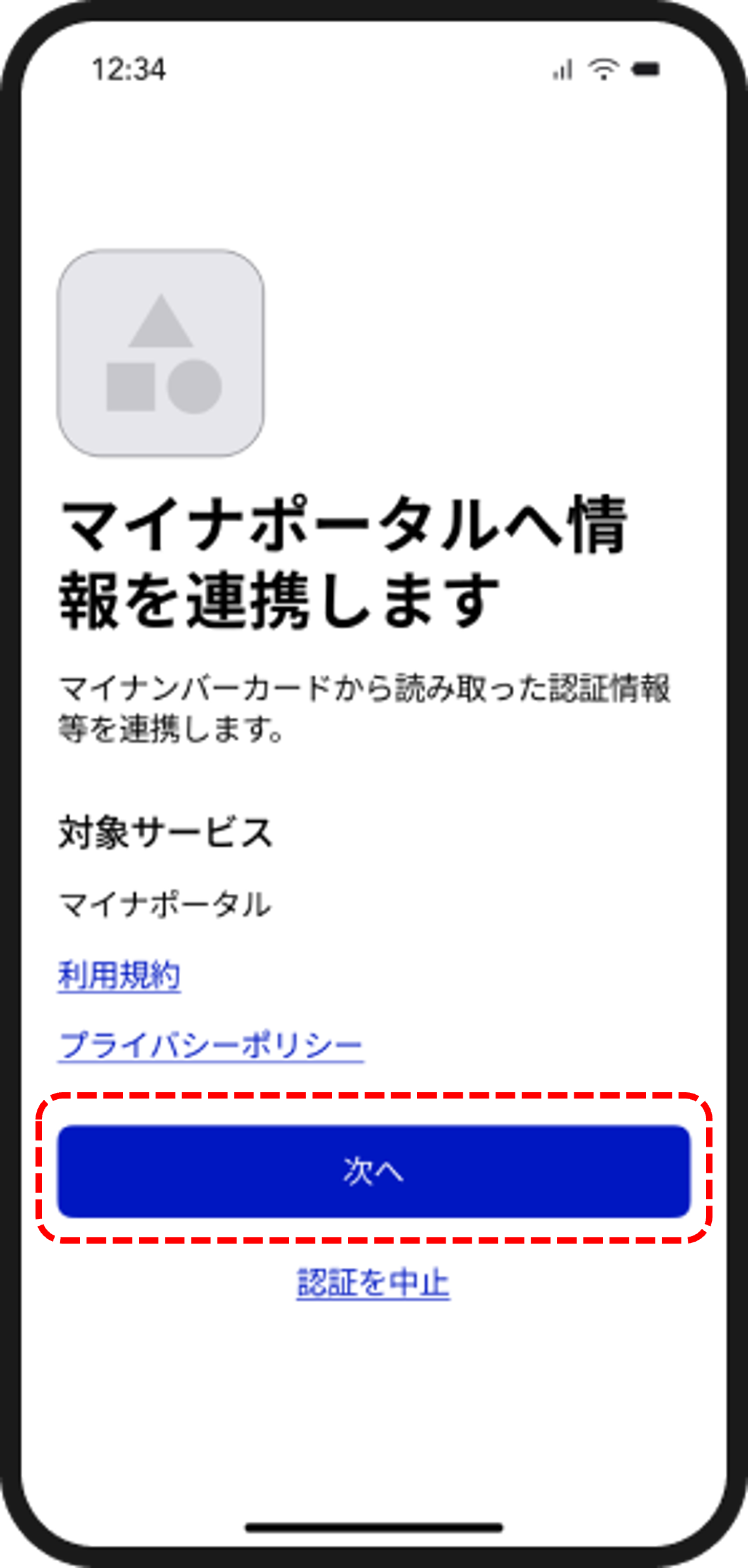 | Click「次へ」 |
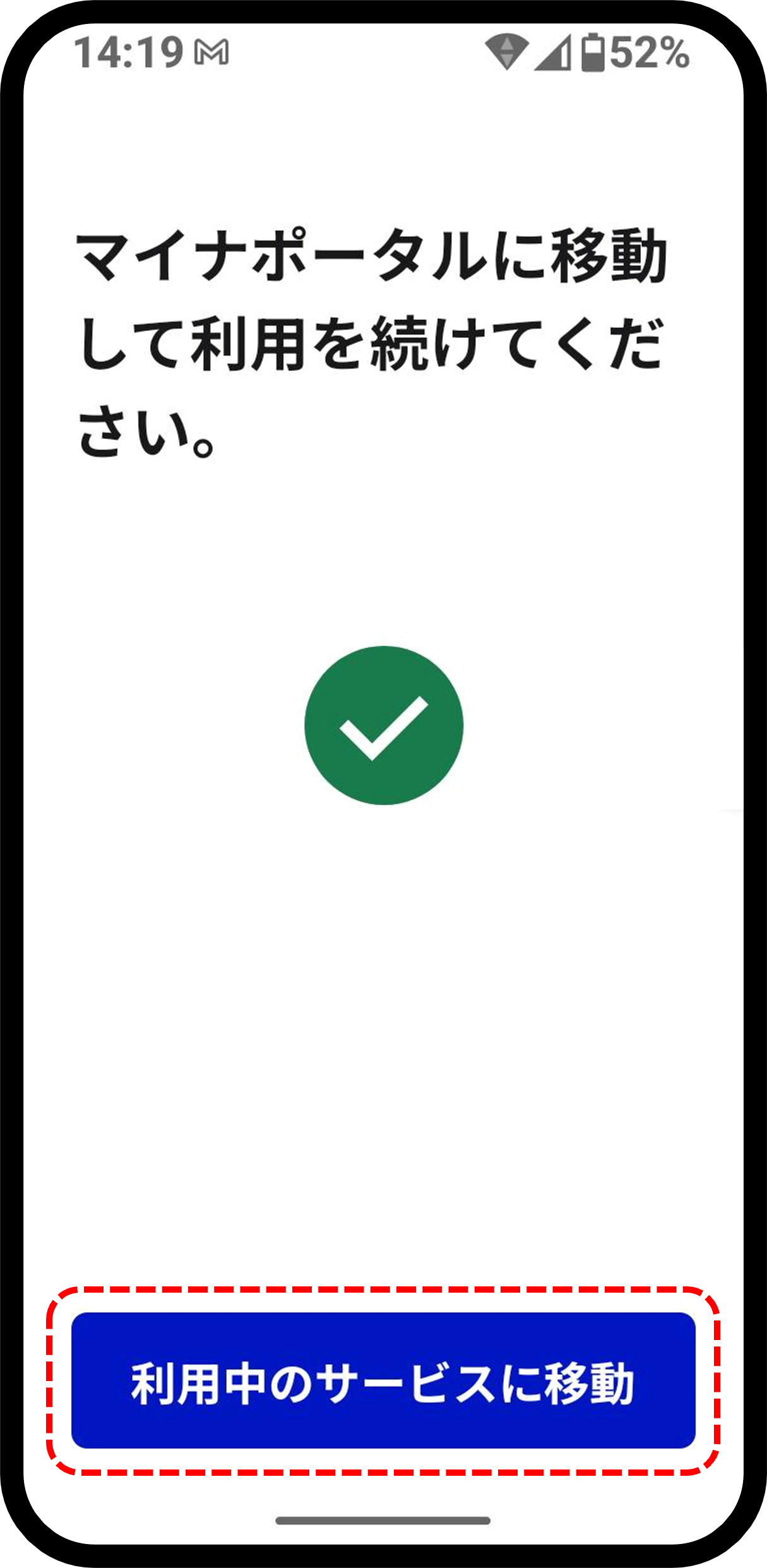 | Click「利用中のサービスに移動」 |
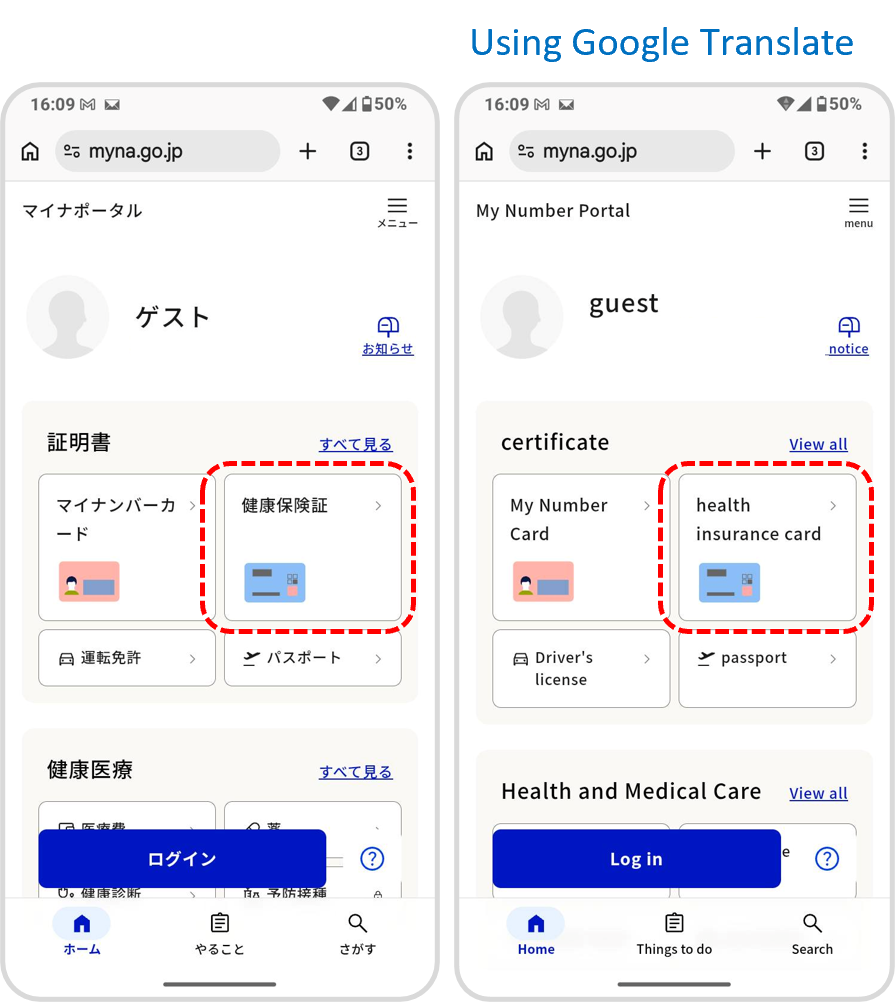 | 「健康保険証」をクリック Click “Health Insurance Card.” *You can use Google Translate from this point on. |
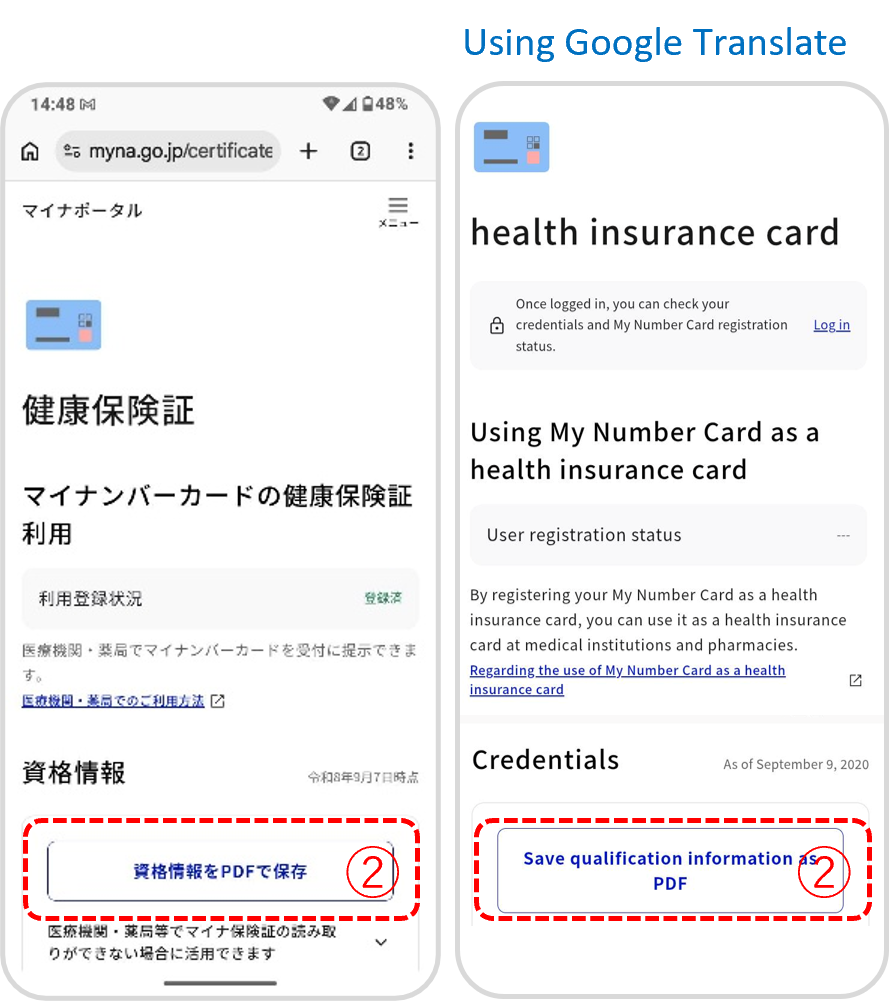 | ② PDFを取得する場合 If You Want to Download the PDF 「資格情報をPDFで保存」をクリックします。 ※保存場所をよくご確認ください。 Click “Save Qualification Information as PDF.” *Please make sure to check where the file is saved. |
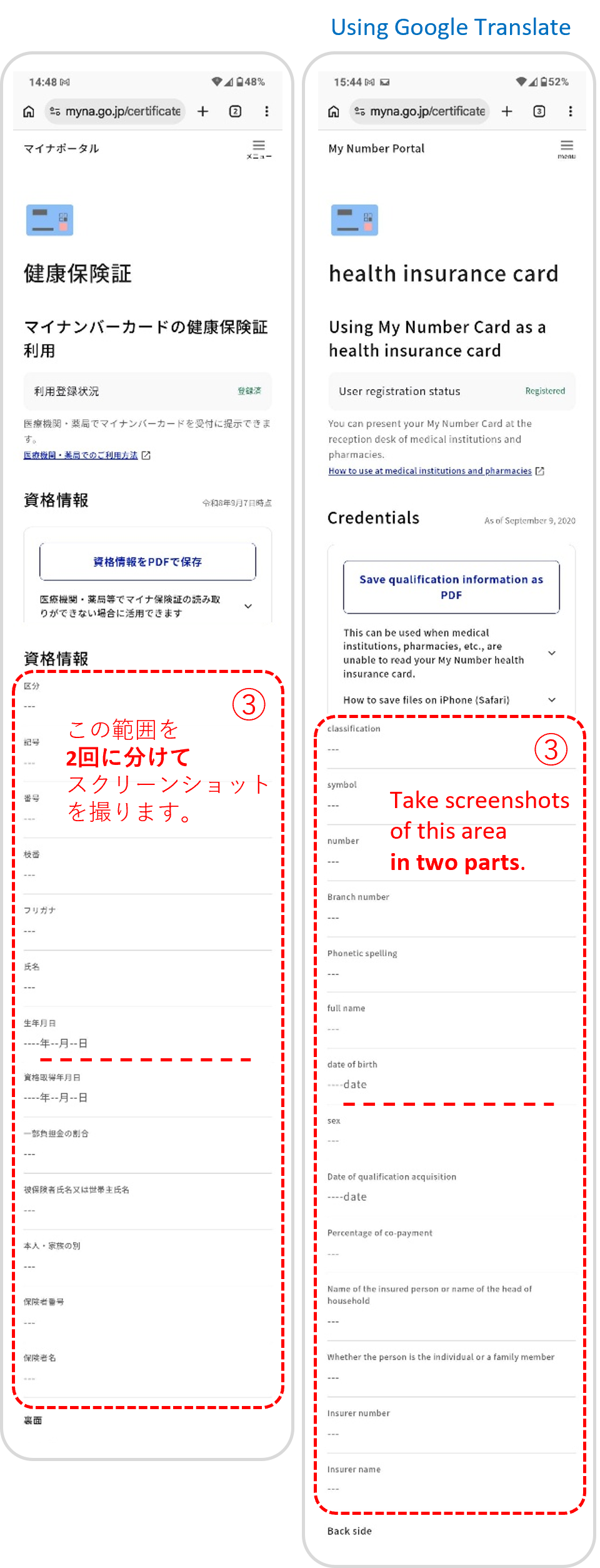 | ③ 資格情報のスクリーンショットを撮る場合 If You Want to Take Screenshots of Your Qualification Information 赤枠の範囲を2回に分けてスクリーンショットを撮ります。 Take screenshots of the area outlined in two parts. |
問診票の回答
Complete the Medical Questionnaire
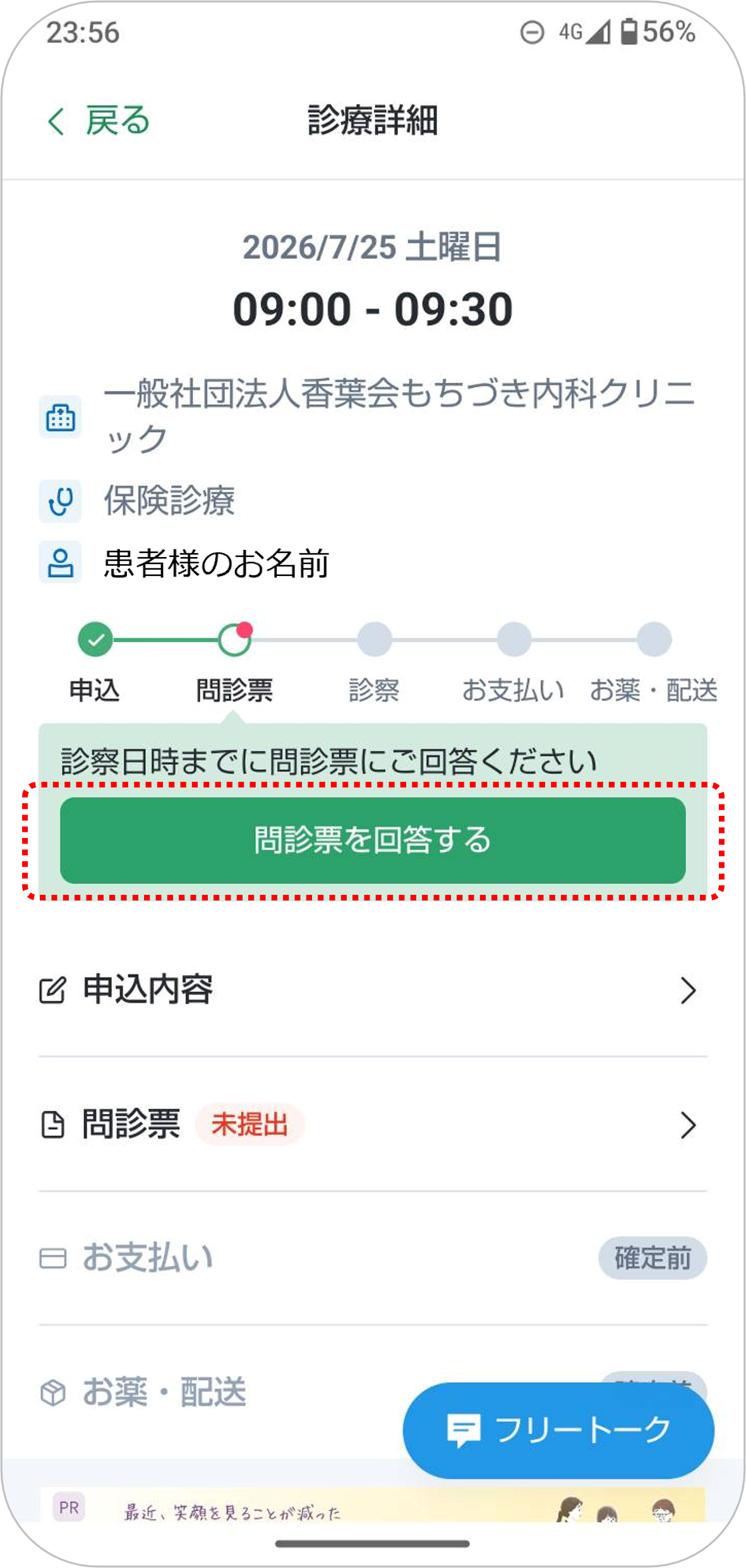 | ■ 問診票の回答 引き続き問診票の回答を行います。 「問診票を回答する」 |
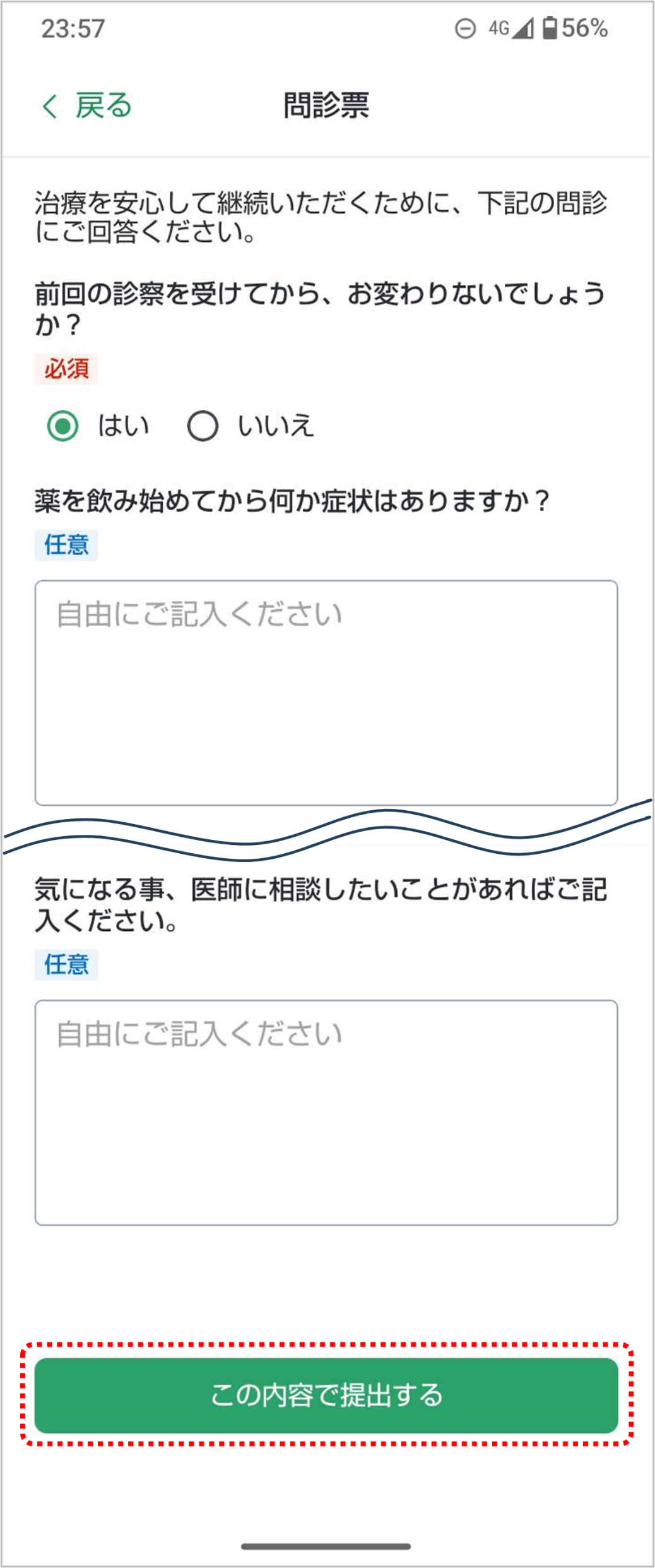 | 問診にご回答いただき、 「この内容で提出する」 一度提出した回答は修正できませんので、正確にご入力ください。 |
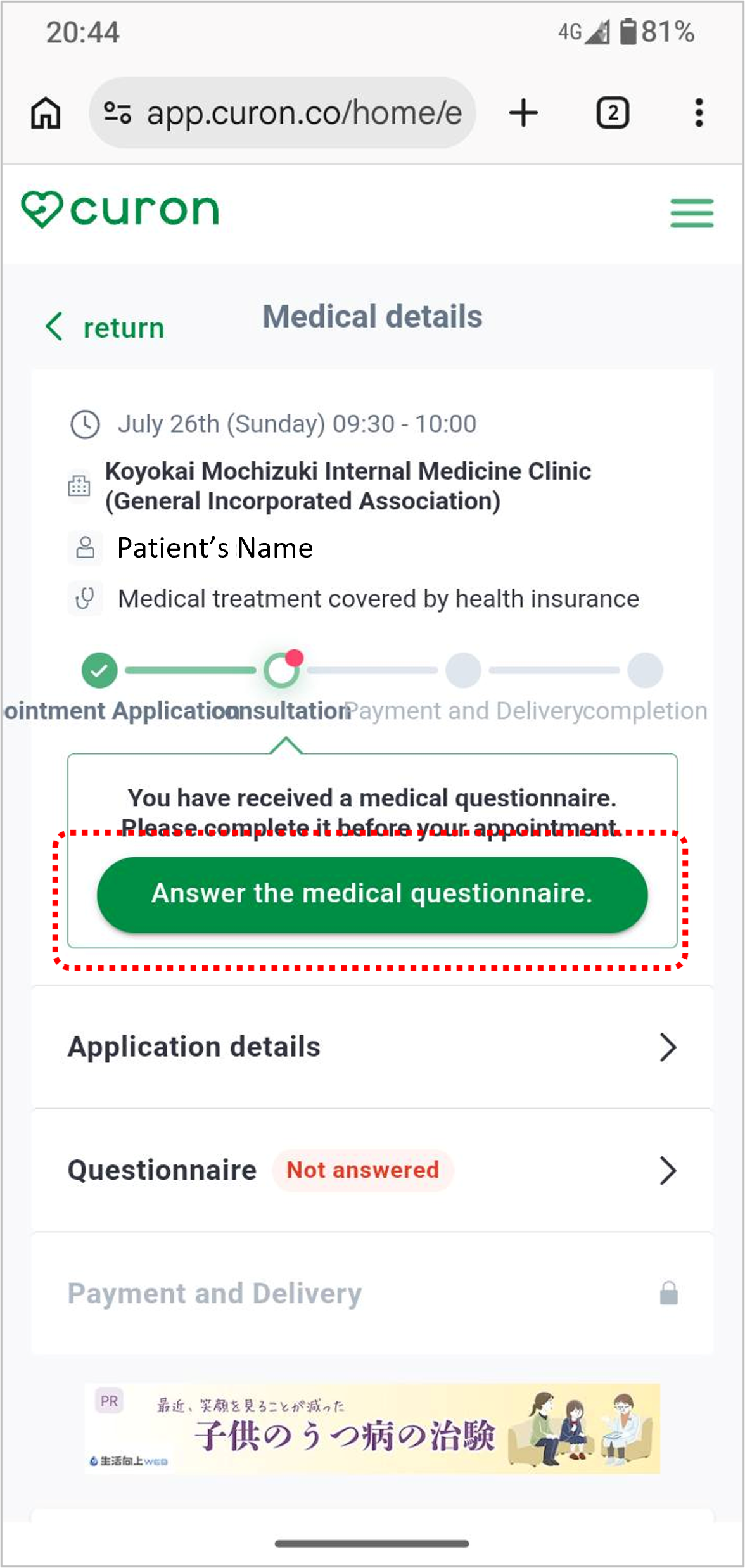 | ■ Answering the Questionnaire You will continue to answer the questionnaire. Click "Answer the Questionnaire" |
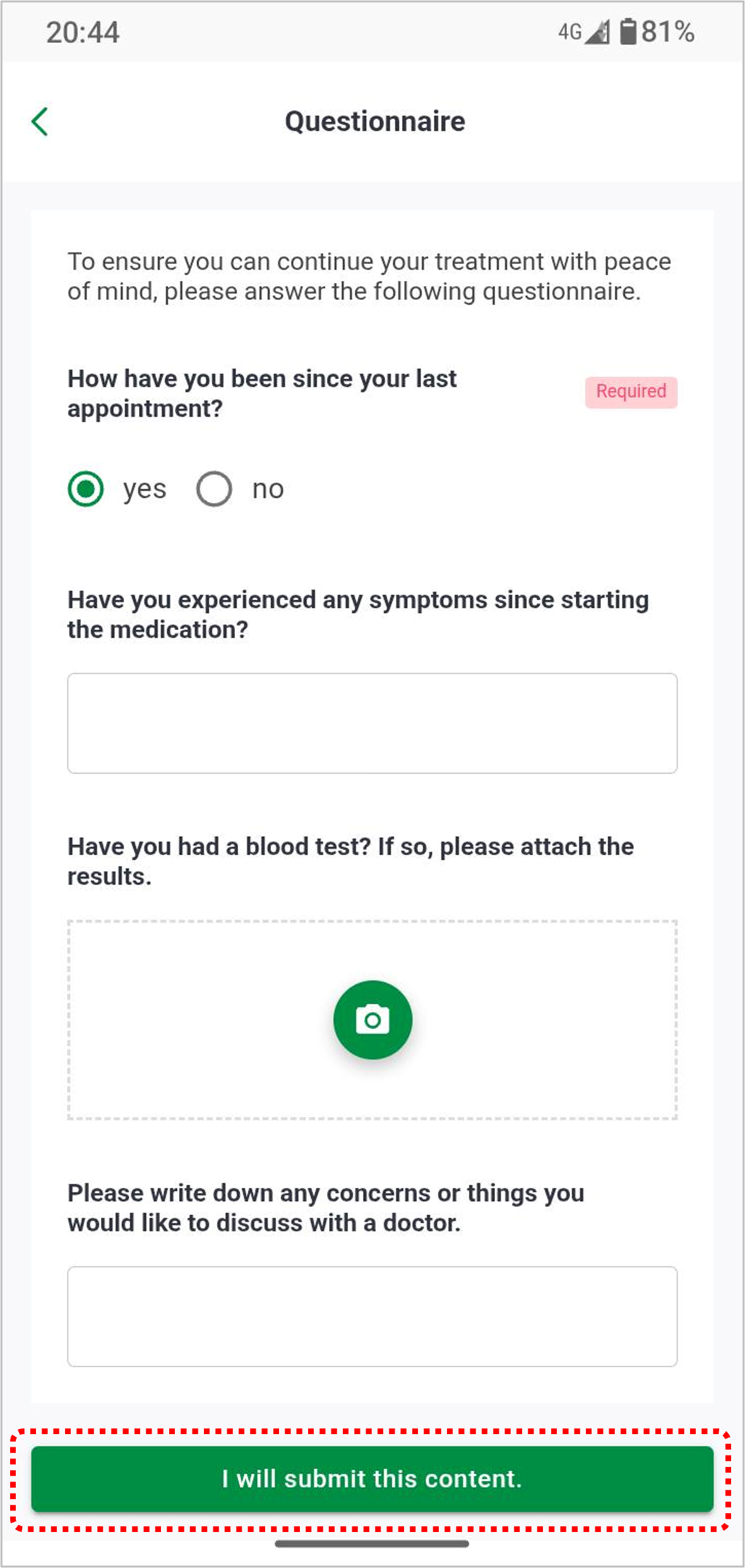 | Please complete the questionnaire and select: "Submit with this information" Once submitted, your answers cannot be edited. Please make sure all information is entered correctly. |
STEP3 ビデオ通話で診察
Join the Video Consultation
通話の方法
How to start a video call
| ■ 予約時間になったら 予約のお時間になりましたら、アプリを起動し ホームタブ → 予約履歴をクリック |
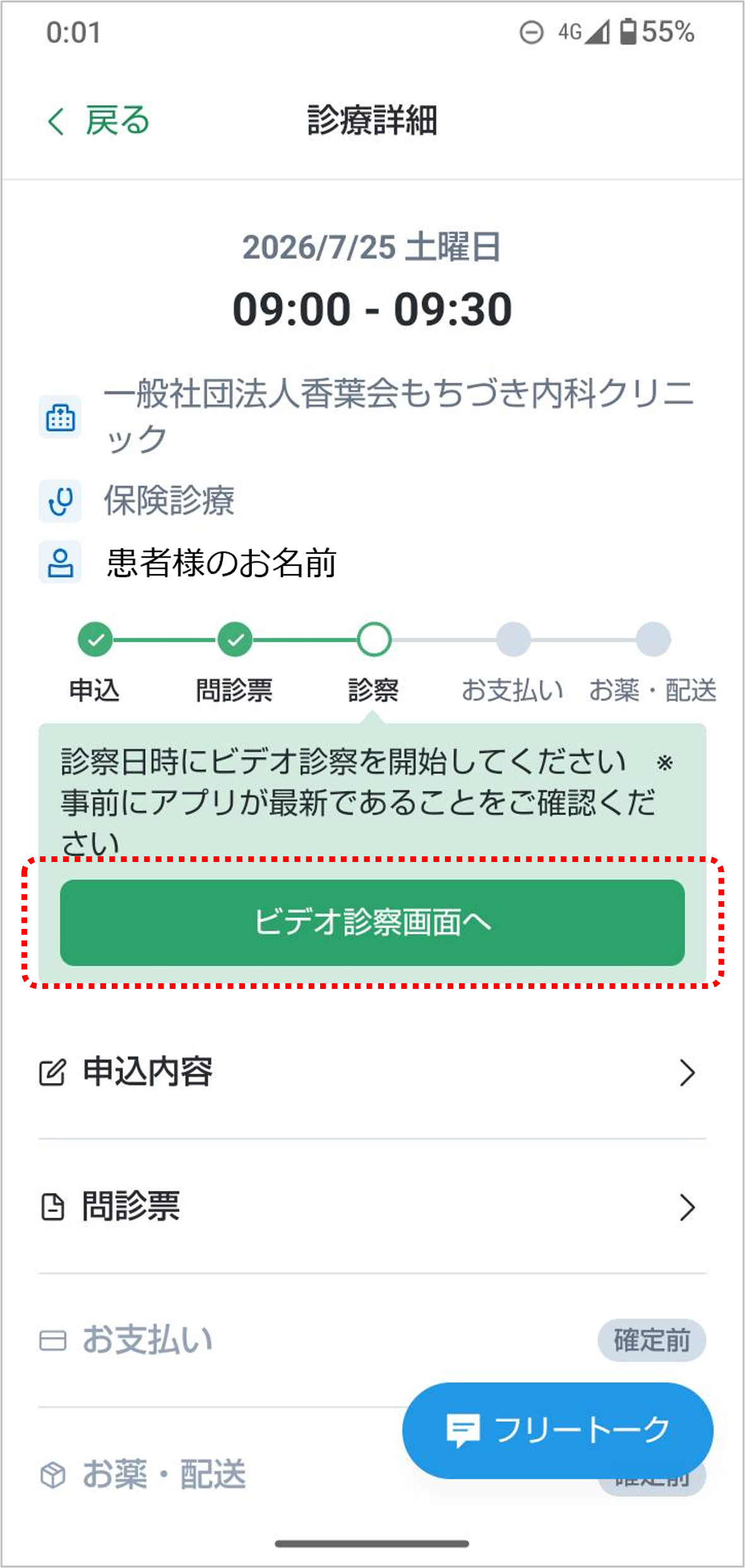 | 「ビデオ診察画面へ」をクリック ※予約完了の際に届くメールに記載されている「クロンの診療ページを開く」を押していただくと、直接このページにつながります。 |
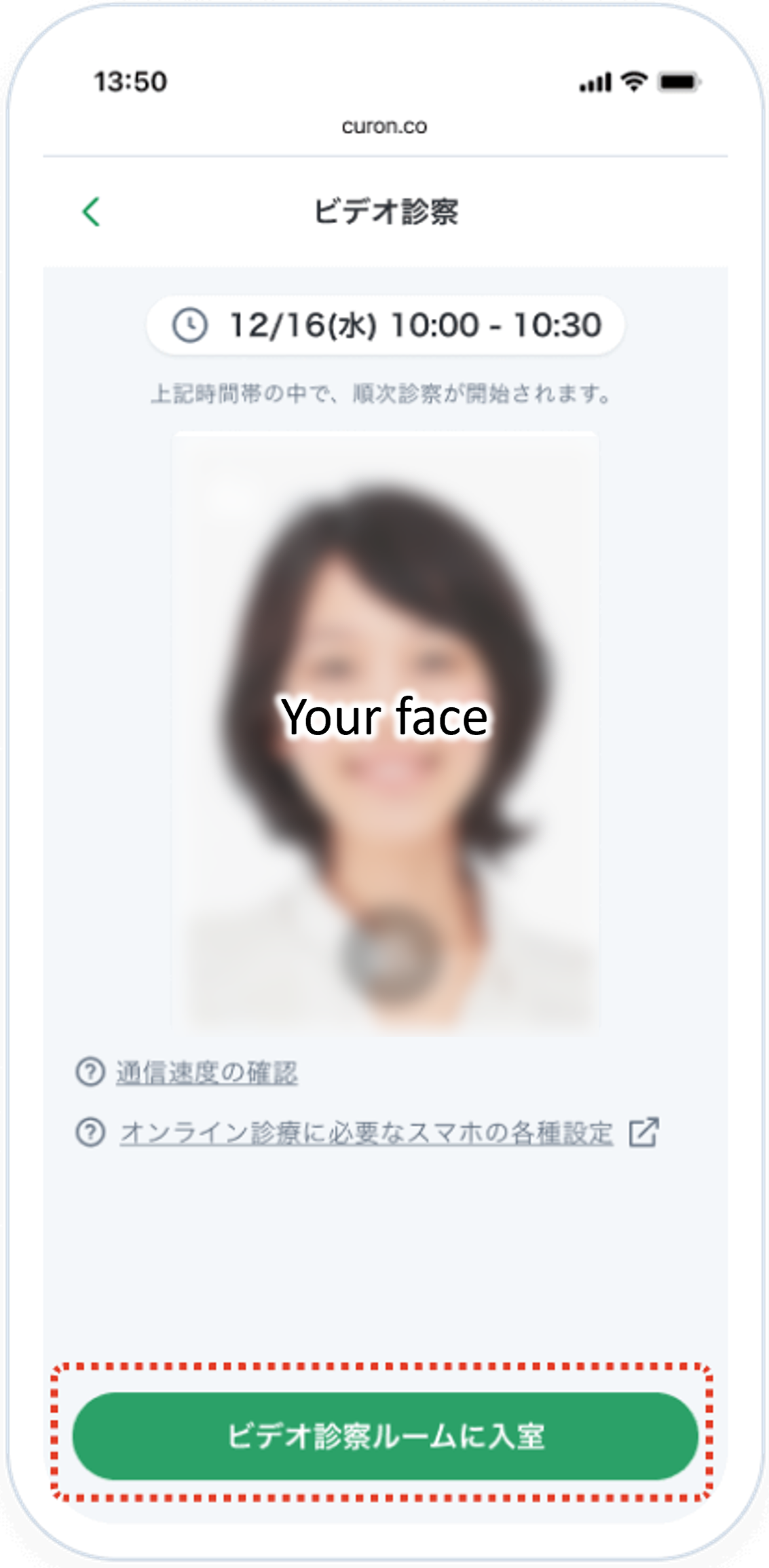 | ■ ビデオ診察ルームに入室 ご自身の映像と音声が確認できたら「ビデオ診察ルームに入室」を押して、医師の入室までお待ちください。 ※予約時間帯の中で順次診察を行うので、少しお待ちいただくことがあります。 |
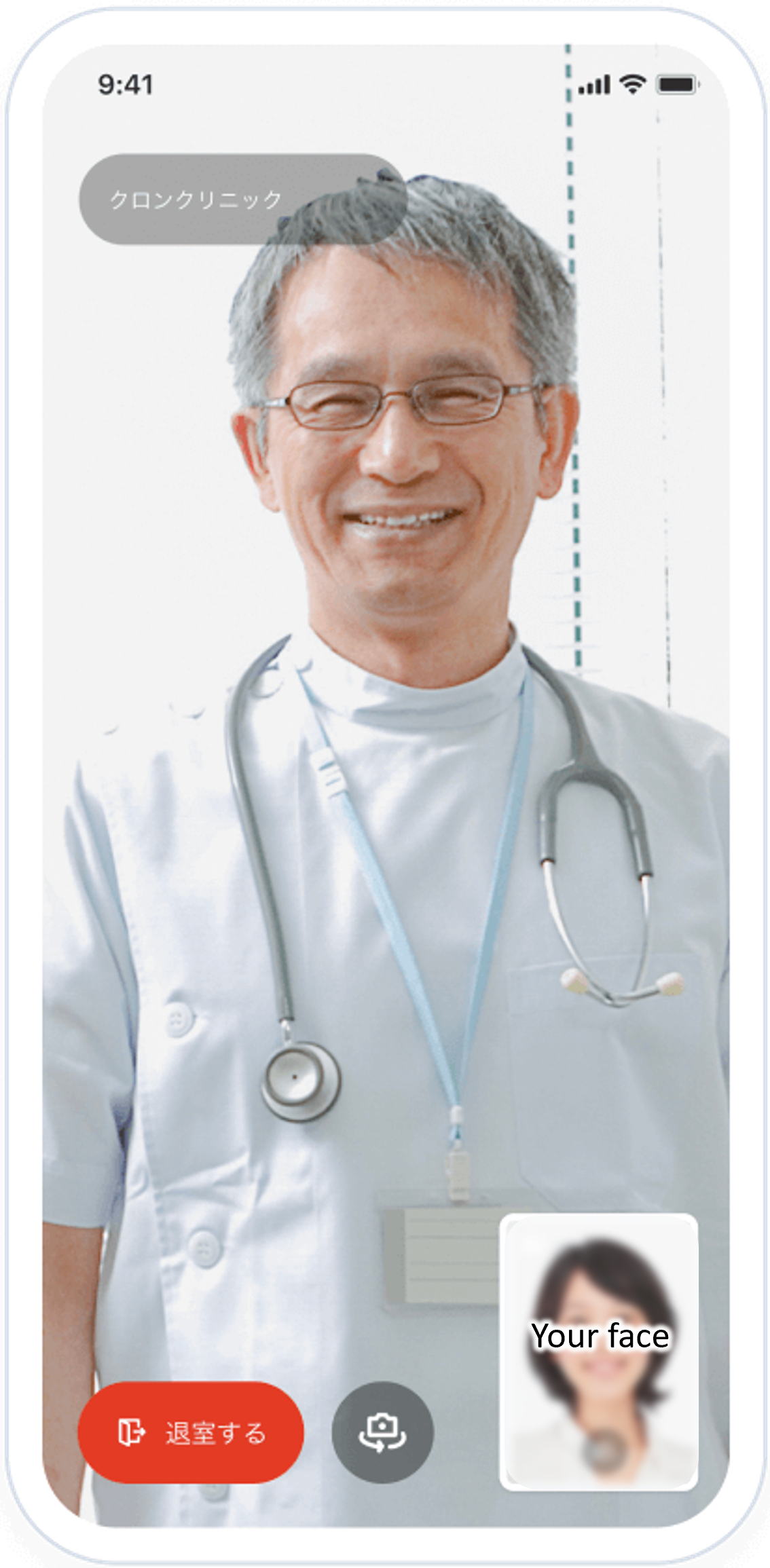 | ■ ビデオ診察 医師が入室したら、診察が開始されます。 ビデオ診察が終わったら、画面左下の赤いボタンを押して通話を終了します。 |
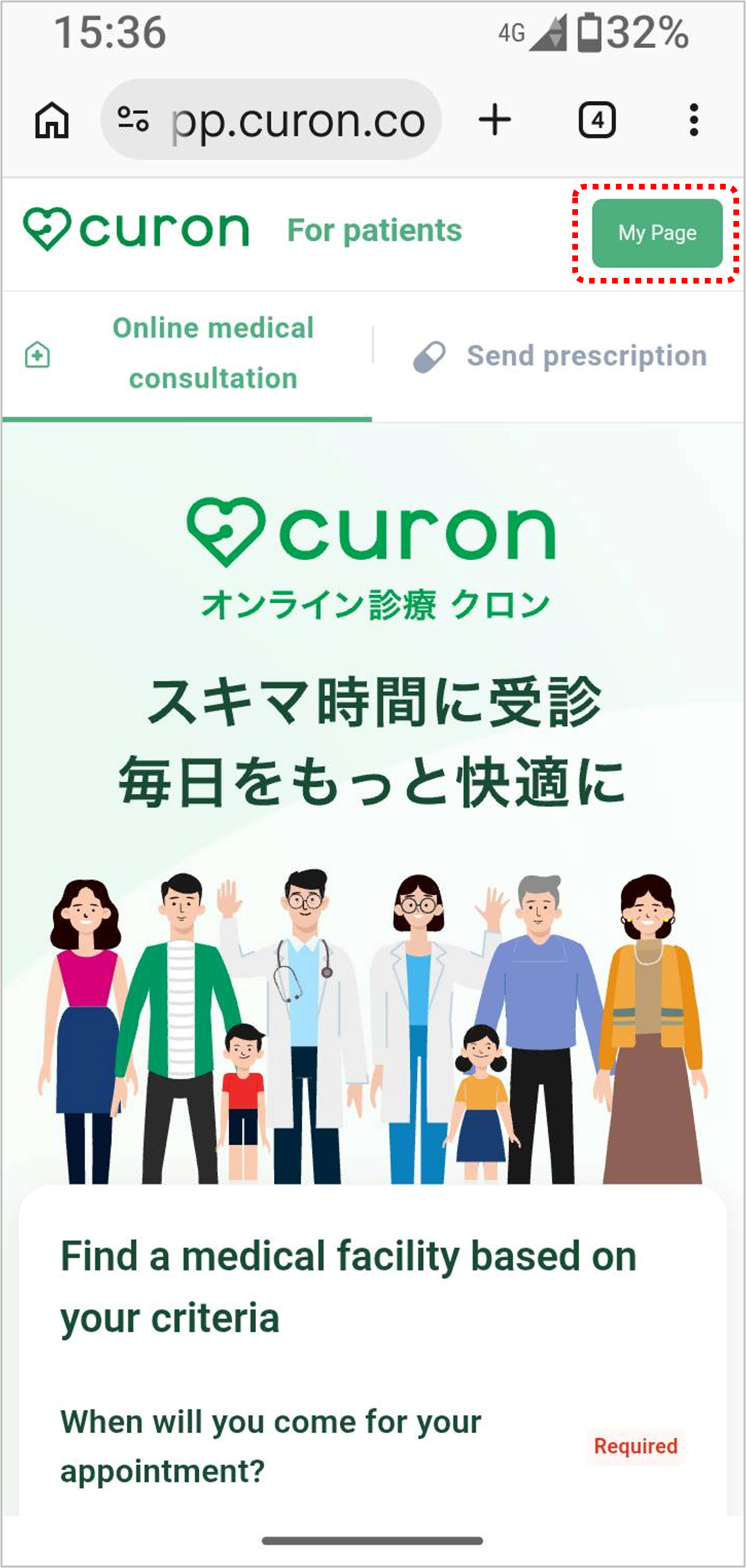 | ■ When Your Appointment Time Arrives At your scheduled appointment time, go to the curon website. https://app.curon.co Click "My Page". |
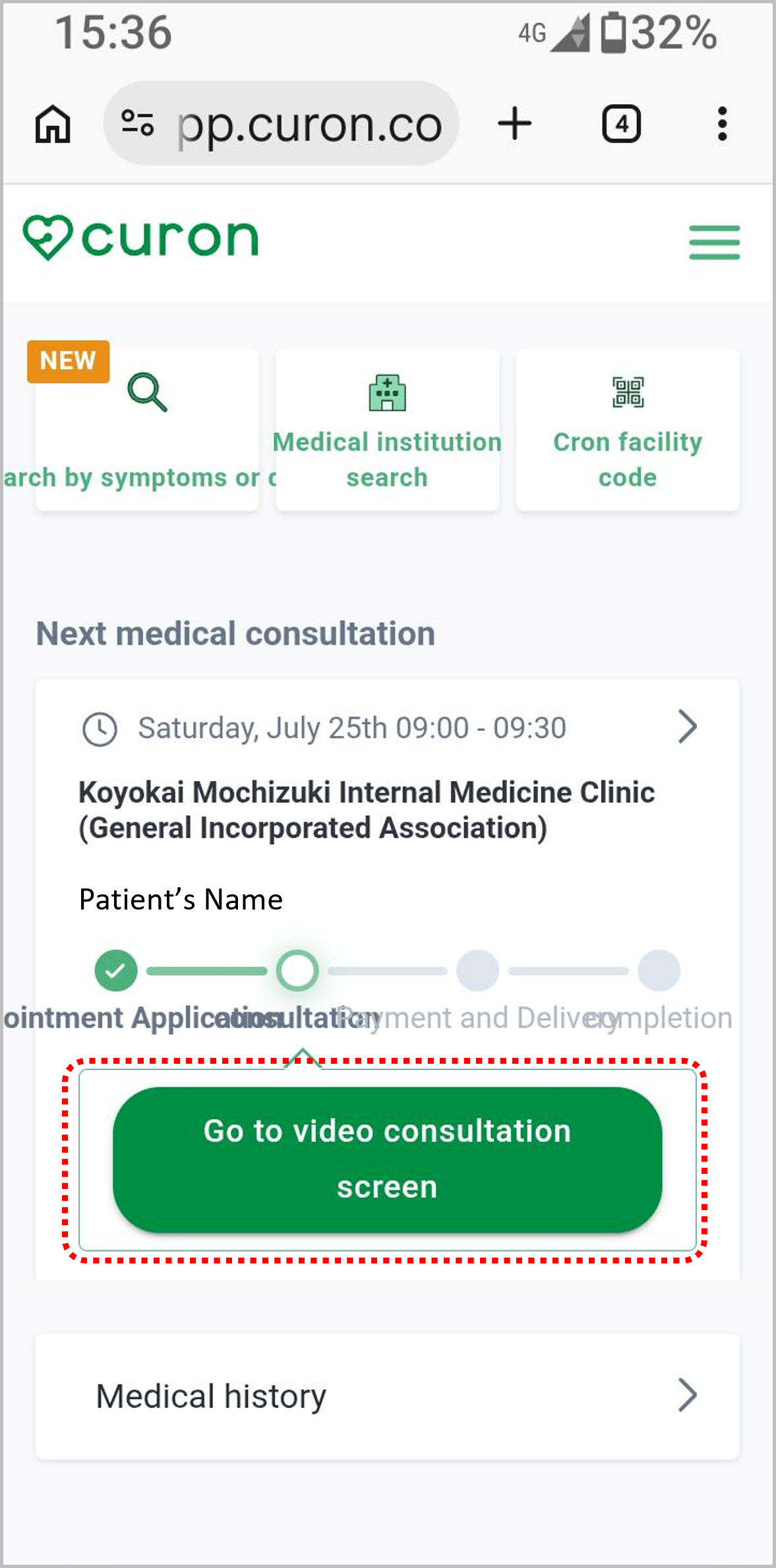 | Click “Go to video consultation screen” |
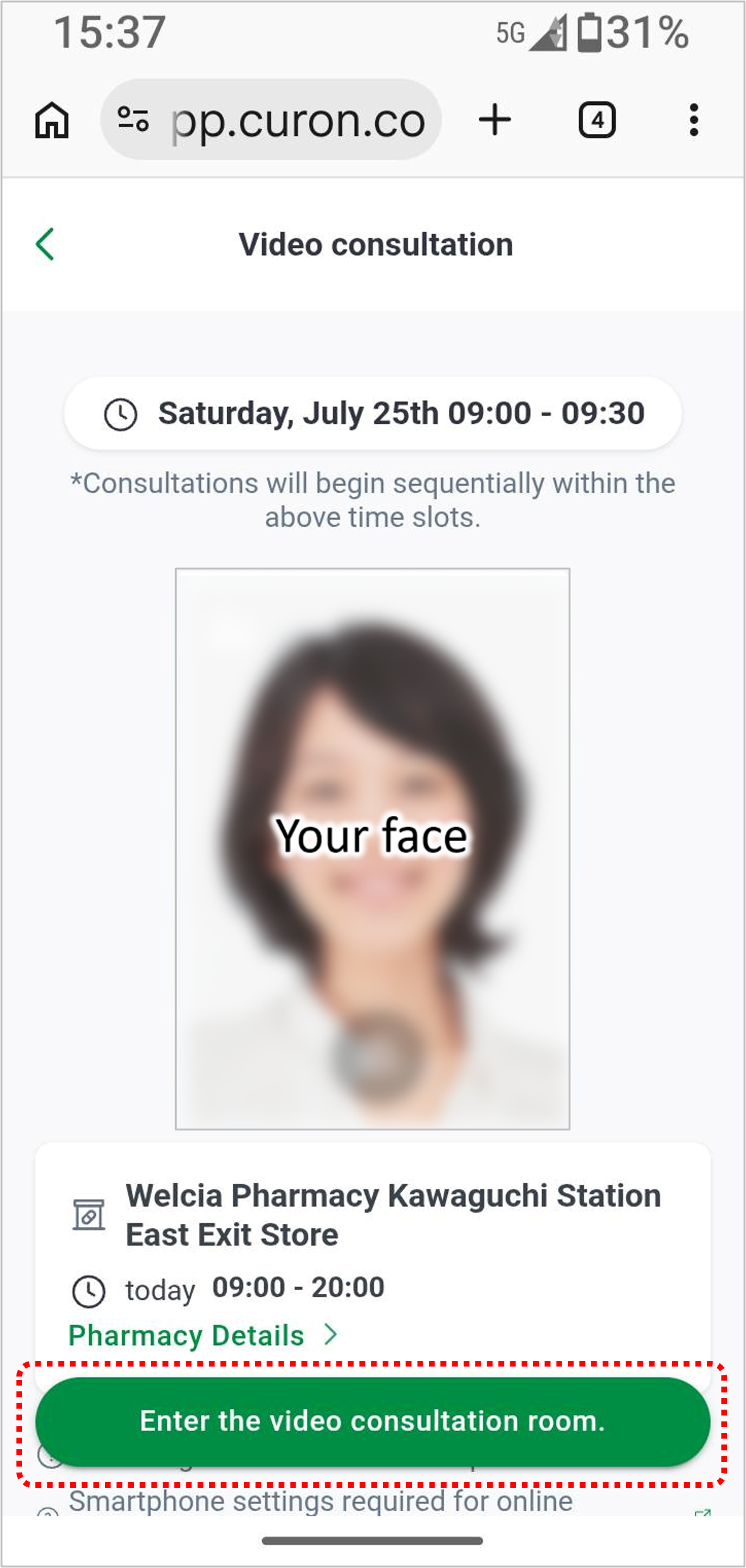 | ■ Join the Video Consultation Once you have confirmed your video and audio, click "Enter the video consultation room" and wait for the doctor to enter the room. *Please note that you may have to wait a short time as consultations are conducted sequentially within your appointment time slot. |
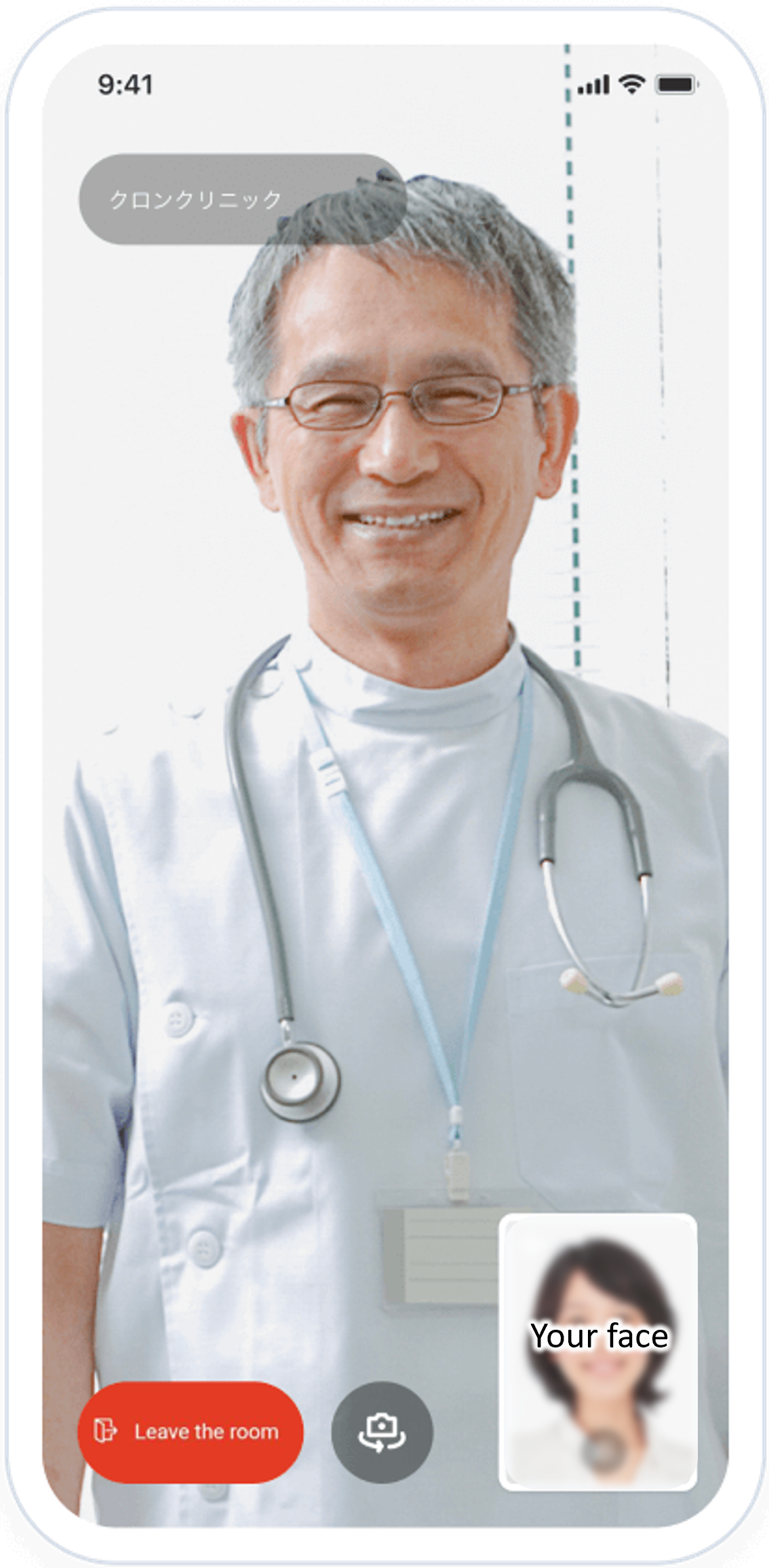 | ■ Video Consultation Once the doctor enters the room, the consultation will begin. When the video consultation is over, press the red button in the bottom left of the screen to end the call. |
STEP4 カード決済
Payment by credit card
診察料およびシステム利用料などのお支払いは、クレジットカード一括払いのみとなります。(Visa、Mastercard、JCB、American Express、Diners Club)
- PayPay、Suicaなどのキャッシュレス決済や現金、ビットカード、プリペイドカードはご利用いただけません。
- 薬代は薬局でのお支払いとなりますのでご注意ください。
Payment for consultation fees, system usage fees, and other charges is available by credit card only, with payment in full in a single transaction. (Visa, Mastercard, JCB, American Express, and Diners Club)
- Cashless payment methods such as PayPay and Suica, as well as cash, debit cards, and prepaid cards, are not accepted.
- Please note that medication costs are paid separately at the pharmacy.
STEP5 薬局で薬の受取り
Picking up medication
薬の受取り申請
How to apply for medication
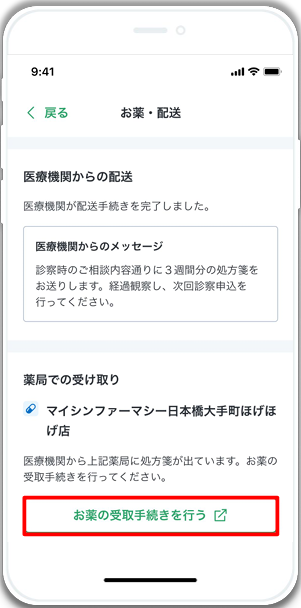 | ■ 薬の受取手続きを開始する オンライン診療後、「お薬の受取⼿続きを⾏う」 |
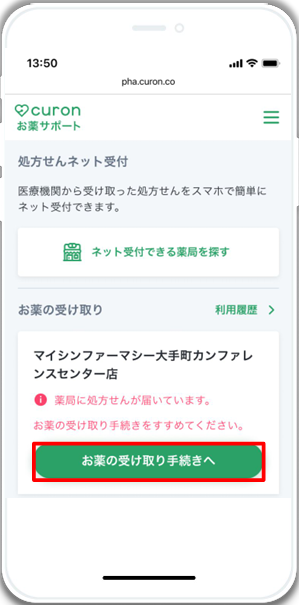 | 「お薬の受け取り⼿続きへ」 |
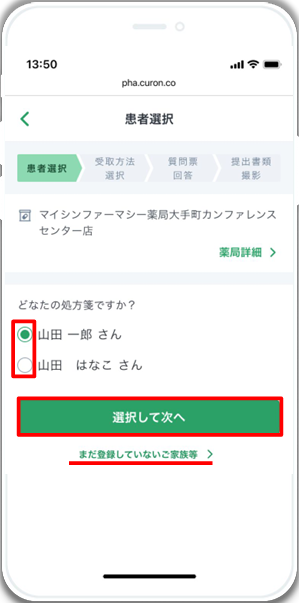 | ■ 患者様を選択 薬を処方される患者様を選択します。 |
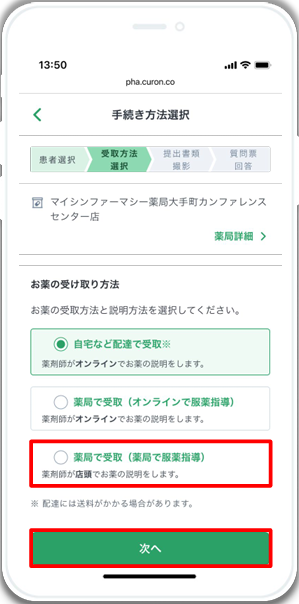 | ■ 受取方法を選択 「薬局で受取(薬局で服薬指導)」を選択します。 |
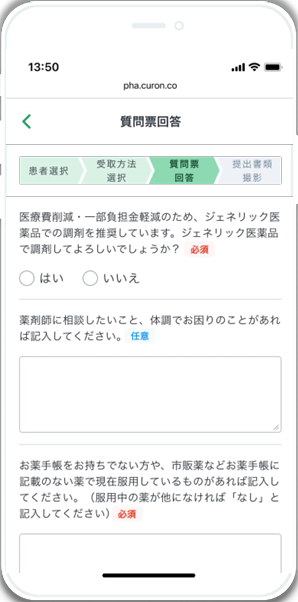 | ■ 質問票に回答 質問票に回答してください。 |
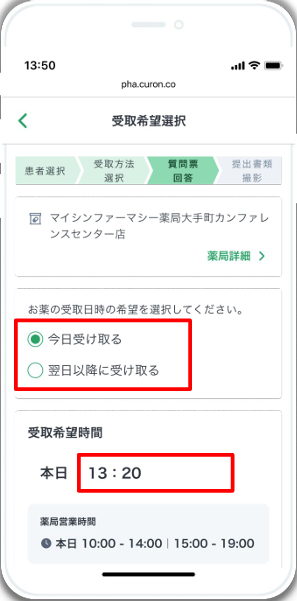 | ■ 受取日時を選択 お薬の受け取り希望⽇時を選択します。 「翌⽇以降に受け取る」を選択する場合、当⽇を含め4⽇先までの⽇程を選ぶことが可能です。 ※処⽅箋には期限がありますので、必ず期限内の⽇程で選択してください。 |
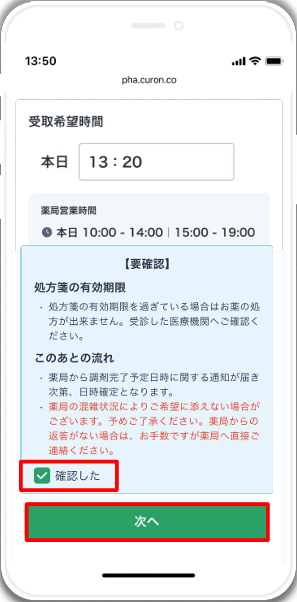 | ■ 確認事項 【要確認】の内容をご一読いただき、「確認した」に ✔ を⼊れ「次へ」 |
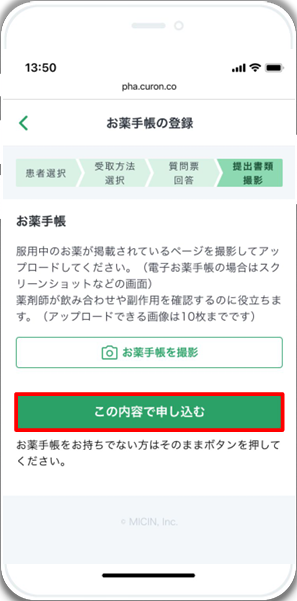 | ■ お薬手帳を登録 お薬⼿帳を登録します。 お薬⼿帳をお持ちの場合は「お薬⼿帳を撮影」をクリックし、撮影した画像をアップロードしてください。 (画像は10枚まで登録可能) ※お薬⼿帳をお持ちでない場合はスキップしてください。 「この内容で申込む」をクリックし、申込みは完了です。 |
| ■ Medication Pickup Process After your online consultation, click "お薬の受取⼿続きを⾏う(Pick up medication)". |
| Click "お薬の受け取り⼿続きへ(Proceed to receive your medication)". |
| ■ Select a Patient Select the patient to whom the medication will be prescribed. |
| ■ Select your pickup method Select "薬局で受取(Pick up at the pharmacy)". |
| ■ Answer the questionnaire Please answer the questionnaire. |
| ■ Select Pickup Date and Time Select the desired pickup date and time for your medication. If you select "翌⽇以降に受け取る(Pick up tomorrow onwards)", you can choose a date up to four days in the future. *Prescriptions have expiration dates, so be sure to select a date within the expiration date. |
| ■ Confirmation Items Please read the "要確認(Confirmation Required)" section, check "確認した(I have confirmed)" and click "次へ(Next)". |
| ■ Register your medication record If you have a medication record, click "お薬⼿帳を撮影(Take a photo of your medication record)" and upload the images. *Up to 10 images can be registered. *If you don’t have a medication record, please skip this step. Click "この内容で申込む(Apply with this information)" to complete your application. |
薬の受取り方
How to pick up medication
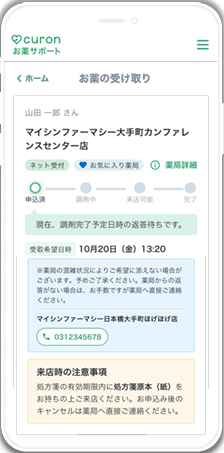 | ■ 調剤受付 薬局への申し込みが完了すると、この画⾯が表⽰されます。 薬局からの調剤受付の返答をお待ちください。 ※やむを得ずキャンセルをしたい場合は、必ず薬局へご連絡ください。 |
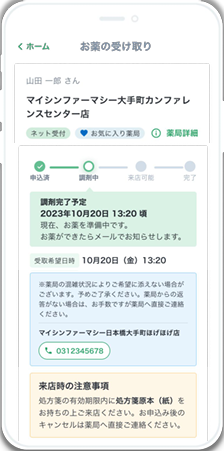 | ■ 受付完了の通知が届く 薬局にて調剤受付が完了すると、お渡し予定⽇時がメールやLINEで通知されます。 |
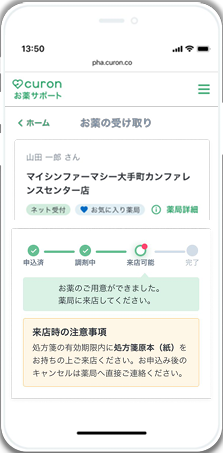 | ■ 来店可能の通知が届く お薬の準備が整いますと「来店可能」の通知が届きますので、指定した薬局へご来店ください。 |
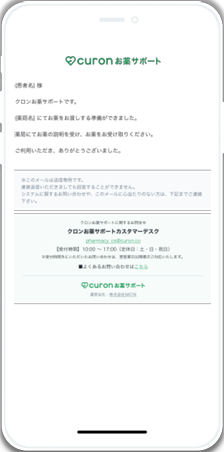 | ※こちらの通知を確認後、薬局にご来店いただき服薬指導とお薬の受取りを行ってください。 ※会計は店頭で行います。 |
| ■ Waiting for Medication Preparation Once your application with the pharmacy is complete, this screen will appear. Please wait for a response from the pharmacy. *If you need to cancel for unavoidable reasons, please be sure to contact the pharmacy. |
| ■ Pharmacy Confirmation Notification Once the prescription is received at the pharmacy, you will be notified by email or LINE of the scheduled pickup date and time. |
| ■ Ready for Pickup Notification Once your medication is ready, you will receive a notification "来店可能(Pickup notification) ", so please come to the designated pharmacy. |
| *Once you have received this notice, please go to the pharmacy to receive medication counseling and pick up your medication. *You will pay at the pharmacy |
Do you already have an account?
Click HERE to go directly to our web appointment page.
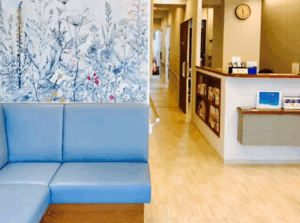 もちづき内科クリニックは、戸越公園駅より徒歩約3分、品川区にある内科・アレルギー科のクリニックとして、女性医師が丁寧な診療を行っております。
休日診療にも対応し、一般保険診療からNMN点滴などの自由診療まで幅広くご相談いただけます。重症花粉症・アレルギー性鼻炎に対するゾレア®(オマリズマブ)注射治療にも対応しており、症状がつらい方にも新たな治療選択肢をご提供しています。
また、性感染症(STD)検査にも対応しており、プライバシーに配慮した環境で安心して検査を受けていただけます。土日の雇入時健康診断も受け付けております。